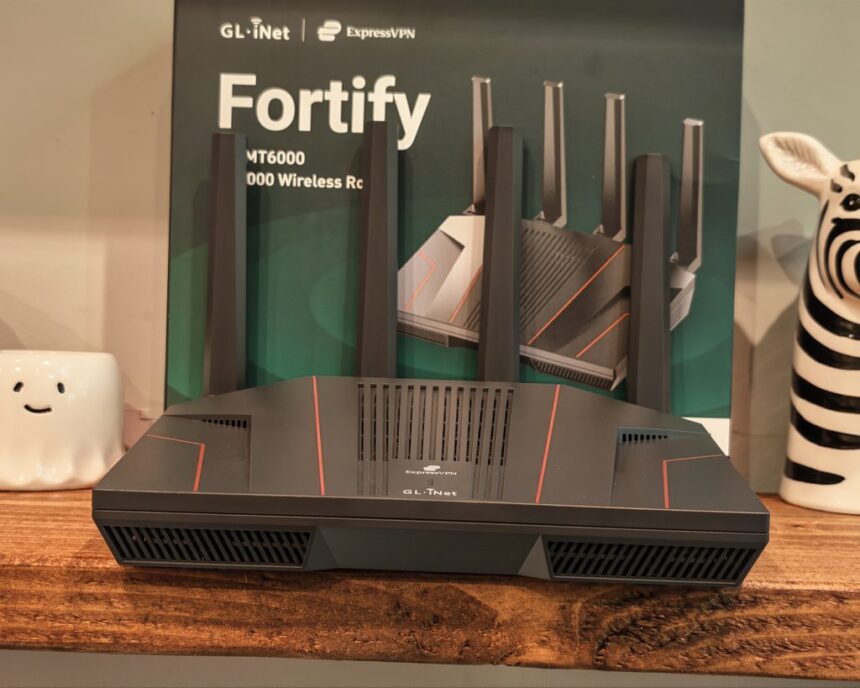
I have previously reviewed the Aircove Go and ExpressVPN Aircove. The Aircove Go was a rebranded GL.iNet router but with a heavily modified user interface that restricted quite a lot of the original functionality, essentially making it only possible to use ExpressVPN.
They were good routers and the ExpressVPN firmware made them very easy to use but the lack of flexibility with VPNs limited their appeal considerably, in my opinion.
ExpressVPN and now back with the Fortify, which is a rebranded version of the GL.iNet’s Flint 2.
However, things are a little different this time around. The firmware is still customised for ExpressVPN, but the modifications are much more limited and you get almost all the functionality of the GL.iNet Flint 2.
I have previously reviewed the GL.iNet Flint 3 and thought it was superb, probably my favourite consumer router. The Flint 2 is mostly the same functionality-wise, but with lower-spec hardware.
Specification
| Specification | Fortify (GL-MT6000) |
|---|---|
| Interface | 1 x 2.5G WAN Ethernet Port, 1 x 2.5G WAN/LAN Ethernet Port, 4 x LAN Ethernet Ports, 1 x USB 3.0 Port, 1 x Reset Button |
| CPU | MediaTek Quad-core Processor, @2.0 GHz |
| Memory / Storage | DDR4 1 GB / eMMC 8 GB |
| Protocol | IEEE 802.11a/b/g/n/ac/ax |
| Wi-Fi Speed | 2.4 GHz: up to 1148 Mbps; 5 GHz: up to 4804 Mbps |
| Ethernet Speed | 2 x 2.5G Ports: 10/100/1000/2500 Mbps; 4 x 1G Ports: 10/100/1000 Mbps |
| Antennas | 4 x 2.4 GHz + 5 GHz two-in-one Wi-Fi Antennas |
| LEDs | 1 x Dual-colour LED Indicator for Power and Internet |
| Power Input | DC5521, 12V/4A (5.5 x 2.1 mm) |
| Power Consumption | <20W |
| Operating Temperature | 0°C to 40°C |
| Storage Temperature | -20°C to 70°C |
| Dimension / Weight | 233 x 137 x 53 mm / 761 g |
| Quoted VPN speed | WireGuard up to 900 Mbps; OpenVPN DCO up to 880 Mbps |
| Included VPN plan | 12 months of ExpressVPN Advanced for new and returning customers |
The processor is the MediaTek Filogic 830, which is the same chip used in the Flint 2. Compared to the original Aircove, which had a 1.2 GHz quad-core CPU, 512 MB of RAM and 128 MB of flash storage, this is a substantial hardware upgrade. The Aircove was also limited to 80 MHz channels on 5 GHz and gigabit Ethernet throughout, whereas the Fortify supports 160 MHz channels, 4×4 MIMO on 5 GHz and has two 2.5GbE ports.
Unboxing / Design
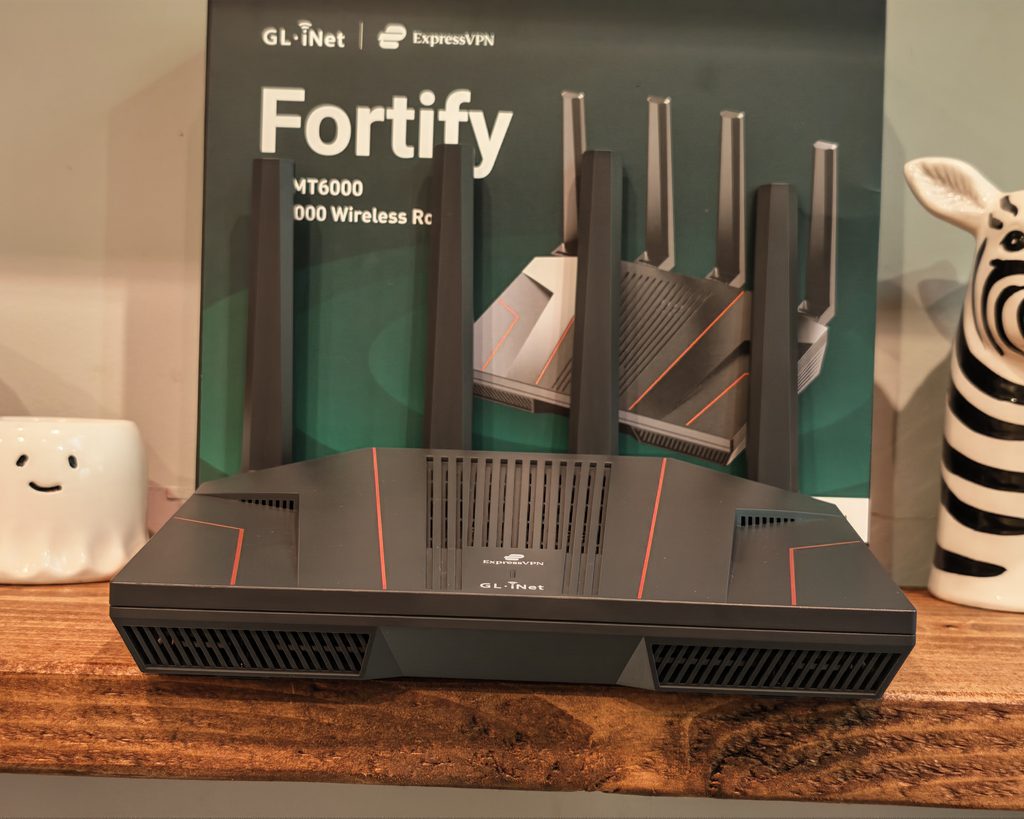
As far as I can tell, the hardware is identical to the Flint 2. The only visual differences are the ExpressVPN logo next to the GL.iNet logo on the top panel and thin red accent lines across the casing. The packaging is labelled as a limited edition and is co-branded, with the 12-month ExpressVPN Advanced subscription highlighted on the front.
Inside the box, you get the router, a 12V/4A power adaptor, an Ethernet cable and the usual documentation.
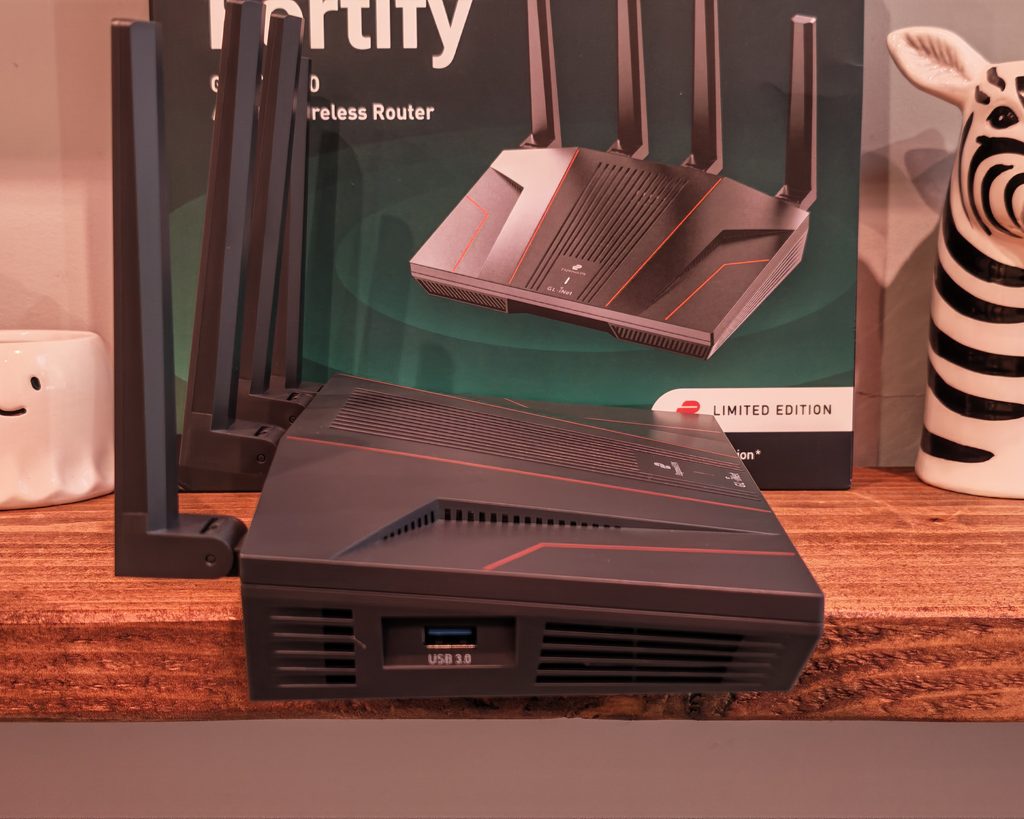
The router has a matte black, angular design with a large ventilated section on top and vents along the front and sides. It looks like networking gear rather than a lifestyle product, so it suits a desk, shelf or cupboard more than a living room. The four antennas are permanently attached but hinge so you can angle them or fold them flat.
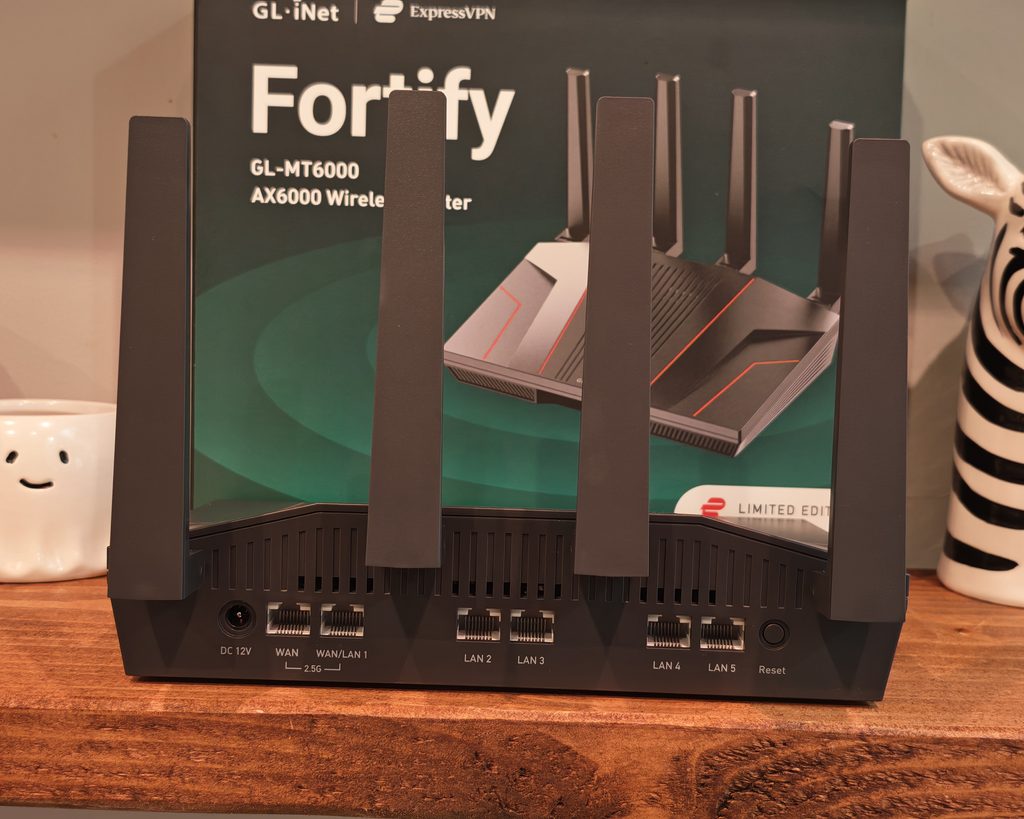
On the rear, you have the DC input, the 2.5GbE WAN port, the 2.5GbE WAN/LAN1 port, four gigabit LAN ports and the reset button. The single USB 3.0 port is on the side, which makes it easier to plug in a USB drive or a 4G/5G dongle without reaching around the back. There is a single LED on the front for power and internet status rather than an array of port lights, which I prefer.
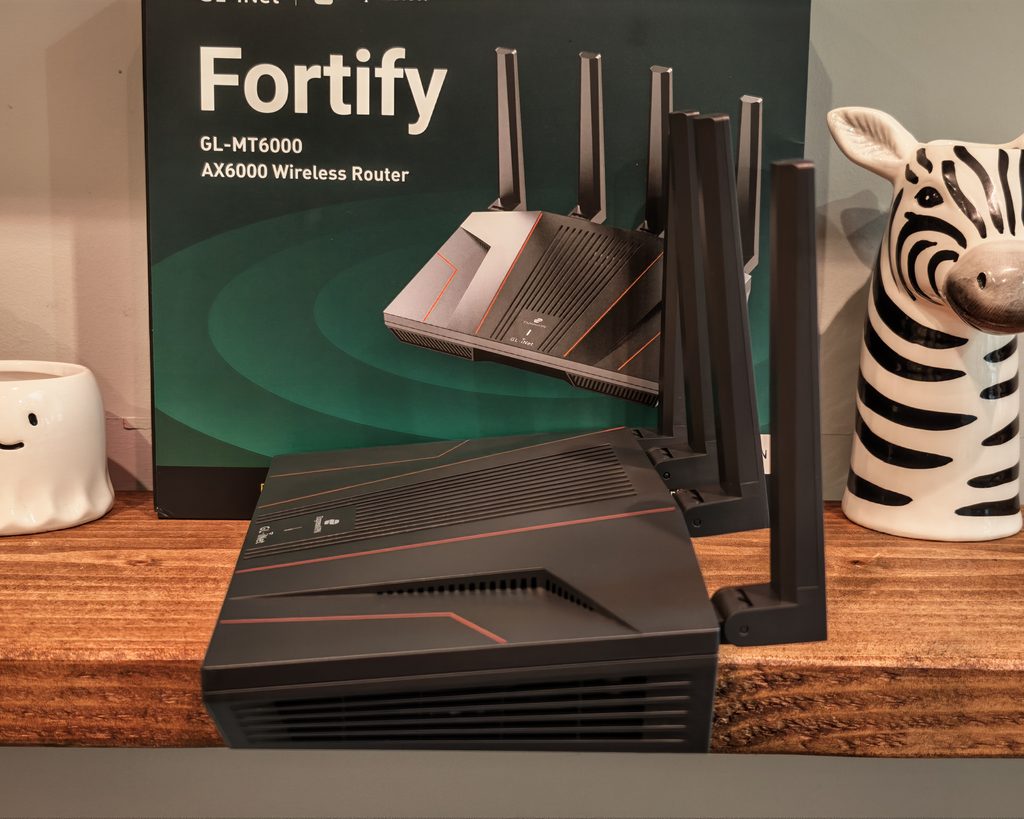
My main criticism of the port layout is that only two ports are 2.5GbE, and one of those is the WAN. If you have a multi-gig internet connection, that leaves one 2.5GbE port for a NAS or desktop, with everything else on gigabit. The Flint 3 has five 2.5GbE ports, which is one of the reasons it costs more.
Set Up
Setting up the Fortify is the same as any other GL.iNet router. You connect to the default Wi-Fi network using the credentials on the label underneath, or via Ethernet, then browse to 192.168.8.1. The wizard asks you to choose a language and set an admin password, after which you land on the main dashboard. There is also the GL.iNet smartphone app if you prefer, but I find the web interface quicker and more complete.
My Aquiss connection on CityFibre uses PPPoE, so I selected that option on the Internet page and entered my username and password. The router connected straight away. DHCP and static IP are also supported, as are repeater mode, USB tethering and USB 4G/5G modems, which I cover below.
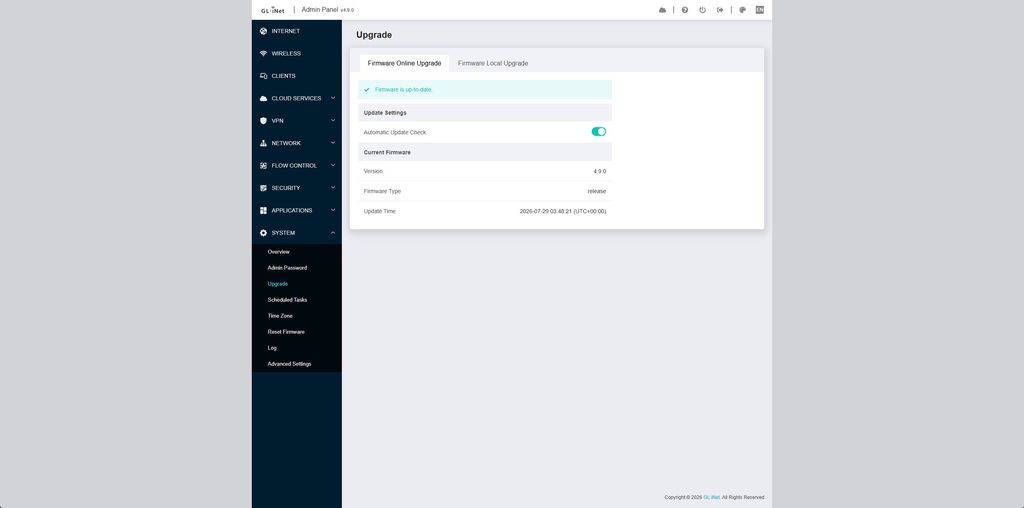
It is worth checking for a firmware update straight away. My unit was running firmware v4.9.0, which is the current GL.iNet firmware branch.
The ExpressVPN activation is part of the VPN section rather than the initial set-up wizard. That is a sensible change from the Aircove, which pushed you into ExpressVPN from the start. With the Fortify, you can get the router running first and then decide whether you want to activate the subscription.
There are two cloud services listed in the menu. GoodCloud is GL.iNet’s remote management platform, which lets you view and manage the router from anywhere. AstroWarp is GL.iNet’s newer networking service for linking sites and devices. Both are optional, and I left them disabled, as I prefer Tailscale for remote access.
Settings and Features
The interface is the standard GL.iNet admin panel, with menus for Internet, Wireless, Clients, Cloud Services, VPN, Network, Flow Control, Security, Applications and System. Pages load quickly, and the layout is far easier to navigate than the LuCI interface underneath.
The Wireless page lets you set up three separate network groups: Main, Guest and IoT. Each one has its own SSIDs for 2.4 GHz and 5 GHz and its own subnet, so you can keep smart home devices away from your computers and NAS without needing to understand VLANs. Each SSID can have its own security mode, transmit power and wireless settings. For a consumer router, this is a better approach than most brands, which typically offer a guest network and nothing else.
One thing I noticed is that the default security mode is WPA2-PSK. I would switch the main network to WPA2/WPA3 mixed mode so that modern devices use WPA3 while older devices can still connect. I would also leave the IoT network on WPA2 and 2.4 GHz for compatibility, which is what GL.iNet recommends on the page.
The Clients page lists connected devices, with options to reserve an IP address, block a device or set speed limits. My one gripe is device identification. Devices appear by hostname and MAC address, and my desktop showed up twice under the same name, once for the wired connection and once for the wireless one. On a network with dozens of smart home devices, this gets messy quickly.
Under Network, you have the multi-WAN options. The second 2.5GbE port can be used as an additional WAN, and you can also use USB tethering, a USB 4G/5G modem or a repeater connection to another Wi-Fi network. These can be set up for failover or load balancing. I use a 5G router as failover on my main UniFi network, and having this built into a sub-£200 consumer router is useful for anyone working from home on an unreliable connection.
Other options include IPv6, port forwarding, DMZ, DNS settings with DNS over HTTPS and DNS over TLS, network acceleration, and drop-in gateway mode. Drop-in gateway mode lets you place the Fortify behind your existing ISP router and handle VPN and AdGuard Home for selected devices, without replacing the main router.
VPN Performance & Policy Based Routing
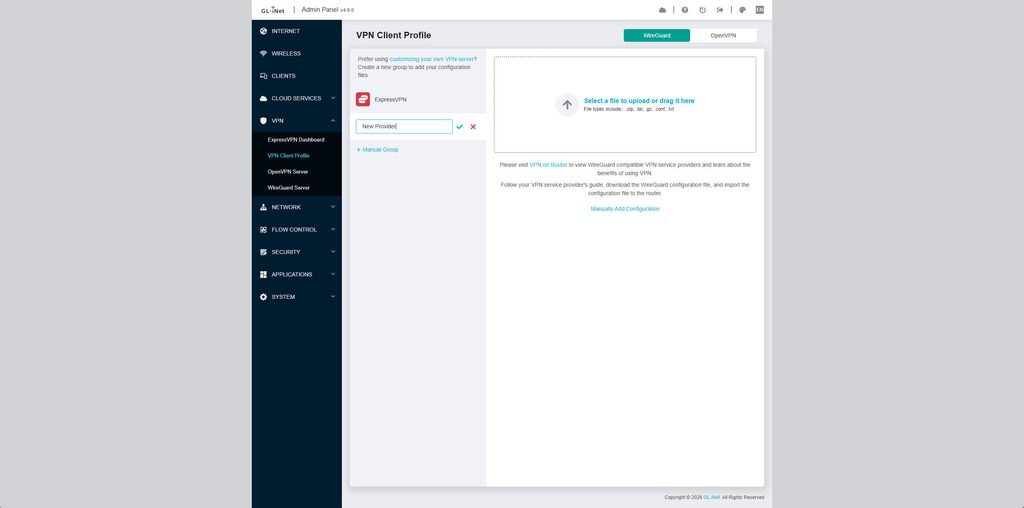
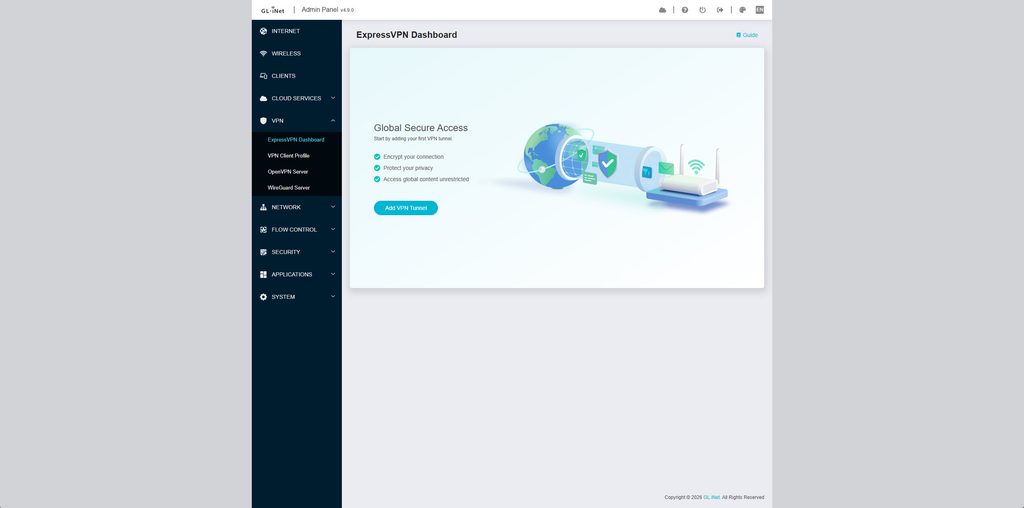
The VPN section of the router is the main thing that differs between the Fortify and Flint 2, and it is a relatively small change.
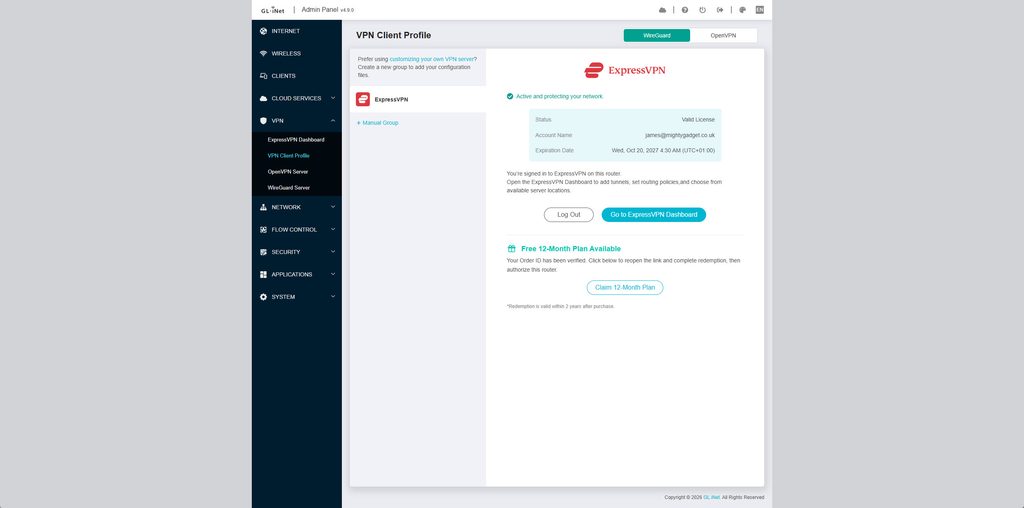
Basically, when you go to the VPN Client Profile, there is only one pre-defined option, and that is for ExpressVPN. From this, you can log in to your VPN account and claim your 12-month plan. To get the plan, you will need to provide a purchase order from either Amazon or GL.iNet. You will also need to go through the checkout process on ExpressVPN and provide a working payment method, though no money will be taken. If you have no intention of renewing, you can cancel the account straight away, where you will also be offered 3 additional months for free.
The plan included is ExpressVPN Advanced. As well as the VPN, this includes the ExpressKeys password manager and a private email relay for masking your email address when signing up for services. These features live in the ExpressVPN apps on your phone and computer rather than on the router.
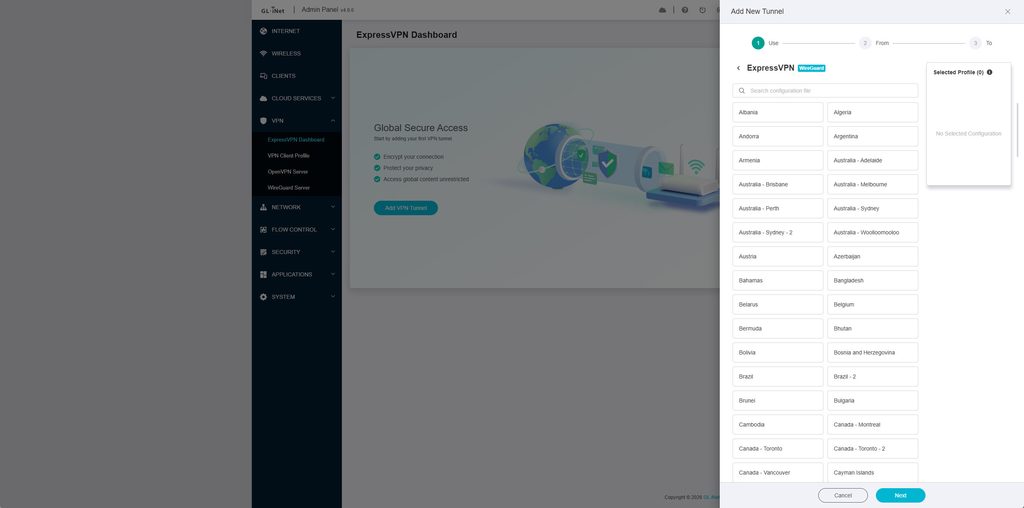
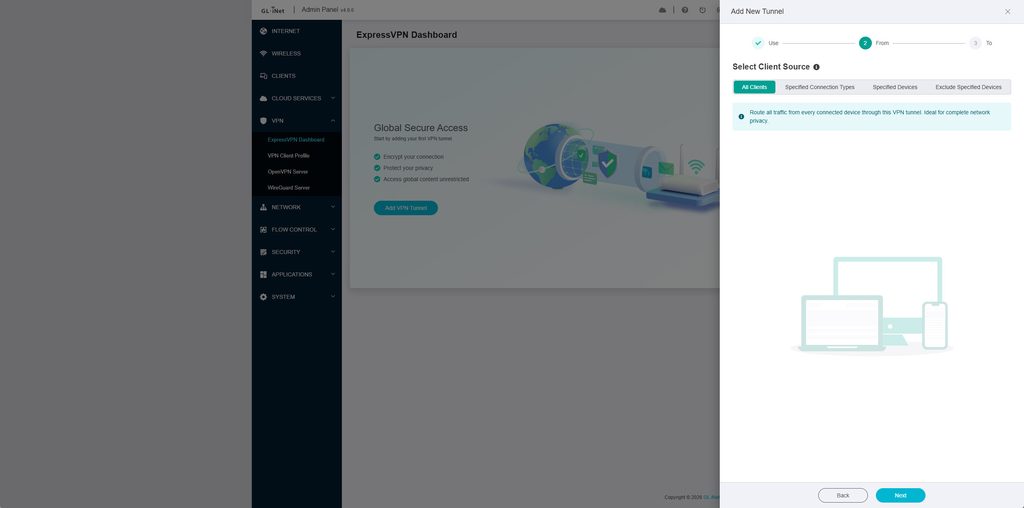
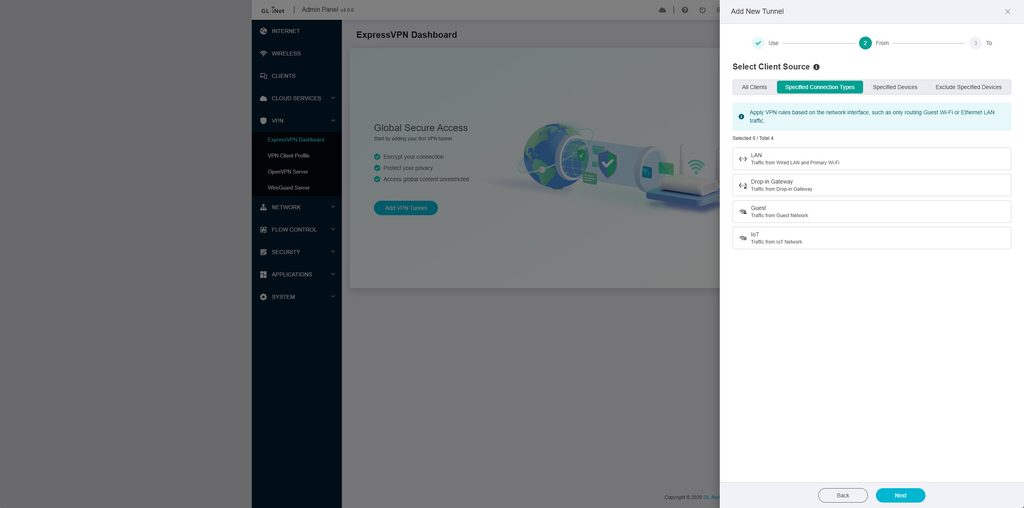
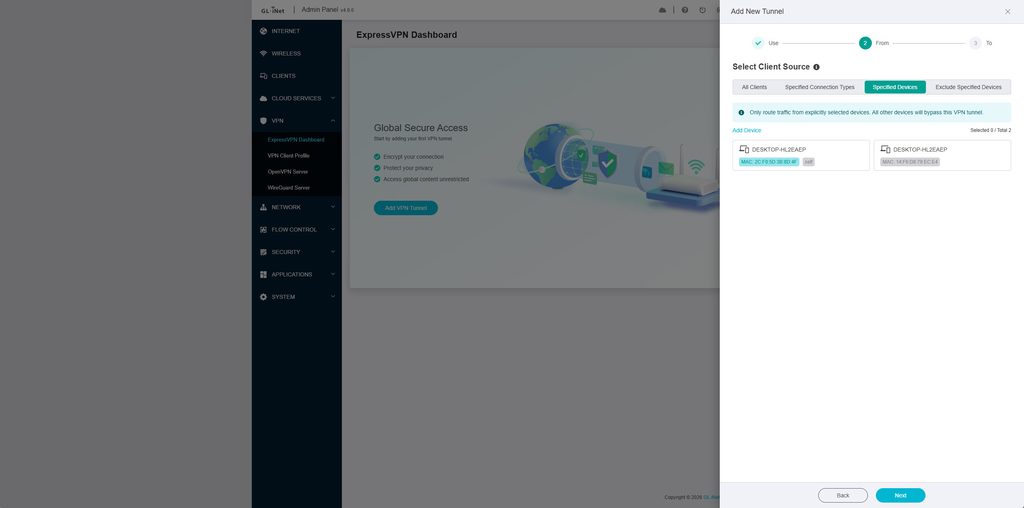
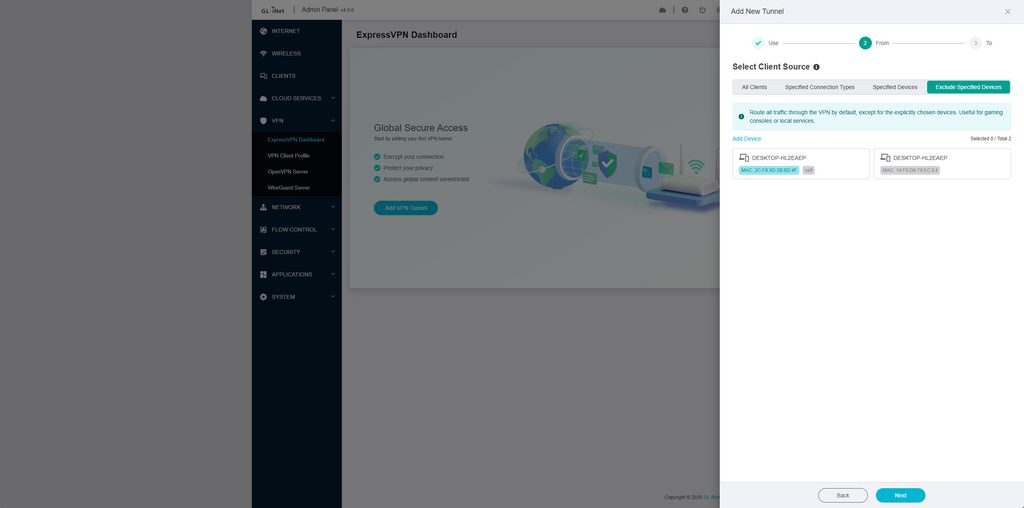
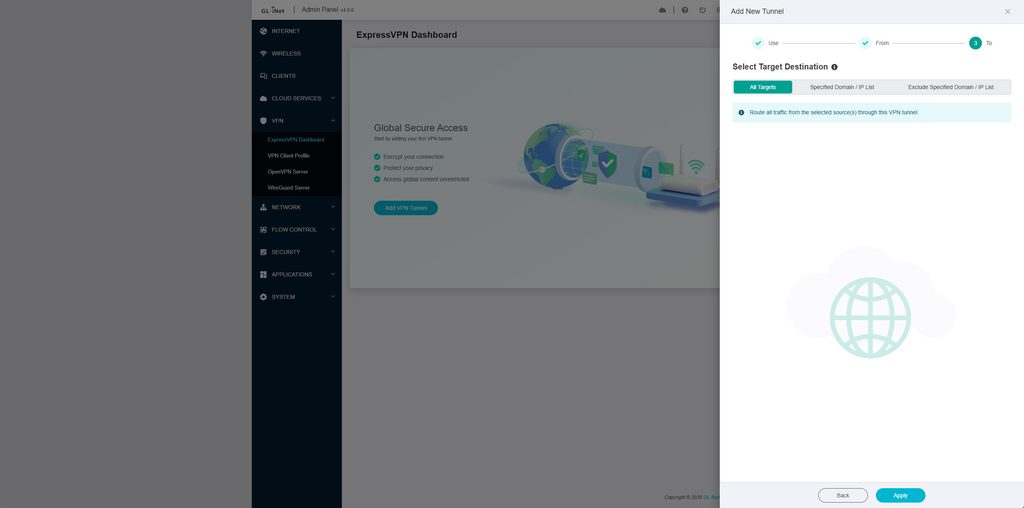
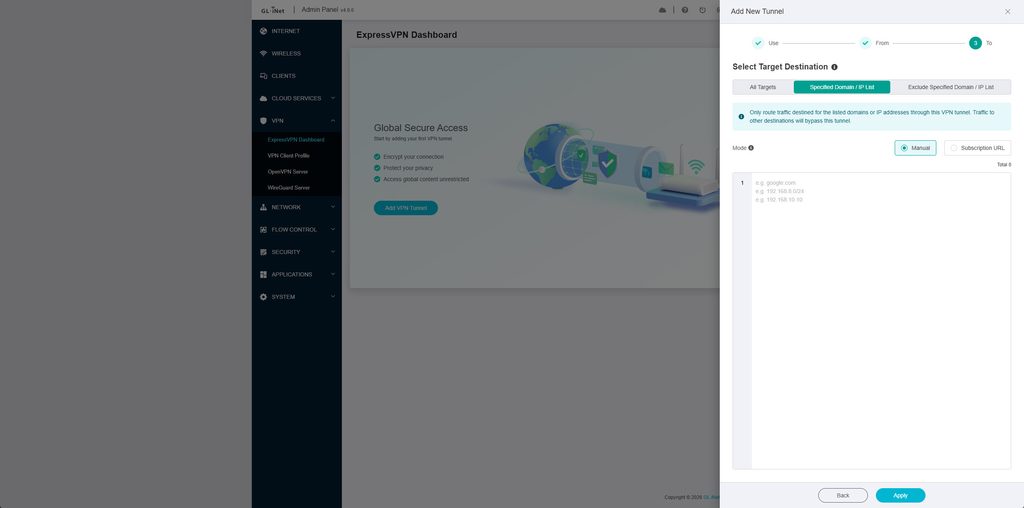
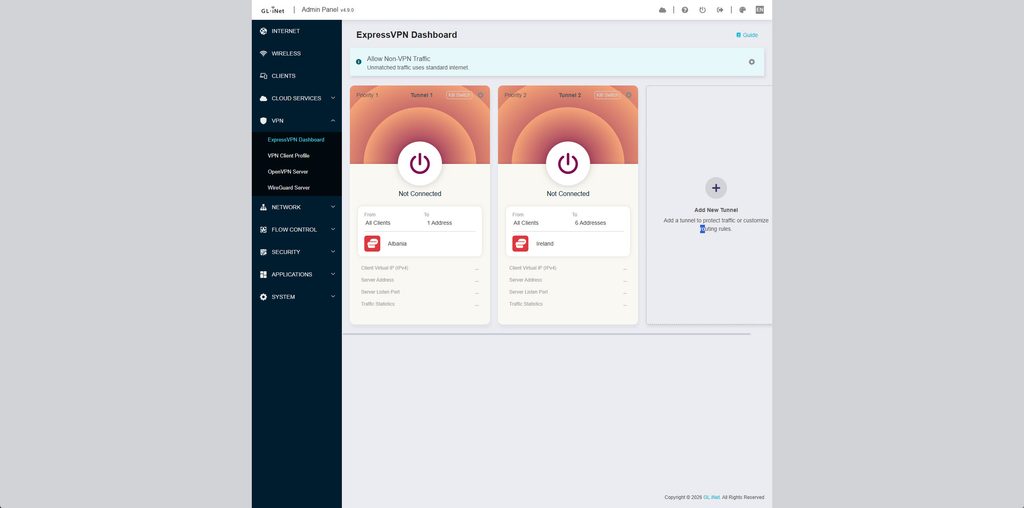
With ExpressVPN set up, you can go to the ExpressVPN Dashboard and set up tunnels. This is an amazing feature of GL.iNet routers and the ExpressVPN branded models. Rather than sending all traffic through the VPN, you can set up rules based on connection type or devices, or ignore specific devices. You can then define targets that are either domain or IP based.
The rule-based system is something that has become increasingly important over the past couple of years, as you can use it to bypass the ridiculous ID checks that have been introduced as part of the Online Safety Act. I simply don’t trust websites, or the third-party ID providers, to store identity data securely, and that lack of trust has already been justified with the Discord hack, which exposed 70,000 Discord users’ ID photos.
Unfortunately, the Online Safety Act causes a lot of valid websites to require ID checks. Reddit is a good example. My partner was regularly being blocked from a true crime subreddit, and I was blocked from the UK medical cannabis subreddit. So, I now run all Reddit traffic through an Irish VPN server using the rule-based policies on the Fortify, which has worked great.
Another popular option is to run YouTube through particular countries, such as Albania or Andorra, to avoid adverts.
Under the VPN Client Profile, you can import other VPN profiles, either manually or using a conf file from your VPN provider. As a test, I exported a WireGuard profile from Surfshark using an Irish server.
With the Surfshark profile installed, I could go to the ExpressVPN Dashboard and create a new tunnel using Surfshark instead. Other than that, all the settings are identical to the ExpressVPN settings.
This is the biggest change from the Aircove and Aircove Go. Both were locked to ExpressVPN, and I said in both reviews that the option to add other providers would make them far more appealing. The Fortify does exactly that. The only thing you lose compared to a GL.iNet branded router is the list of pre-configured providers, which saves a few minutes of downloading config files.
Protocols and speeds
At launch, the Fortify connects to ExpressVPN using WireGuard. The Aircove used ExpressVPN’s own Lightway protocol, along with OpenVPN and IKEv2. In my Aircove testing, IKEv2 was the fastest option, but WireGuard is generally faster and more efficient than all of those on router hardware, so I do not see the change as a loss.
GL.iNet quotes up to 900 Mbps for WireGuard and up to 880 Mbps for OpenVPN with DCO acceleration. Those figures are based on the router’s hardware capability under controlled conditions, so real-world speeds through a commercial VPN server will be lower and will depend on the server location, its load and your own connection.
Even so, the improvement over the Aircove is significant. ExpressVPN quoted up to 180 Mbps for the Aircove, and the best I achieved was 257 Mbps to a UK server using IKEv2, with Lightway UDP managing just 120 Mbps. The Fortify has around three times the processing headroom, so it is far less likely to be the bottleneck on a typical 500 Mbps or gigabit FTTP connection. For my Reddit traffic via Ireland, I have not noticed any slowdown compared to browsing without the VPN.
Kill switch and other VPN options
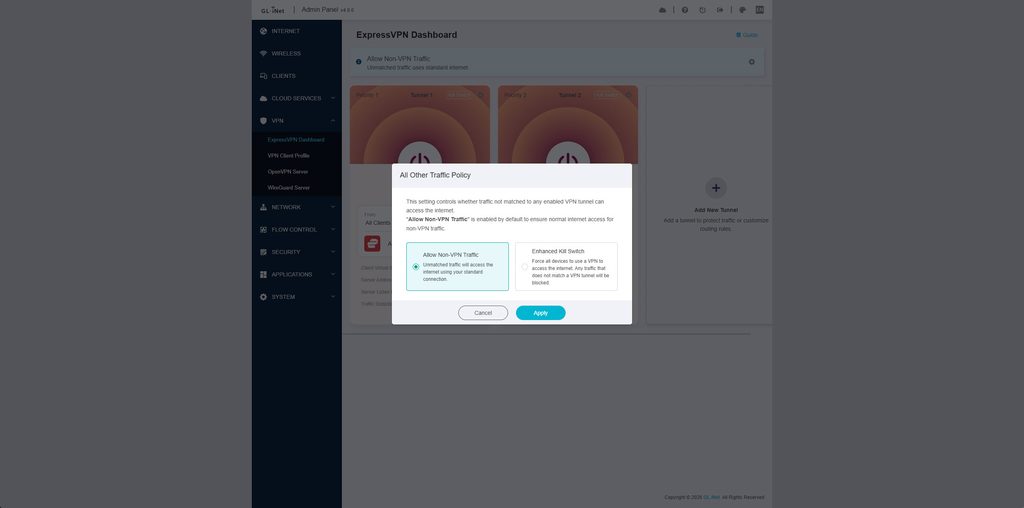
The VPN Dashboard also includes the option to block non-VPN traffic, which acts as a kill switch. If the tunnel drops, devices covered by that rule lose internet access rather than falling back to your normal connection. This is what you want for privacy, but it can be confusing if you forget it is enabled and the VPN server goes down.
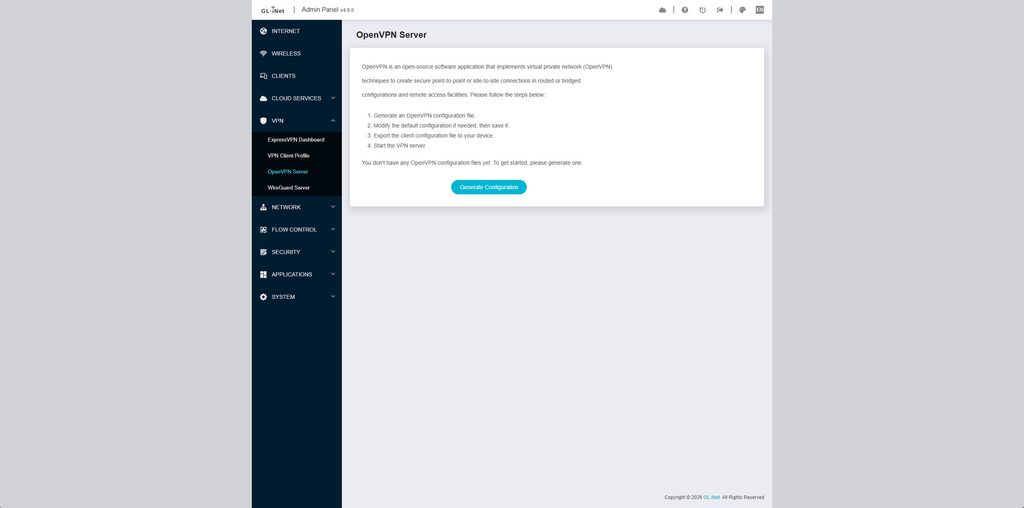
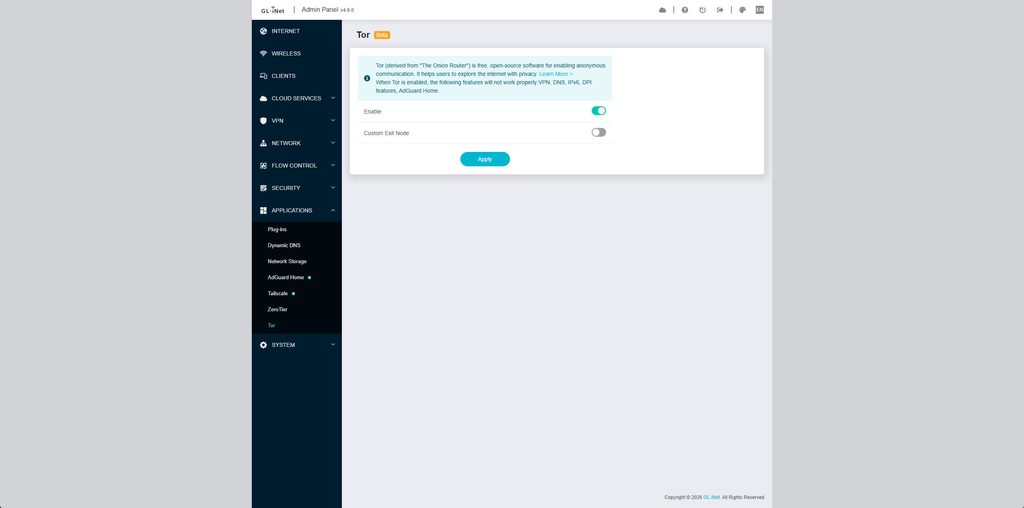
The Fortify can also act as a VPN server using WireGuard or OpenVPN, so you can connect back to your home network when travelling. Tor is supported too, though speeds are slow, as you would expect.
Applications
The Applications menu is where the Fortify differs most from the Aircove and Aircove Go. Those routers stripped the GL.iNet firmware back to a narrow set of ExpressVPN features. The Fortify keeps the full GL.iNet application suite, including AdGuard Home and Tailscale, which I cover below, plus a few other useful extras.
Plug-ins
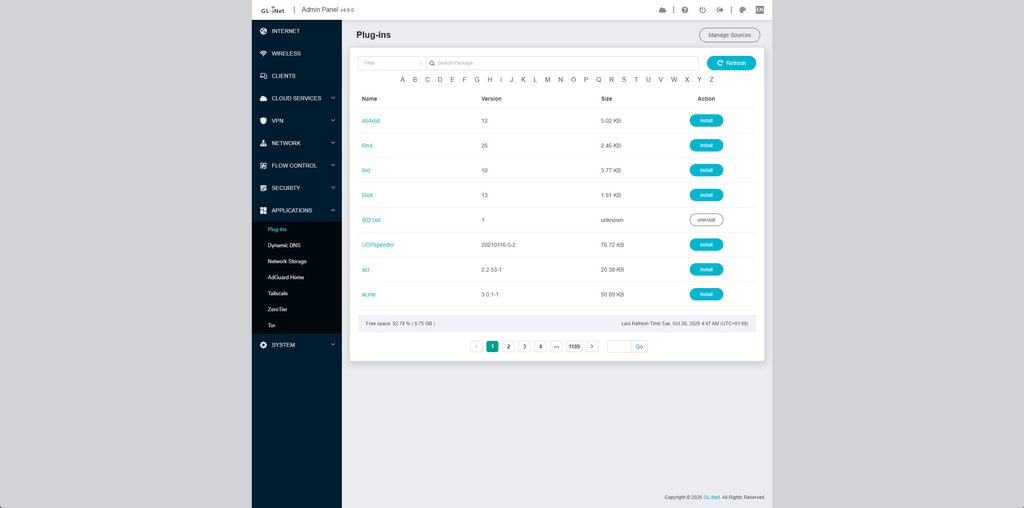
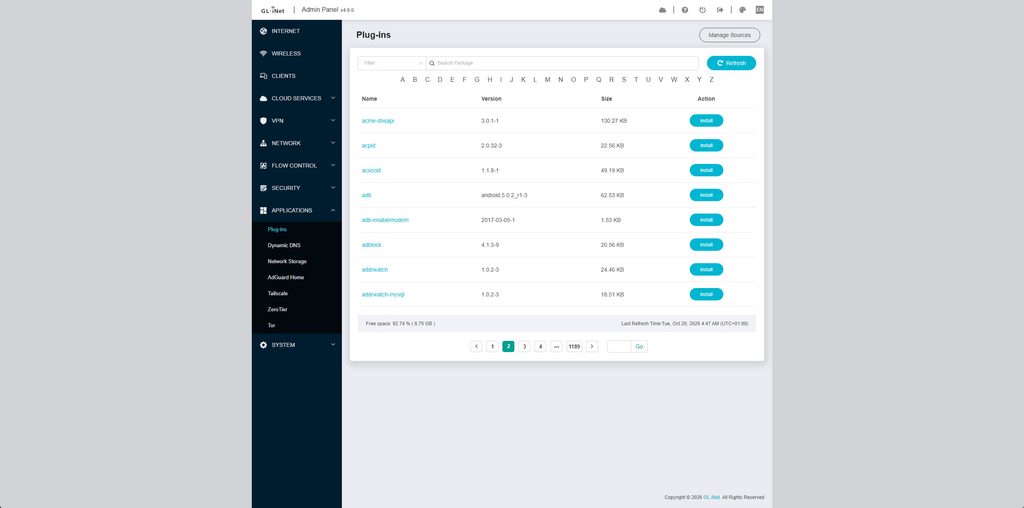
The Plug-ins page is a front end for the OpenWrt package repository, so you can install software without going into LuCI or using SSH. There are 1,189 pages of packages at eight per page, which works out at roughly 9,500 packages. You can search, filter, browse alphabetically and add other repositories via Manage Sources.
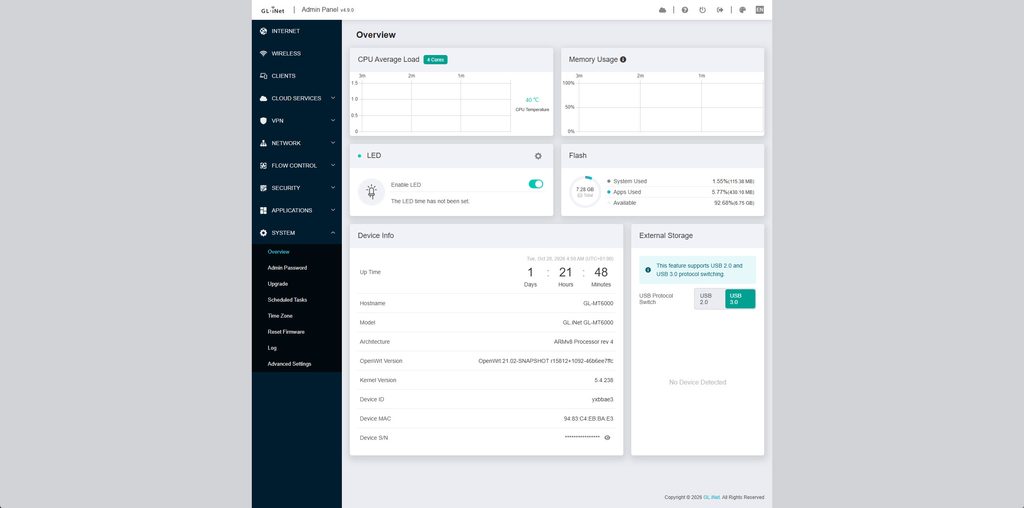
The 8 GB of eMMC storage helps here. My unit reported 6.75 GB (92.74%) free, so space is unlikely to be a limitation. For comparison, the original Aircove had just 128 MB of flash storage.
The downside is that the list is a raw dump of package names with no descriptions. Unless you already know that acme handles SSL certificates or that 464xlat is for IPv6 transition, most of it will mean nothing to you. Most people will never need this page, and the more you install, the greater the chance of something conflicting with GL.iNet’s own scripts or a firmware update. For anyone who does need a specific OpenWrt package, though, having it available from the main interface is convenient.
Dynamic DNS
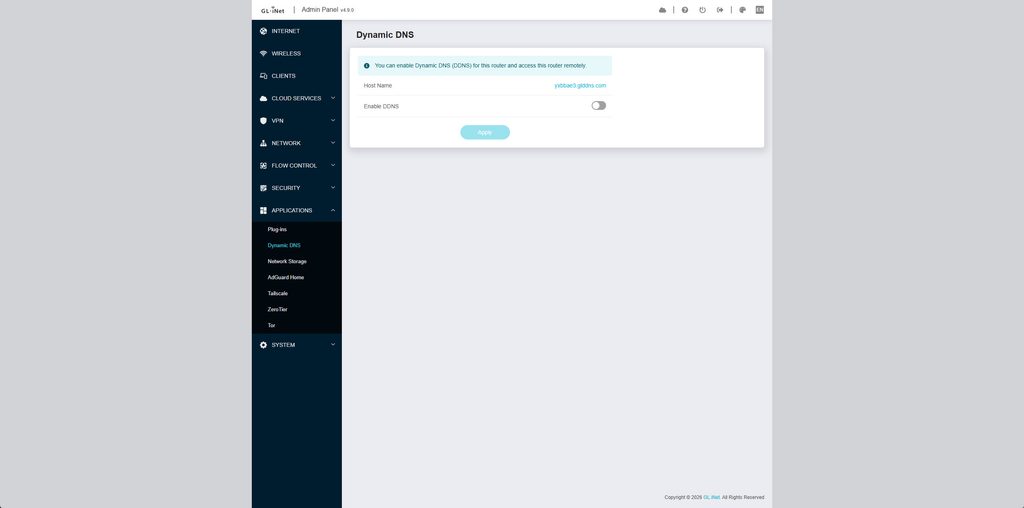
GL.iNet provides a free hostname on its glddns.com domain, and enabling it is a single toggle. This is useful if you want to reach the router or a port-forwarded service from outside your home.
It does require a public IP address. Some UK alt-nets and most 4G/5G connections use CGNAT, in which case DDNS will not work. Even with a public IP, I would rather not expose a router admin page to the internet, and Tailscale or ZeroTier is a safer way to get remote access.
Network Storage
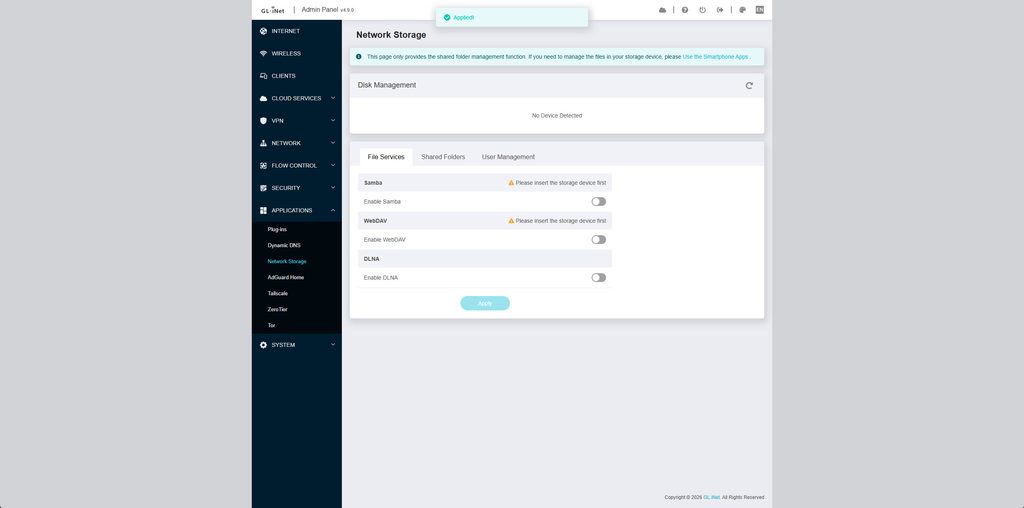
Plug a drive into the USB 3.0 port and you can share it via Samba, WebDAV or DLNA, with separate tabs for shared folders and user accounts. The web interface only manages the shares, and GL.iNet directs you to its smartphone app for managing files.
It is fine for sharing a USB drive across the network or streaming media to a TV, but I would treat it as a convenience feature rather than a replacement for a proper NAS.
AdGuard / Adblocking
AdGuard is a great tool for network-wide tracker and ad blocking, and I would say it is superior to the popular Pi-hole.
With many websites plagued by ads and browsers like Chrome making ad-blocking harder, tools like AdGuard are increasingly important.
It is not just about ad blocking either; tools like this are increasingly important for security, as they can block malicious websites (and adverts), and you can customise the settings to block apps or apply Safe Search, and then apply these settings to specific clients, effectively giving you parental control.
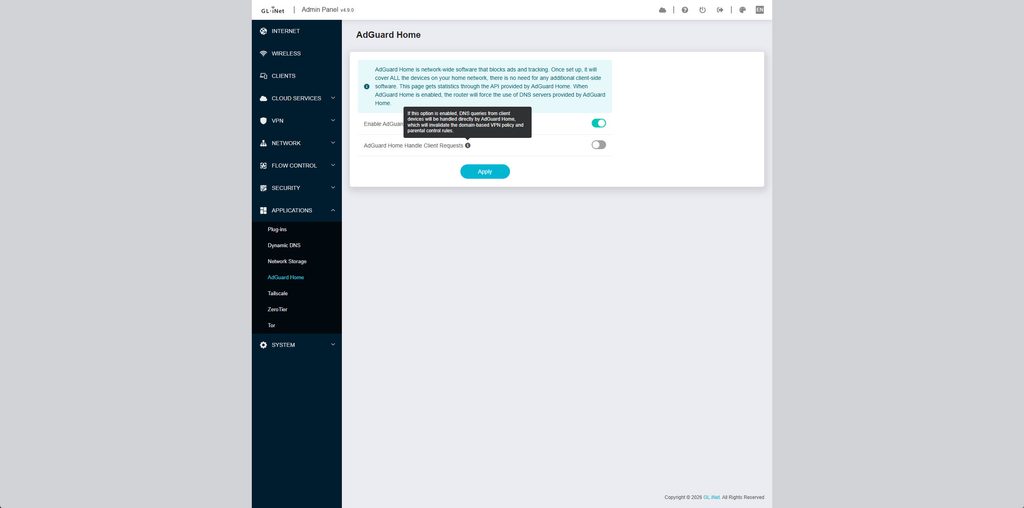
There is one AdGuard Home setting worth flagging. The “AdGuard Home Handle Client Requests” toggle lets AdGuard answer DNS queries from client devices directly. The router warns that enabling it will stop domain-based VPN policies and parental control rules from working.
As I route Reddit through an Irish VPN server using a domain-based rule, I leave this off. The trade-off is that AdGuard then sees queries coming from the router rather than individual devices, so per-client AdGuard rules, such as Safe Search for a child’s tablet, are not as effective. You effectively have to choose between AdGuard’s per-device controls and the router’s own domain-based routing and parental controls.
The default settings for this are basic, with the upstream DNS servers set to 8.8.8.8 and 9.9.9.9 and then the default AdGuard block lists. So, you will want to customise the settings to improve the ad blocking.
In my experience, AdGuard is far superior to any native ad-blocking service competing routers offer, including the ad-blocking within UniFi. And, unlike some options, there is no additional cost for this.
It is also much better than the ad blocking on the Aircove, which used fixed block lists with no way to whitelist domains and let some adverts through. With AdGuard Home, you can add your own lists, whitelist anything that breaks and view a full query log to see what is being blocked.
Tailscale / ZeroTier
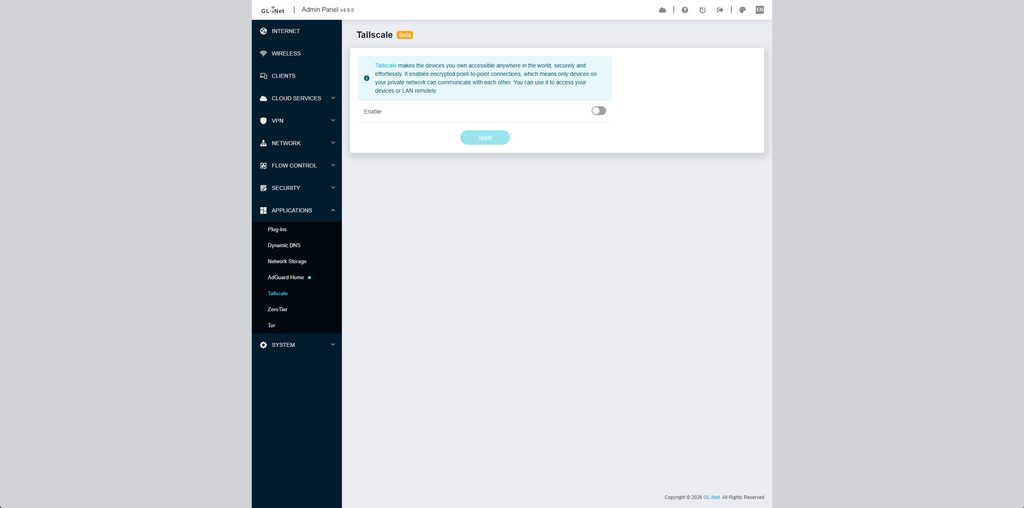
I am a huge fan of Tailscale and prefer it over traditional VPNs like WireGuard. It is the perfect solution for anyone who wants to be able to access their home network remotely. While I appreciate that it is quite a niche requirement, there are a lot of people who host their own servers for media or self-hosted services to replace Google etc., such as Nextcloud, or image backups with things like Immich.
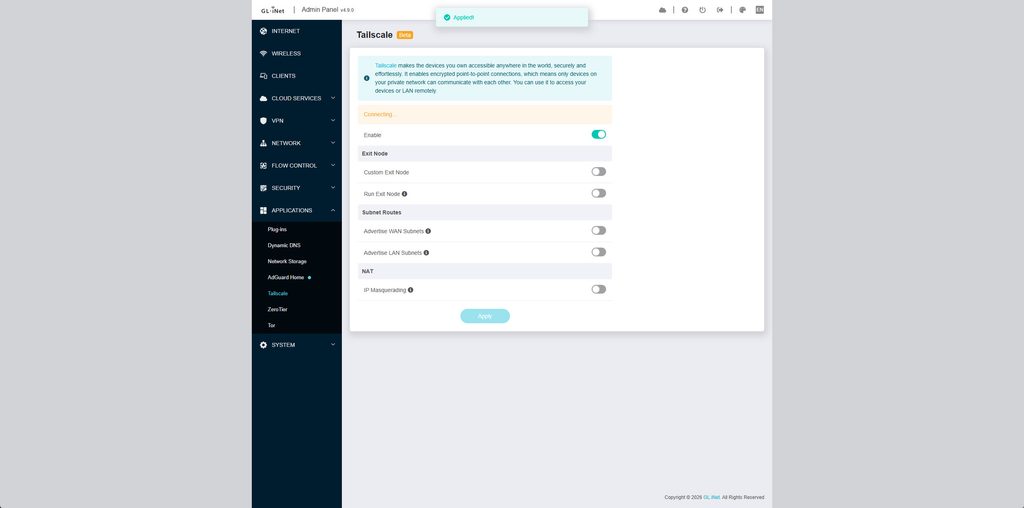
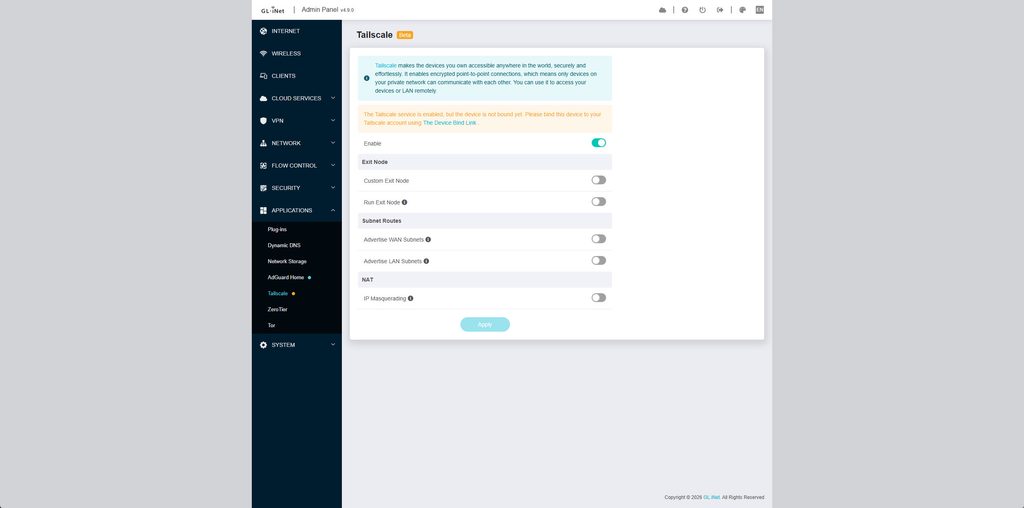
The implementation on this router makes it extremely easy; you just enable the service, then connect your account. You can also set it up as an exit node, where all your traffic runs through the router, and use subnet routes so the router can expose your other devices on the network. I generally prefer to install Tailscale on each service I access, but the subnet option does make life easier.
GL.iNet still labels Tailscale as beta, and it warns that running it at the same time as another VPN client can cause routing conflicts. If you plan to use ExpressVPN tunnels and Tailscale together, it is worth testing that both behave as expected before relying on them.
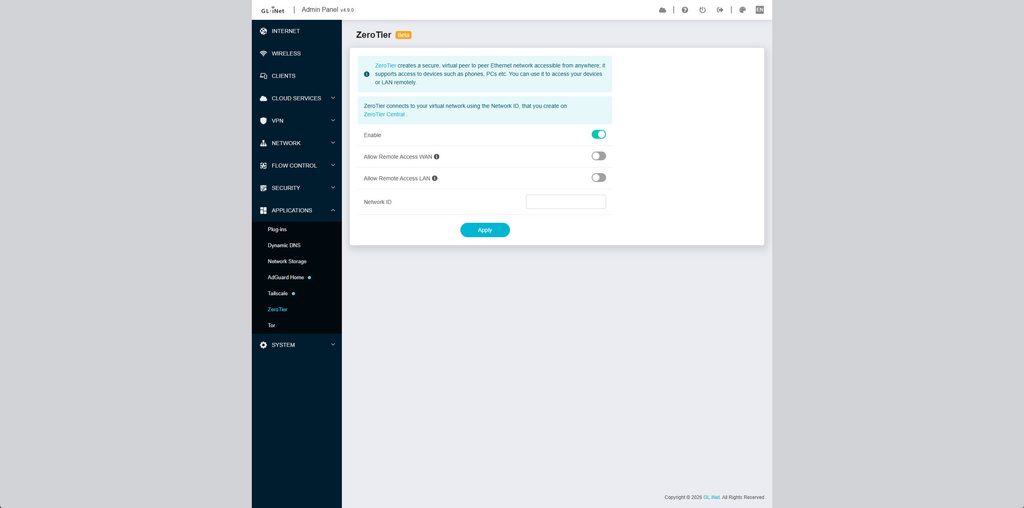
Alternatively, you can use ZeroTier, which creates a secure, virtual peer-to-peer Ethernet network accessible from anywhere. I have only dabbled with this as I prefer Tailscale.
Flow and Parental Control
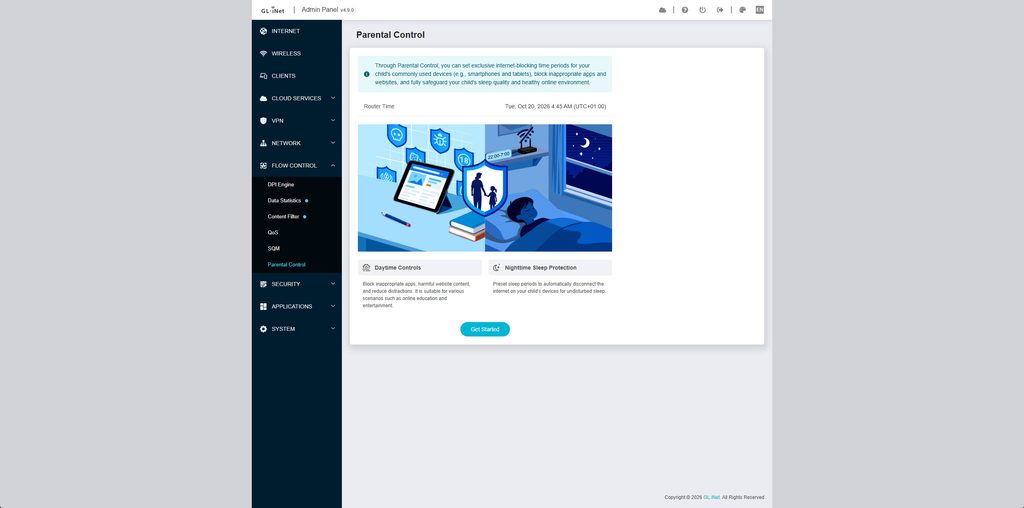
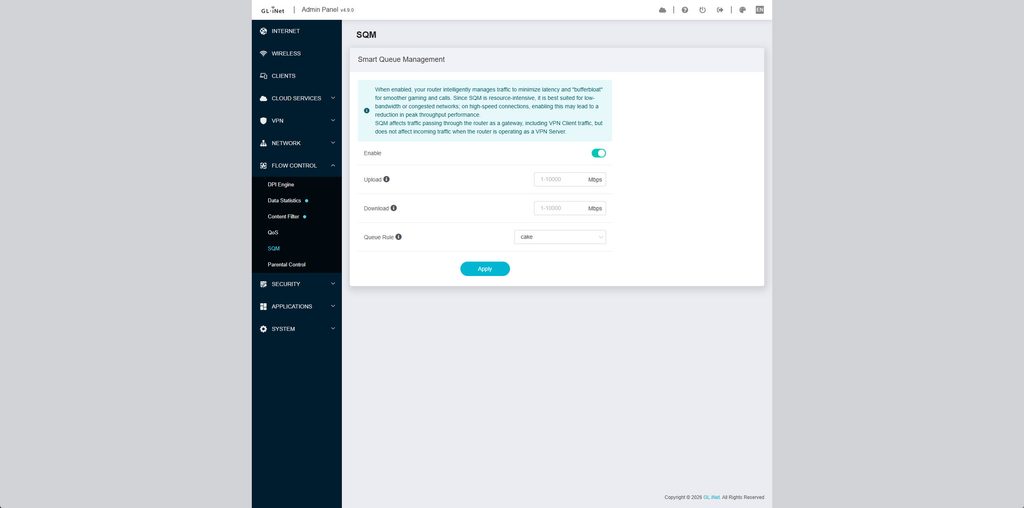
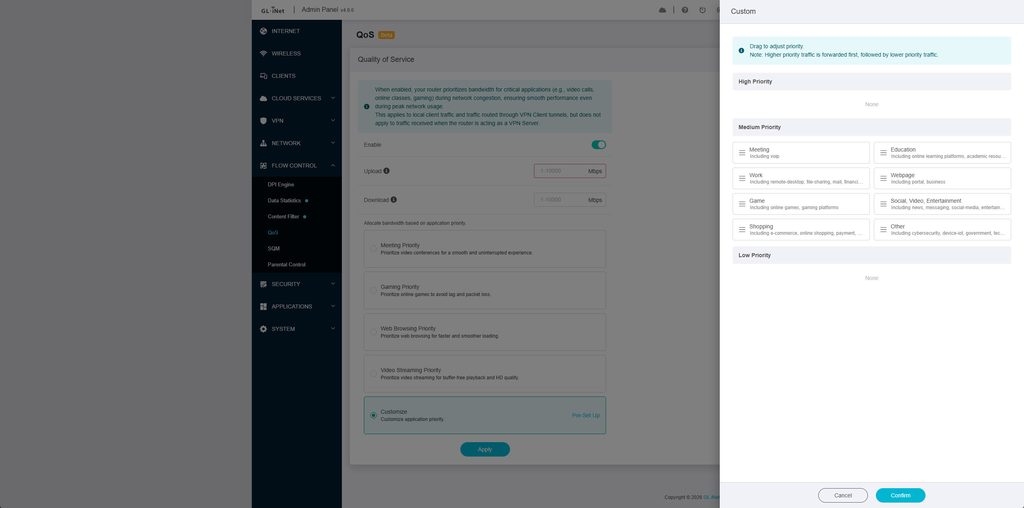
The Flow Control menu groups GL.iNet’s traffic management tools: the DPI Engine, Data Statistics, Content Filter, QoS, SQM and Parental Control. Several are labelled as beta, but in my experience they worked as described.
DPI Engine
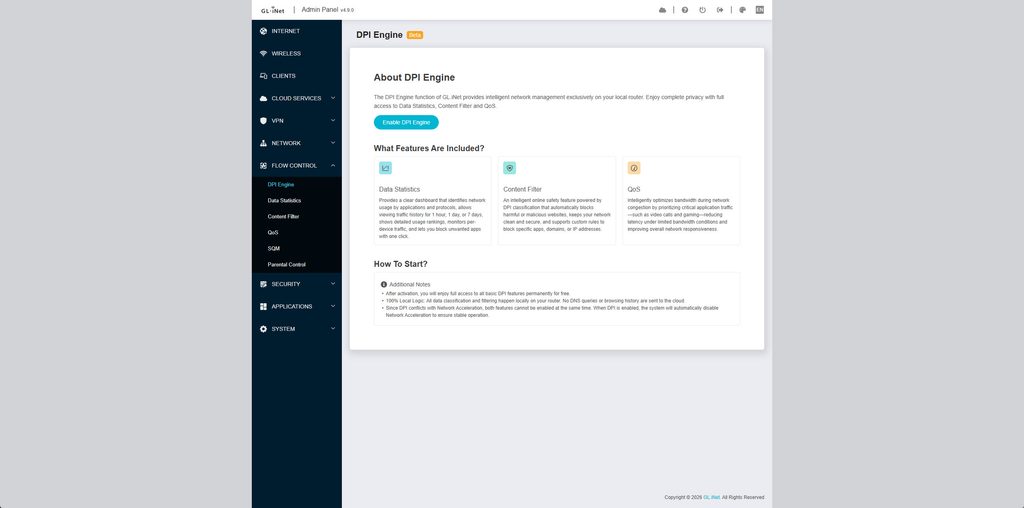
Most of the features in this section depend on the DPI (Deep Packet Inspection) Engine, which you need to enable first. DPI identifies traffic by application rather than just IP address and port, which is what allows the router to recognise Spotify or WhatsApp traffic and treat it differently.
GL.iNet states that all classification happens locally on the router, with no DNS queries or browsing history sent to the cloud, and that the basic DPI features are free permanently. That compares favourably with TP-Link HomeShield Pro and Netgear Armor, which charge a subscription for similar features and rely on cloud services.
The main caveat is that DPI conflicts with Network Acceleration, so enabling it automatically disables hardware acceleration. With acceleration off, the CPU has to process every packet. On a typical 500 Mbps connection this is unlikely to matter, but if you are on a multi-gigabit FTTP line, it is worth running a speed test before and after enabling it.
Data Statistics
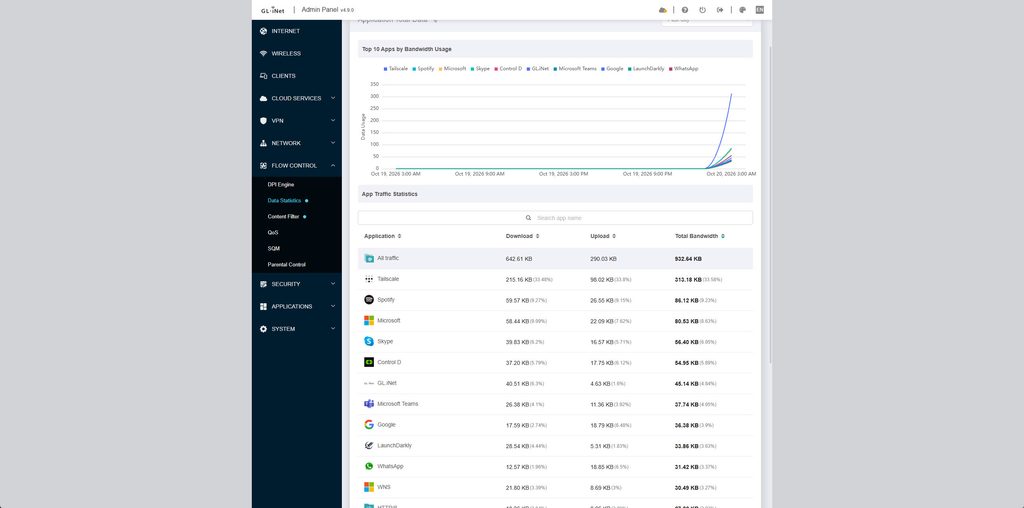
Data Statistics provides a dashboard showing the top 10 applications by bandwidth, with history for the past hour, day or week, usage rankings and per-device traffic. You can also block an application with one click.
The identification is more granular than I expected. After a short period, it had correctly picked out Tailscale, Spotify, Microsoft Teams, Skype, WhatsApp and Control D, as well as LaunchDarkly, a feature-flag service that many apps use in the background. It is similar to the traffic identification on my UniFi Cloud Gateway Max, which is impressive for a router at this price.
The weakness is device identification. Clients are listed by hostname and MAC address, and my desktop appeared twice under the same name (once wired and once wireless). On a busy network, this makes per-device statistics harder to interpret than they should be.
Content Filter
The Content Filter uses DPI classification to block malicious and harmful websites network-wide, and you can add custom rules to block specific apps, domains or IP addresses.
There is some overlap with AdGuard Home, but the approach is different. AdGuard filters at the DNS level, which a device can bypass with DNS over HTTPS or a hardcoded DNS server. DPI-based filtering inspects the traffic itself, so in principle it is harder to work around.
QoS
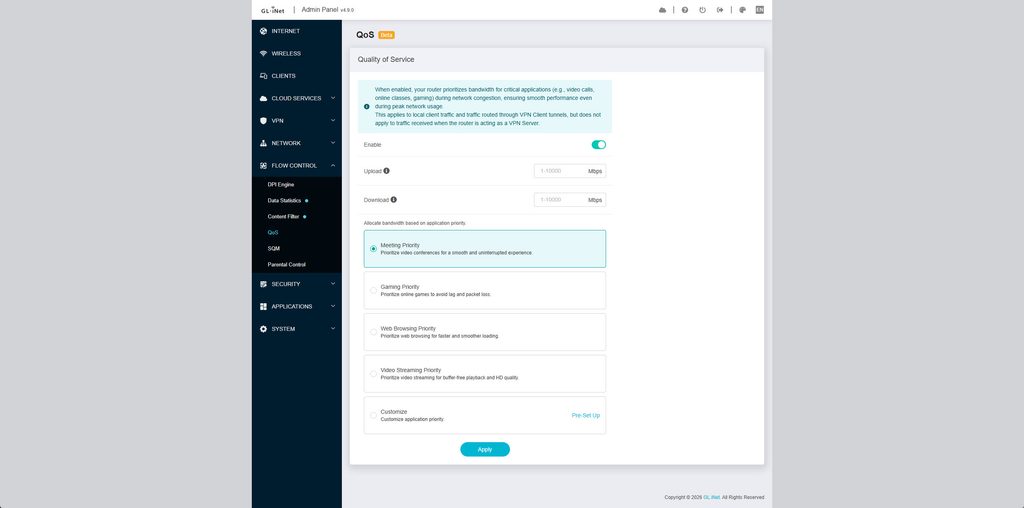
QoS (Quality of Service) prioritises certain types of traffic when your connection is congested. You enter your upload and download speeds, then choose from presets for Meeting, Gaming, Web Browsing or Video Streaming priority.
The Customise option lets you drag application categories between High, Medium and Low priority. The categories are Meeting, Education, Work, Webpage, Game, Social/Video/Entertainment, Shopping and Other. Everything starts in Medium, so nothing changes until you move categories around. QoS applies to local client traffic and VPN client tunnels, but not to traffic arriving when the router is acting as a VPN server.
I could not see an option to prioritise individual devices from this page, which would be useful for giving a work laptop priority during video calls regardless of the application.
SQM
SQM (Smart Queue Management) tackles bufferbloat, the latency spikes that occur when your connection is saturated, such as during a large download or cloud backup. It uses the cake queue discipline, and you set your upload and download speeds, ideally slightly below your measured line speed.
GL.iNet warns that SQM is resource-intensive and best suited to lower-bandwidth or congested connections, as it can reduce peak throughput on faster lines. In practice, it is most beneficial for FTTC broadband, 4G/5G connections or a busy household with a modest connection. On gigabit FTTP, bufferbloat is usually less of an issue. A free bufferbloat test, such as the one from Waveform, will tell you whether it is worth enabling. I would pick either QoS or SQM rather than running both.
Parental Control
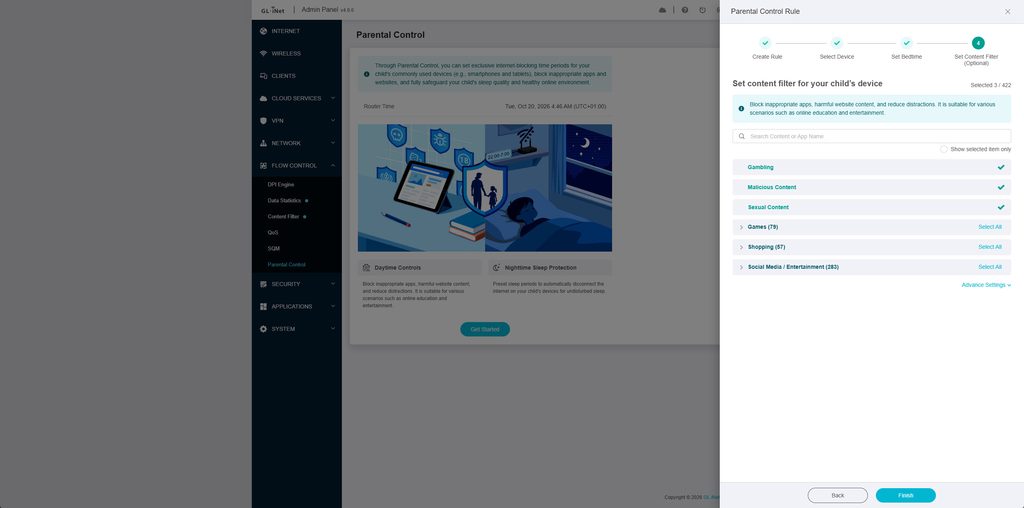
Parental Control is split into Daytime Controls, which block apps and websites, and Nighttime Sleep Protection, which cuts internet access on selected devices at set times.
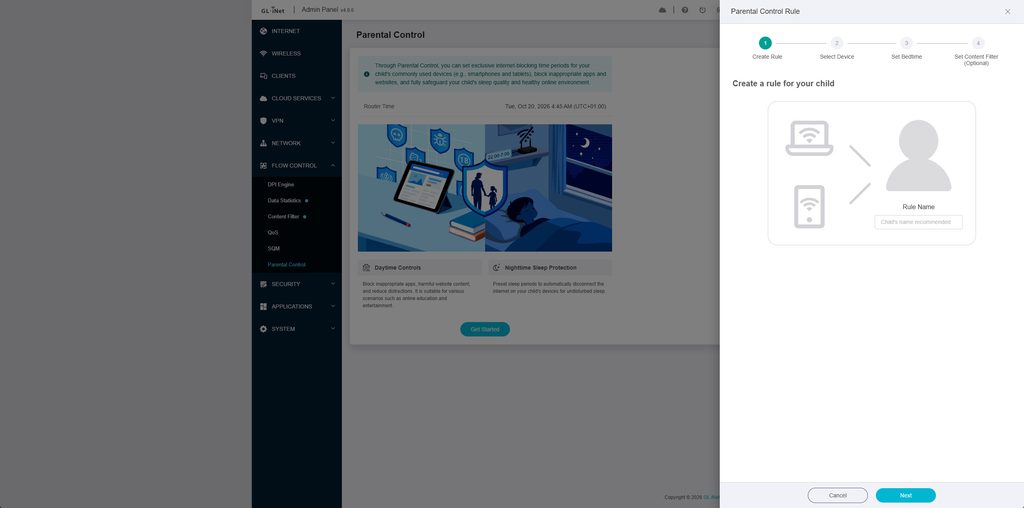
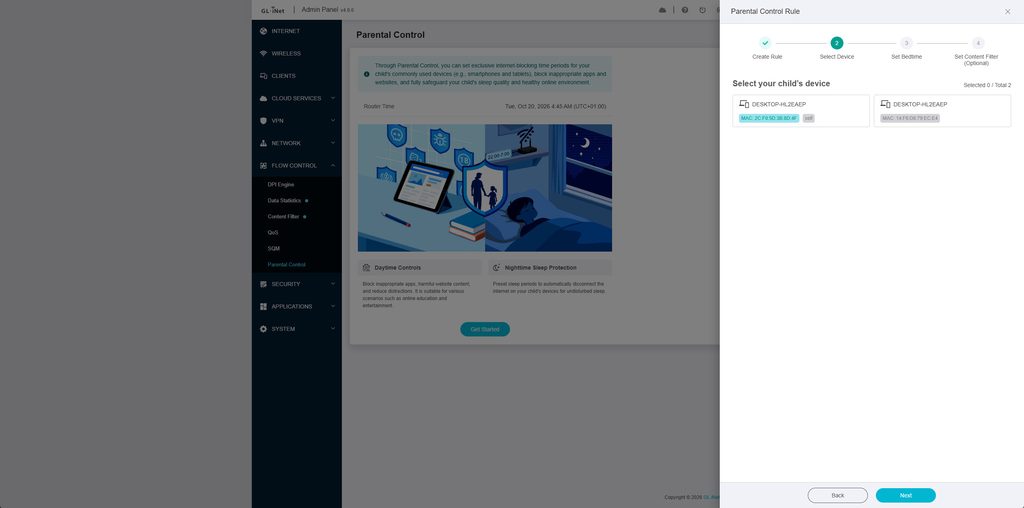
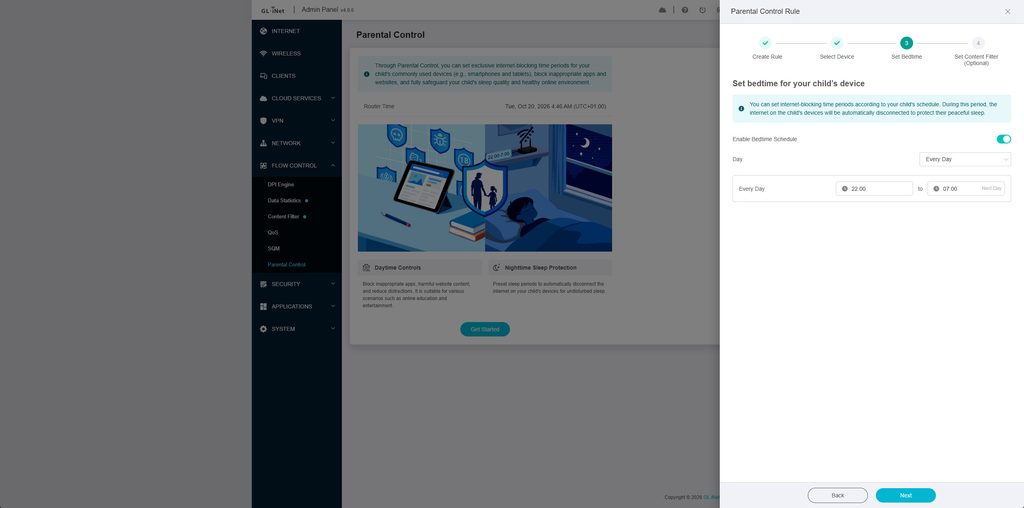
Setting it up uses a four-step wizard. You create a rule (GL.iNet suggests using the child’s name), select their devices, set a bedtime schedule and optionally apply a content filter. The default bedtime is 22:00 to 07:00, and you can apply it every day or choose specific days. The content filter covers 422 items, with Gambling, Malicious Content and Sexual Content selected by default. You can then block individual apps or entire categories across Games (79), Shopping (57) and Social Media/Entertainment (283).
This is considerably more granular than the Aircove, which offered little beyond blocking adult sites and setting internet access hours. Being able to block TikTok and Roblox while leaving YouTube accessible is the type of control most parents want, and it costs nothing extra.
There are some limitations. Devices are identified by MAC address, and the device picker suffers from the same naming problem as Data Statistics, with two identical hostnames distinguished only by their MAC addresses. Modern iPhones and Android phones use private, randomised MAC addresses by default. If that address changes, such as when the child forgets and rejoins the network, the rule will no longer apply. You will need to disable the private address for your home network on the child’s device, which a tech-savvy teenager can easily reverse.
Within the wizard, the schedule is a fixed blocking window, and there is no daily screen-time allowance. As with any router-based controls, nothing stops a child from switching to mobile data. Finally, as mentioned above, these rules stop working if AdGuard Home is set to handle client requests.
LuCI – Advanced Settings
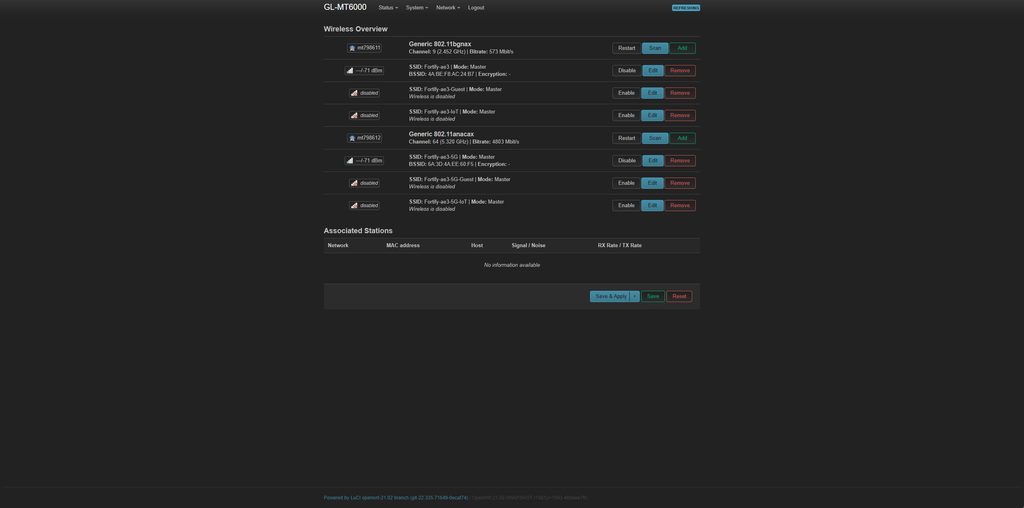
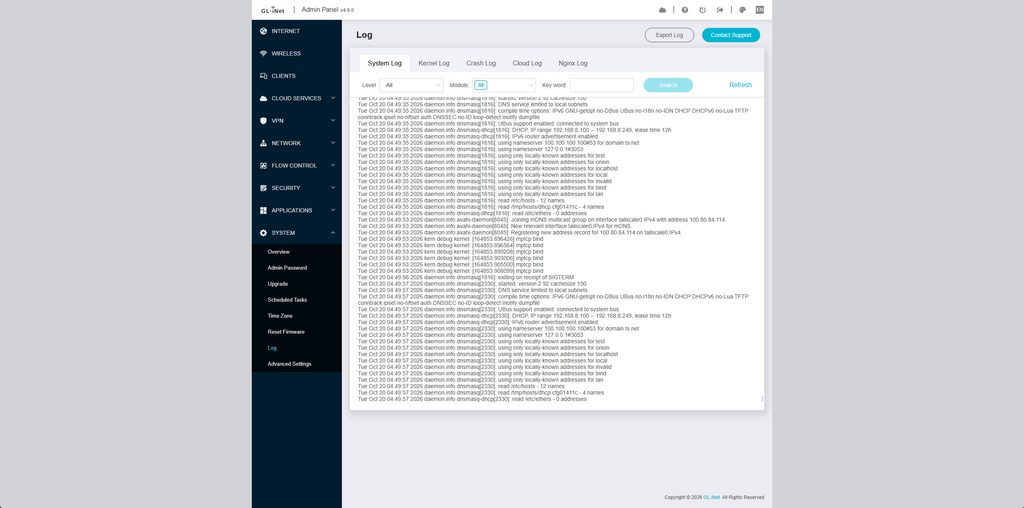
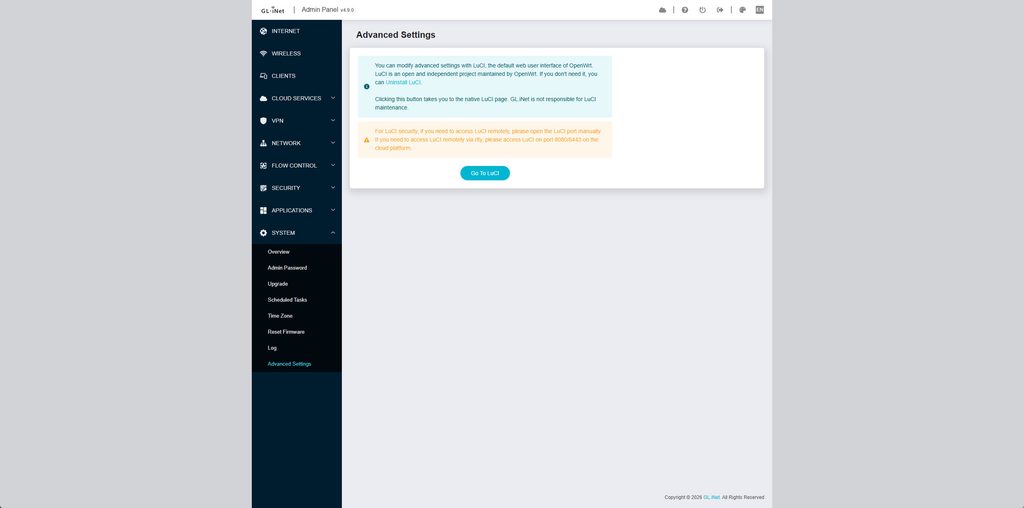
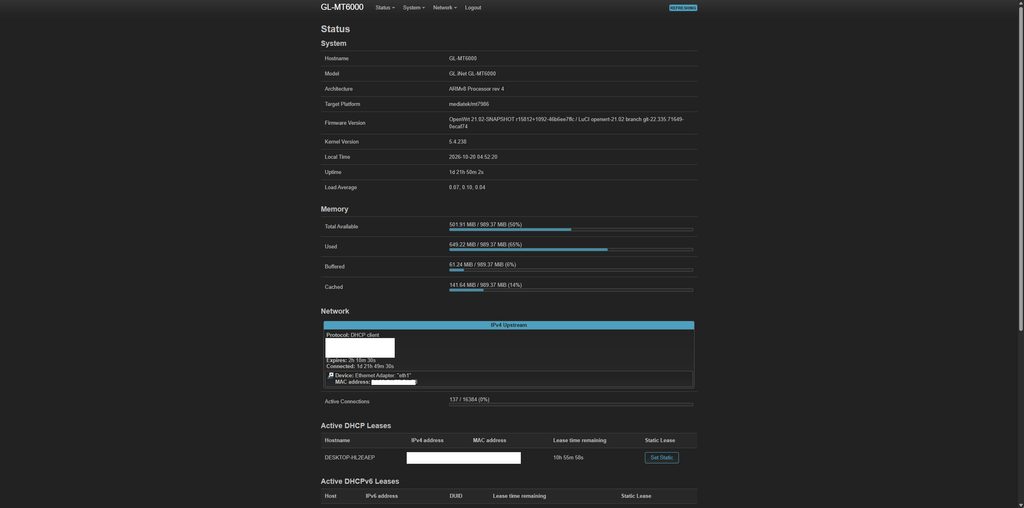
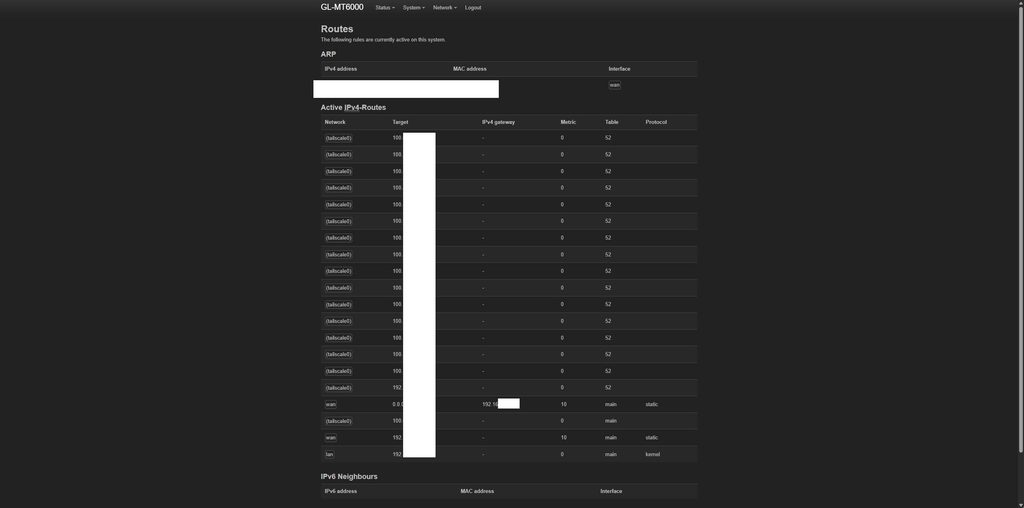
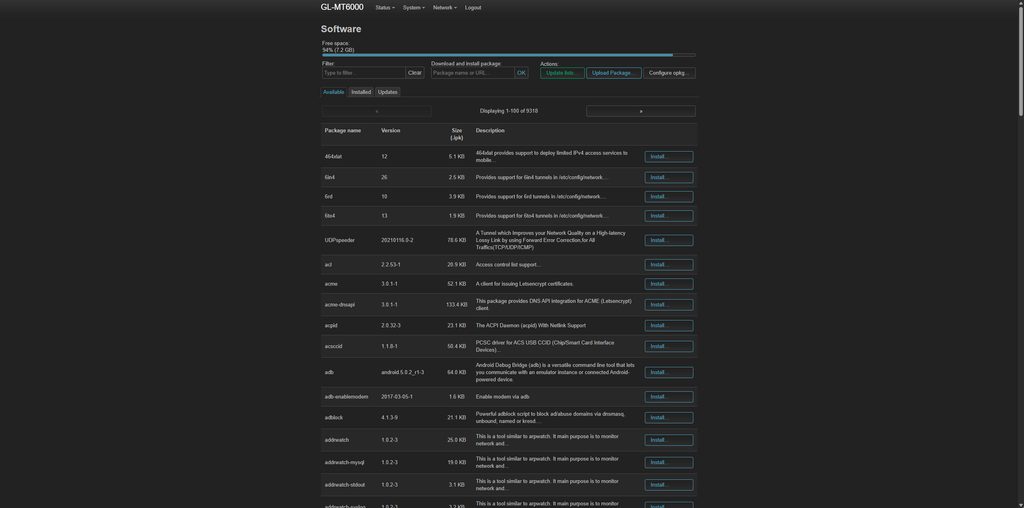
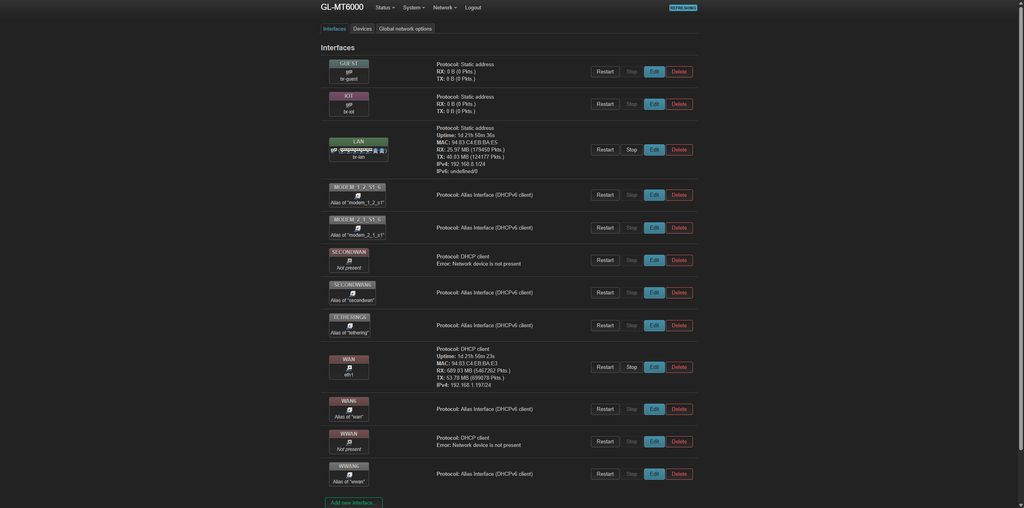
Underneath the GL.iNet interface is OpenWrt, and you can access the standard LuCI web interface from the Advanced Settings option in the System menu. It uses the same admin password as the main panel.
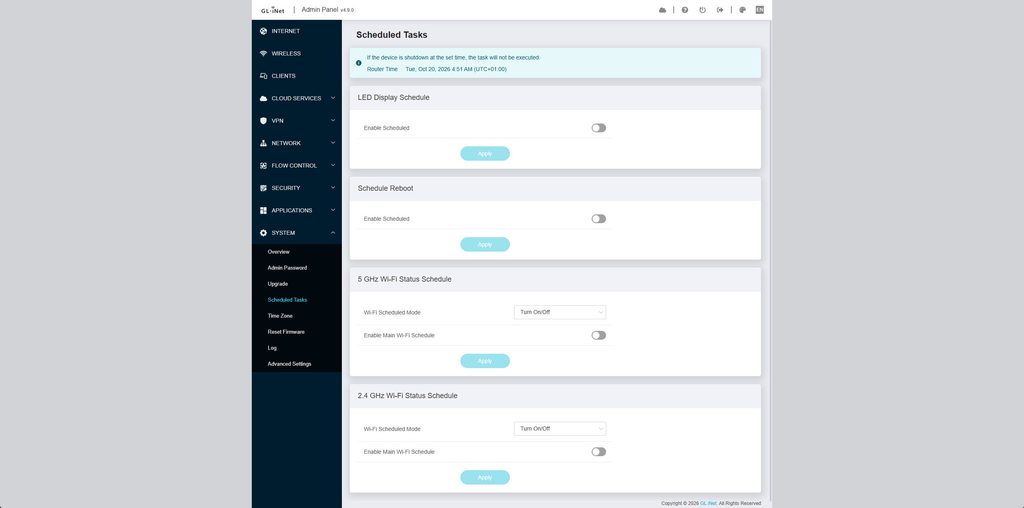
LuCI exposes settings that are not available in the GL.iNet interface. This includes detailed firewall zones and traffic rules, custom VLANs, static routes, scheduled tasks, startup scripts, more detailed wireless options and full package management. You can also enable SSH and manage the router from the command line.
One practical use is Home Assistant. The OpenWrt integration in Home Assistant can report which wireless clients are connected, which you can use for presence detection. Getting this to work requires installing the relevant RPC packages through LuCI or SSH, so it is not plug and play, but it is possible, which is more than you can say for most consumer routers.
The usual warning applies. The GL.iNet interface and LuCI both write to the same configuration files, and changes made in one can be overwritten by the other, particularly after a firmware update. If you make changes in LuCI, keep a note of what you changed and take a backup before updating the firmware.
It is also worth mentioning that the GL-MT6000 is well supported by the official OpenWrt project, so you could flash vanilla OpenWrt if you wanted to. This is one of the reasons the Flint 2 is popular with enthusiasts. Doing this would remove the GL.iNet interface and the ExpressVPN integration, though, so for most Fortify owners, LuCI access is the better compromise.
The original Aircove offered nothing like this. Its interface was simple and polished, but you could not go beyond the options ExpressVPN chose to expose. The Fortify works just as well for someone who only wants to set up the ExpressVPN tunnels and leave it alone, but it does not hold back anyone who wants more control.
WiFi Performance
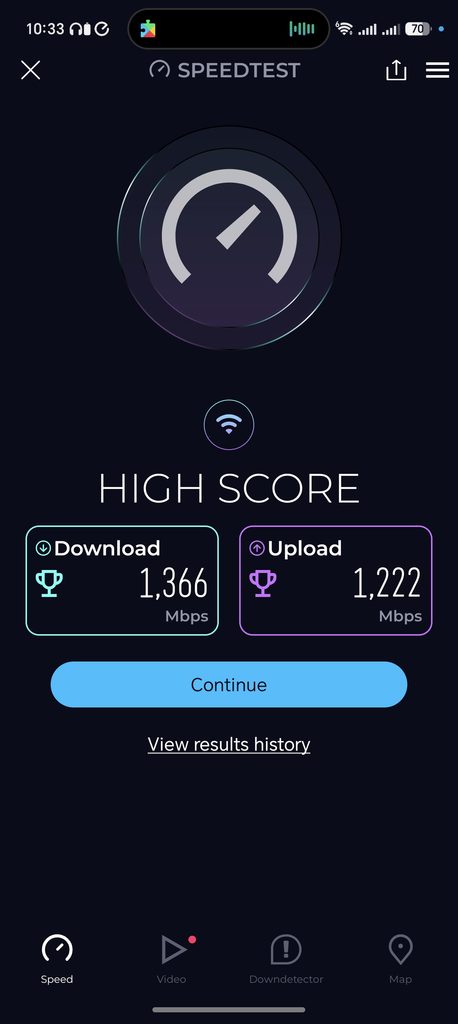
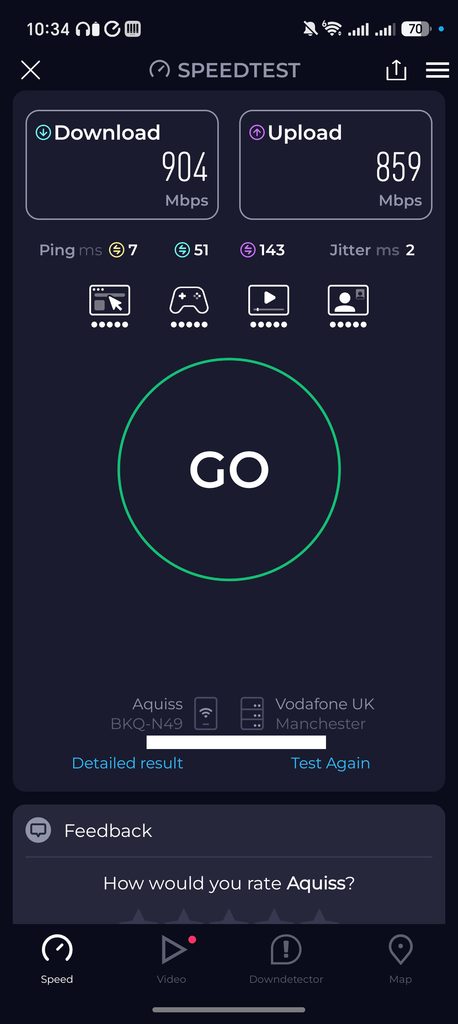
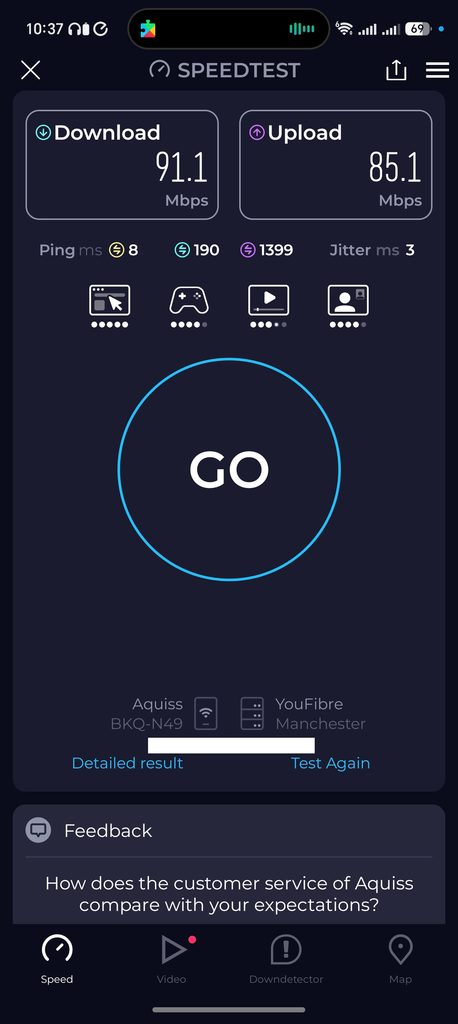
I tested the Wi-Fi using my phone and the Speedtest app, connected to my Aquiss 2,500 Mbps CityFibre connection. As these are internet speed tests, the results include the broadband line and the speed test server, but my connection is fast enough that the Wi-Fi link is the limiting factor. All three tests were run from the same position a short distance from the router, a few minutes apart.
| Band / channel width | Download | Upload | Idle ping | Loaded latency (down / up) |
|---|---|---|---|---|
| 5 GHz 160 MHz | 1,366 Mbps | 1,222 Mbps | 7 ms | 32 ms / 43 ms |
| 5 GHz 80 MHz | 904 Mbps | 859 Mbps | 7 ms | 51 ms / 143 ms |
| 2.4 GHz | 91.1 Mbps | 85.1 Mbps | 8 ms | 190 ms / 1,399 ms |
With 160 MHz enabled on 5 GHz, I achieved 1,366 Mbps download and 1,222 Mbps upload. That is faster than a gigabit Ethernet connection, which is only possible because the Fortify has a 2.5GbE WAN port. A router with a gigabit WAN would have capped this at around 940 Mbps regardless of the Wi-Fi speed.
Dropping to 80 MHz gave me 904 Mbps download and 859 Mbps upload, with an idle ping of 7 ms and jitter of 2 ms. This is roughly what I would expect from a 2×2 Wi-Fi 6 client on an 80 MHz channel, which has a theoretical link rate of 1,201 Mbps.
For comparison, the Flint 3 achieved over 1.8 Gbps on 6 GHz with a supported laptop, so Wi-Fi 7 still has a clear advantage at close range if you have the client devices to use it. On the other hand, the original Aircove only managed 590 Mbps in the same room, as it was limited to 80 MHz channels and 2×2 MIMO. The Fortify is a big step up from what ExpressVPN previously offered.
There are some caveats with 160 MHz on 5 GHz in the UK. A 160 MHz channel takes up a large share of the available spectrum and includes DFS channels, which have to be vacated if radar is detected. The Fortify chose channel 64 by default, which is a DFS channel, so the 5 GHz network can take around a minute to appear after a reboot while the router checks for radar. If you live in a flat or a terraced house with lots of neighbouring networks, 80 MHz may be more reliable. In a detached house, or if you only have one access point, 160 MHz is worth trying.
The 2.4 GHz result of 91.1 Mbps download and 85.1 Mbps upload is modest. The 1,148 Mbps rating assumes a 4×4 client on a 40 MHz channel with 1024-QAM, which no phone supports, and 2.4 GHz is congested in most UK homes. The loaded latency is the more telling figure, with upload latency reaching almost 1.4 seconds when the connection was saturated. I would use 2.4 GHz for IoT devices and range rather than speed, which is how most people use it anyway.
The 4×4 MIMO design and eight high-power front-end modules should help with range. GL.iNet quotes coverage of up to around 140 square metres in an open environment, which is a reasonable estimate for a typical UK three-bedroom house with the router placed centrally. Brick walls and multiple floors will reduce this.
As with the Flint 3, there is no user-friendly mesh option like TP-Link EasyMesh or Asus AiMesh. If you have a larger home, you will need to add separate access points or use GL.iNet’s extender mode, which is less polished. This is the main area where the big consumer brands have an advantage.
Price and Alternative Options
The ExpressVPN Fortify is available now for £180.99/$200 and includes one year of ExpressVPN for new or returning customers. The GL.iNet Flint 2 (GL-MT6000) is available for £153. So, you are paying a £28 premium for the Fortify, but you get a year of VPN for free, which is worth £75 based on the permanently discounted pricing on the ExpressVPN website.
The more powerful Flint 3 (GL-BE9300) is available for £180, but you’d need to buy a VPN subscription on top of this.
It is worth thinking about what happens after the first year. To claim the plan, you need to enter a payment method, and the subscription will auto-renew unless you cancel it. If you do not intend to keep ExpressVPN, cancelling early is straightforward and does not affect the free year. If you do keep it, the renewal will be at ExpressVPN’s standard pricing, so it is worth shopping around for a discounted plan at that point.
Compared to the previous ExpressVPN routers, the pricing is much more reasonable. The Aircove was £294 RRP in the UK when I reviewed it, and around £230 discounted, for much weaker hardware and no included subscription. I criticised it for being wildly overpriced in the UK, and that is not the case with the Fortify.
If you do not want ExpressVPN, the Flint 2 is the obvious alternative, as it is the same router for less money and comes with the pre-configured profiles for over 30 VPN providers. If you want Wi-Fi 7 and more 2.5GbE ports, the Flint 3 is worth the extra cost. Asus also offers policy-based VPN routing on many of its routers through VPN Fusion, and it has AiMesh, but the VPN features are less flexible than GL.iNet’s, and there is no built-in AdGuard Home or Tailscale.
Overall
I like the ExpressVPN Fortify. I think it is much better than the previous ExpressVPN offerings, as it retains basically all the functionality from the Flint 2, other than VPN profiles for different providers not being set up for you.
As a consumer router, the Fortify/Flint 2 has an outstanding range of features that outclass most household names such as TP-Link and Netgear.
The inclusion of policy-based VPN routing, AdGuard, and Tailscale elevates this router far above the functionality you will get from many other brands.
If I were parting with my own money, I’d be inclined to stick with a GL.iNet branded router, then use whatever VPN provider I wanted, even if the total cost was a little more. But the ExpressVPN Fortify does work out cheaper than the Flint 2 when factoring in the cost of the VPN, and ExpressVPN is one of the better VPN options out there.
Overall, the ExpressVPN Fortify is an excellent consumer router that fixes almost every complaint I had with the Aircove. It is not locked to ExpressVPN, it has far more capable hardware, and it keeps the full GL.iNet feature set, including AdGuard Home, Tailscale, multi-WAN and LuCI access.
It is not without flaws. Device identification in the client list and parental controls needs work, only two of the Ethernet ports are 2.5GbE, there is no proper mesh support, and the sheer number of features means some settings conflict with each other, such as AdGuard Home and domain-based VPN rules. The 2.4 GHz performance is also unremarkable.
However, for anyone who wants to run a VPN at router level, particularly with domain-based rules to avoid Online Safety Act ID checks, this is one of the best options available, and the included year of ExpressVPN makes it good value.
ExpressVPN Fortify Router Review
90%
Summary
The ExpressVPN Fortify is a GL.iNet Flint 2 with ExpressVPN integration and a 12-month ExpressVPN Advanced plan included. Unlike the Aircove, it is not locked to ExpressVPN, and it keeps the full GL.iNet feature set. Wi-Fi performance is strong on 5 GHz, the VPN hardware is far more capable than the Aircove, and once the VPN subscription is factored in, it is cheaper than buying a Flint 2 and a VPN separately.
Pros
- Includes 12 months of ExpressVPN
- Not locked to ExpressVPN, so you can import WireGuard or OpenVPN profiles from other providers
- Flexible policy-based routing by device, network, domain or IP
- AdGuard Home, Tailscale, ZeroTier and DPI-based tools at no extra cost
- Over 1.3 Gbps on 5 GHz 160 MHz with a 2.5GbE WAN
- Multi-WAN failover and load balancing
- Full LuCI access and 8 GB of storage for packages
Cons
- Only two 2.5GbE ports
- No user-friendly mesh support
- Client list and parental controls struggle with duplicate hostnames and randomised MAC addresses
- AdGuard Home client handling conflicts with domain-based VPN rules
- Modest 2.4 GHz performance
- A GL.iNet Flint 2 is cheaper if you already have a VPN subscription

I am James, a UK-based tech enthusiast and the Editor and Owner of Mighty Gadget, which I’ve proudly run since 2007. Passionate about all things technology, my expertise spans from computers and networking to mobile, wearables, and smart home devices.
As a fitness fanatic who loves running and cycling, I also have a keen interest in fitness-related technology, and I take every opportunity to cover this niche on my blog. My diverse interests allow me to bring a unique perspective to tech blogging, merging lifestyle, fitness, and the latest tech trends.
In my academic pursuits, I earned a BSc in Information Systems Design from UCLAN, before advancing my learning with a Master’s Degree in Computing.
I’m proud to share that Vuelio has consistently ranked Mighty Gadget as one of the top technology blogs in the UK. With my dedication to technology and drive to share my insights, I aim to continue providing my readers with engaging and informative content.
I work directly with the companies he reviews products for or their chosen PR agency.
For Social Media, you can find me on: