Summary created by Smart Answers AI
In summary:
- Tech Advisor explains how Roku Streaming Stick users can request a free HDMI extender through an online form using their device’s serial number to resolve connectivity issues.
- Fire TV users gain access to The Roku Channel’s 50 FAST channels without additional subscriptions, expanding their free streaming content options significantly.
- These solutions address common streaming problems and provide enhanced entertainment value for cord-cutters. Detailed instructions are provided below.
Recently, Amazon has launched a host of new products and upgrades. The multimedia giant has not only developed the Ember Artline lifestyle TV, but also updated the Fire TV app. But in another free upgrade, Amazon is expanding its streaming content offering with The Roku Channel.
Until recently, if you wanted to access this content, you’d need to purchase a Roku device, such as the Roku Streaming Stick or Roku Streaming Stick Plus. However, those days are behind us – Amazon has just introduced the option to watch The Roku Channel via its Fire TV.
In practice, app users have gained free access to approximately 50 FAST (free ad-supported streaming TV) channels featuring free movies, TV shows and sports programmes. No additional subscription or device is required. Just select the Live Guide option on the updated Fire TV home screen, which will redirect you to the available channels, including The Roku Channel.
US users can get a free Roku HDMI extender
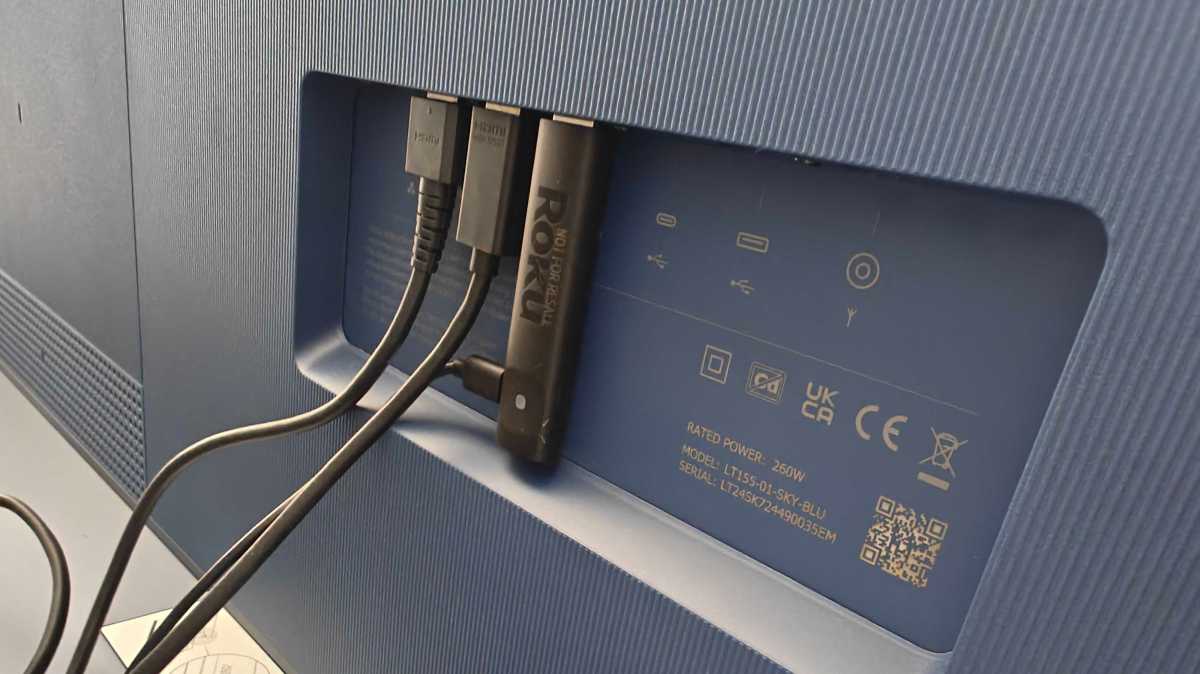
An HDMI extender is a device you may not think about when buying a streaming stick, but it can be helpful if accessing your television’s HDMI port is difficult.
Hannah Cowton-Barnes / Foundry
Amazon includes an extender with the Fire TV Stick, but Roku doesn’t. It means you may have trouble connecting your Roku Streaming Stick or Roku Streaming Stick Plus if your TV is in a tight space or if you have a number of other devices plugged in. However, the company has recognised this problem and decided to provide customers with access to a free extender.
If you do need a device like this, you can request it on the Roku website. All you have to do is fill out this online form. In addition to your details, you will need to enter your Roku Stick’s serial number.
How to find your stick’s serial number:
- On the device – look at its back and you will find a number labelled “SN” there.
- In the Roku mobile app – go to the Devices page, tap the three dots and select View System Info.
- On your TV – on the home page, select Settings, then System, and then About.
After completing the request, Roku will send a free HDMI extender to the address you’ve provided.