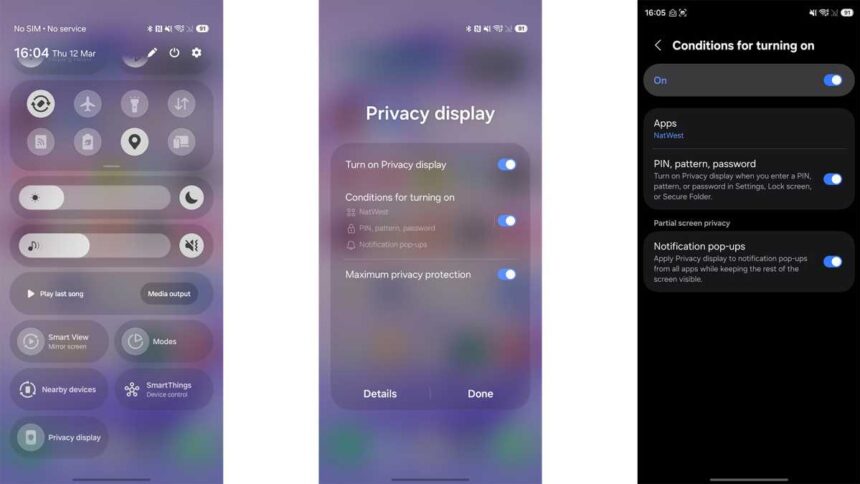
The Samsung Galaxy S26 Ultra has finally arrived and, as usual, Samsung has packed this phone with a plethora of brand-new features to try out. There’s everything here from productivity tools to creative apps and loads of AI tricks.
If you’ve decided to invest in Samsung’s latest flagship, this article will help you make the most of it. I’ll help you find and tweak all of the new features, so you can use them as often or as little as you’d like.
In this article, I’ll be focusing on the S26 Ultra, as that’s the phone I have, but a lot of these tips will work for the Galaxy S26 and S26+ as well (except for the privacy display and APV). With that said, let’s get stuck in.
1. Adjust the Privacy Display
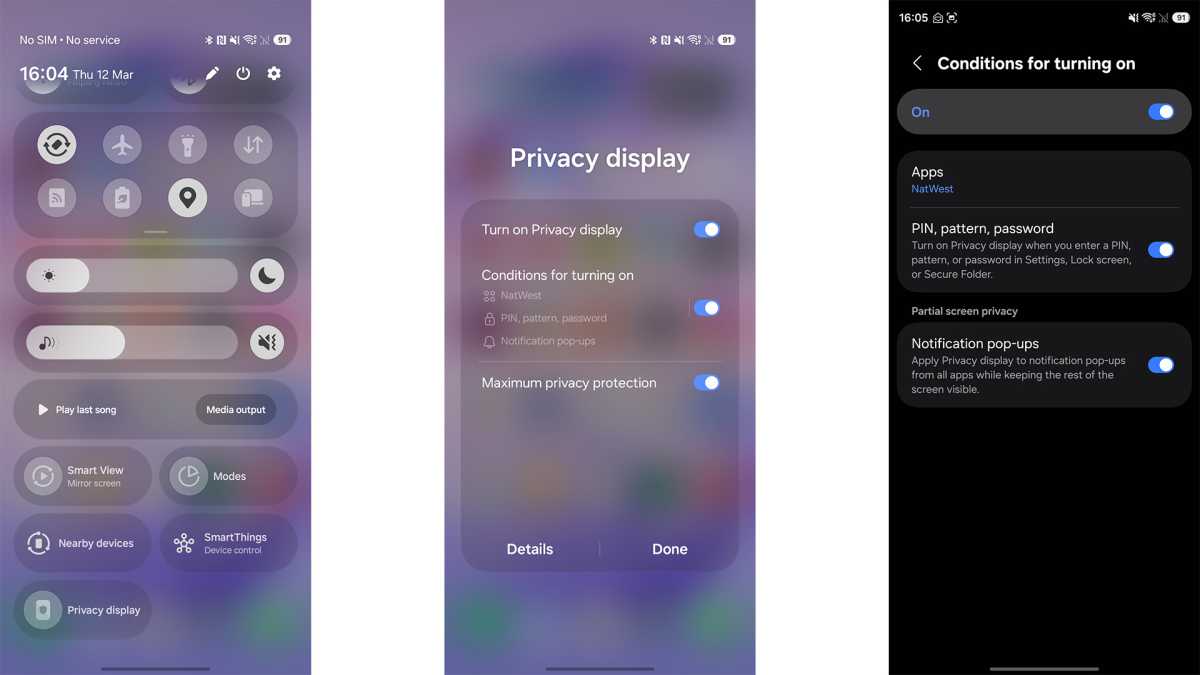
Privacy Display is the headline feature of the Samsung Galaxy S26 Ultra, and it’s like nothing we’ve seen before. Want to stop nosy neighbours from peeking at your screen? Just enable privacy display, and no one will be able to see your screen from an angle.
Unfortunately, it’s not a feature that you’ll want to keep enabled all of the time, as your display won’t look as nice when it’s turned on. Privacy Display only uses about half of the available pixels, and as such, the screen is lower resolution, dimmer, and has less contrast than when it’s turned off.
Thankfully, Samsung makes it very easy to toggle on and off, and you also get a bunch of options to trigger the feature automatically.
Luke Baker
How? The quickest way to get to the Privacy Display settings is to swipe down from the upper right-hand side of your screen to open the quick settings. There’s a button at the very bottom of this panel that will let you adjust the basic options.
Tapping Details at the bottom of this window will open the full settings menu or, alternatively, you can open the Settings menu, select Display and then Privacy Display to get to the same place.
In this menu, you can turn the feature on or off, as well as select the strength of the effect. Normal Privacy Display will have better resolution and clarity, but will be easier to see from an angle. Maximum Privacy Protection will make the screen look worse, but it’ll be almost impossible to see from an angle.
You can also set the conditions for the Privacy Display to turn on automatically. I chose to make mine turn on every time I open my banking app, but you could also protect your messaging apps in the same way. You can also enable it to protect notification pop-ups and password entry.
2. Reorganise the Quick Settings
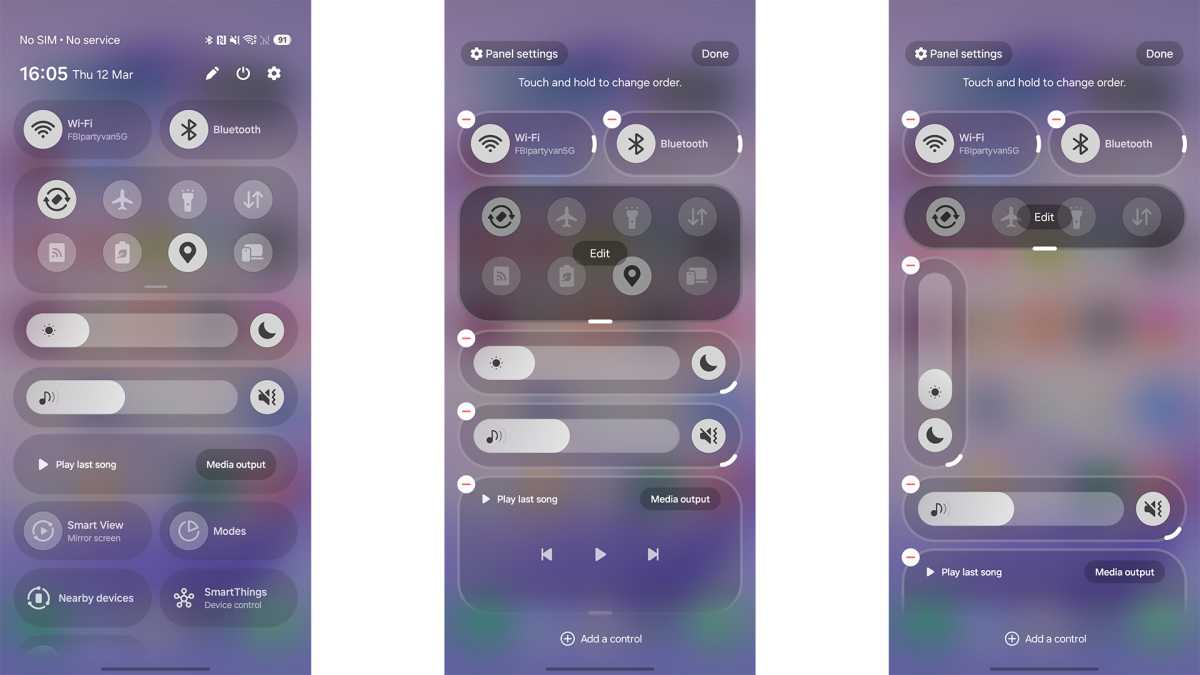
The S26 Ultra has some of the most in-depth Quick Settings customisation I have ever come across. Say, for instance, you don’t like how far you have to scroll to get to Privacy Display, you can just move it to the top.
You can also resize the buttons and sliders, and even make the sliders vertical, rather than horizontal.
Luke Baker
How? Just pull down the Quick Settings shade by swiping down from the upper right side of your screen. There are three icons at the top right. Tap on the Pencil icon to start editing.
You’ll then see grab handles to make elements larger or smaller, a minus symbol to remove controls, and a plus symbol to add more. You can make it as busy or as minimal as you like.
3. Boost the resolution
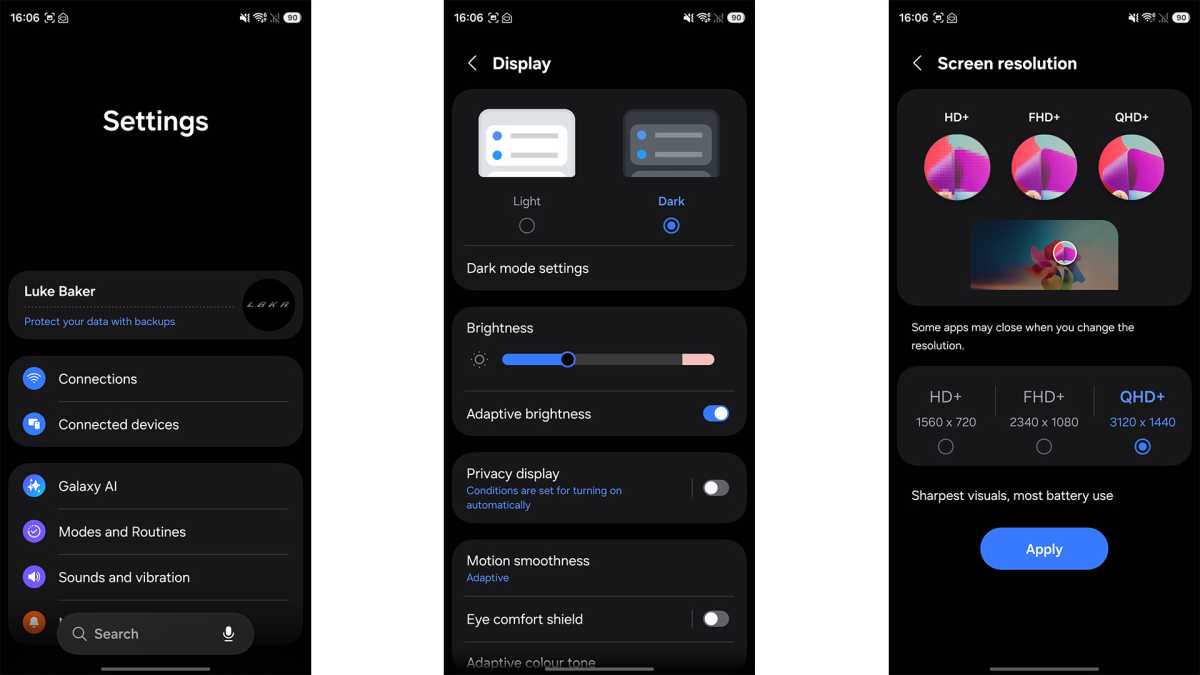
The Samsung Galaxy S26 Ultra ships with the display running at 1080p. There’s nothing new about that. It makes the battery last longer, and it’s still more than enough resolution for most people.
That said, if you want to make the most of the QHD+ panel, you’ll want to increase the resolution in your settings.
Luke Baker
How? Just open the Settings menu, go to Display, and then Screen Resolution. In here, you can select between HD+, FHD+ and QHD+ resolutions.
4. Save time with Now Nudge
Now Nudge is a new feature that supercharges your predictive replies. For example, if someone texts you asking for photos from last night, Now Nudge will pop up with a handy link to those photos.
It can also look up phone numbers or calendar events, depending on the context. It’s a real time-saver.
Luke Baker
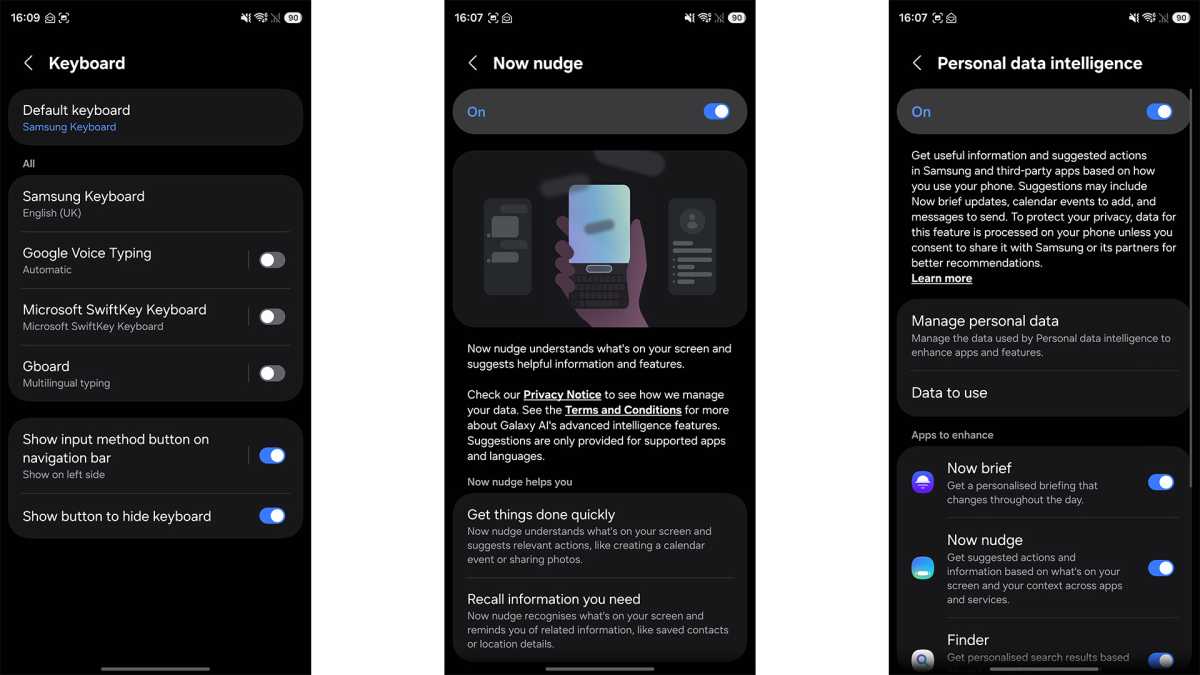
How? Now Nudge is a feature that’s built into Samsung’s keyboard, so if you want to use it, you’ll need to have Samsung’s keyboard enabled, rather than Gboard or SwiftKey. To change the keyboard, go to Settings, then General Management, and select Keyboard. Then set Samsung Keyboard as your default input method.
Next, go into Settings, tap on Galaxy AI, then choose Now Nudge. Here, you’ll find a toggle to enable the feature, and if you tap on Personal Data Intelligence, you can give Now Nudge the required permissions to work correctly.
Once that’s all set up, Now Nudge will appear in the place of your predictive replies when it sees a relevant message on your screen.
5. Make images with Creative Studio
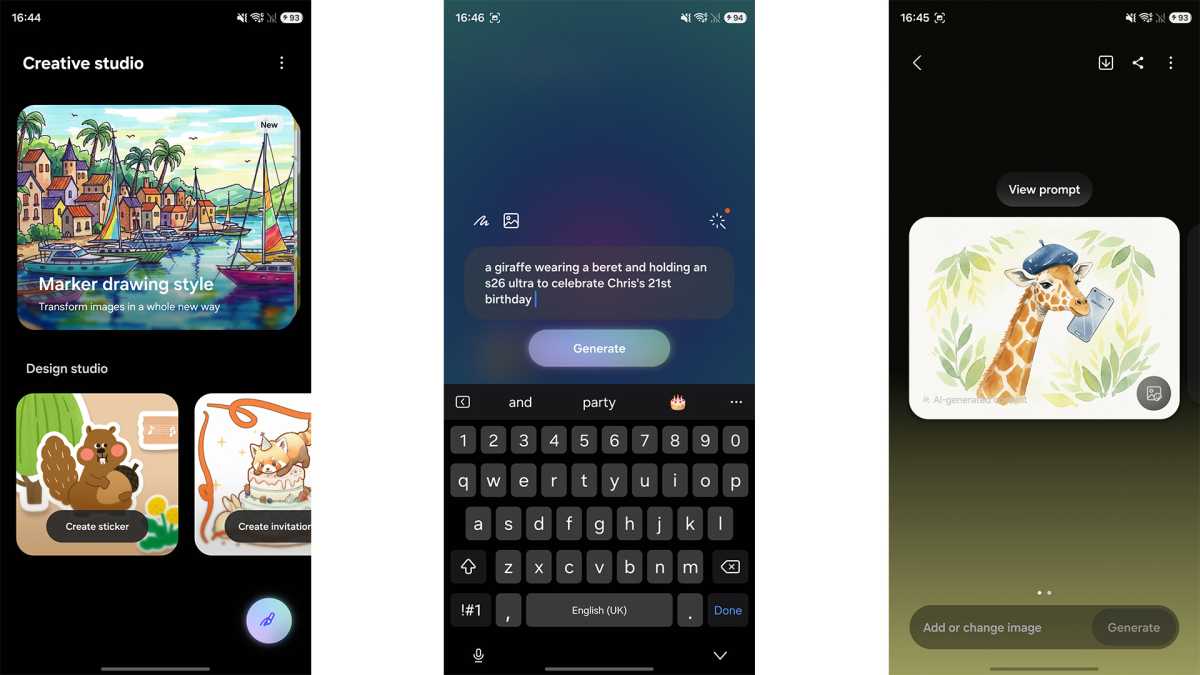
Creative Studio is a new app that lets you use AI to make stickers, wallpapers, invitations and greeting cards to share with your friends and family.
All you need to do is type your idea in plain English, for example: “A giraffe wearing a beret and holding an S26 Ultra” and Creative Studio will make it appear in a matter of minutes.
Luke Baker
How? Go into your Settings menu, tap on Galaxy AI, then Creative Studio. There’s a toggle to enable the feature, and once it’s enabled, a new app will appear on your home screen.
Open the Creative Studio app and select the type of artwork you require. Then you can either type your idea or draw a doodle, and AI will do the rest.
6. Switch up your voice assistant
One of the big changes with this generation is that Bixby has returned, and it’s much smarter than before. But of course, you can still use Gemini or Perplexity if you prefer.
The big advantage of Bixby is that it can take more control over your phone’s settings, since it’s native to Samsung. So, if you don’t know how to do something, you can just ask Bixby to do it for you. However, in my experience, Gemini is still better for finding information.
Luke Baker
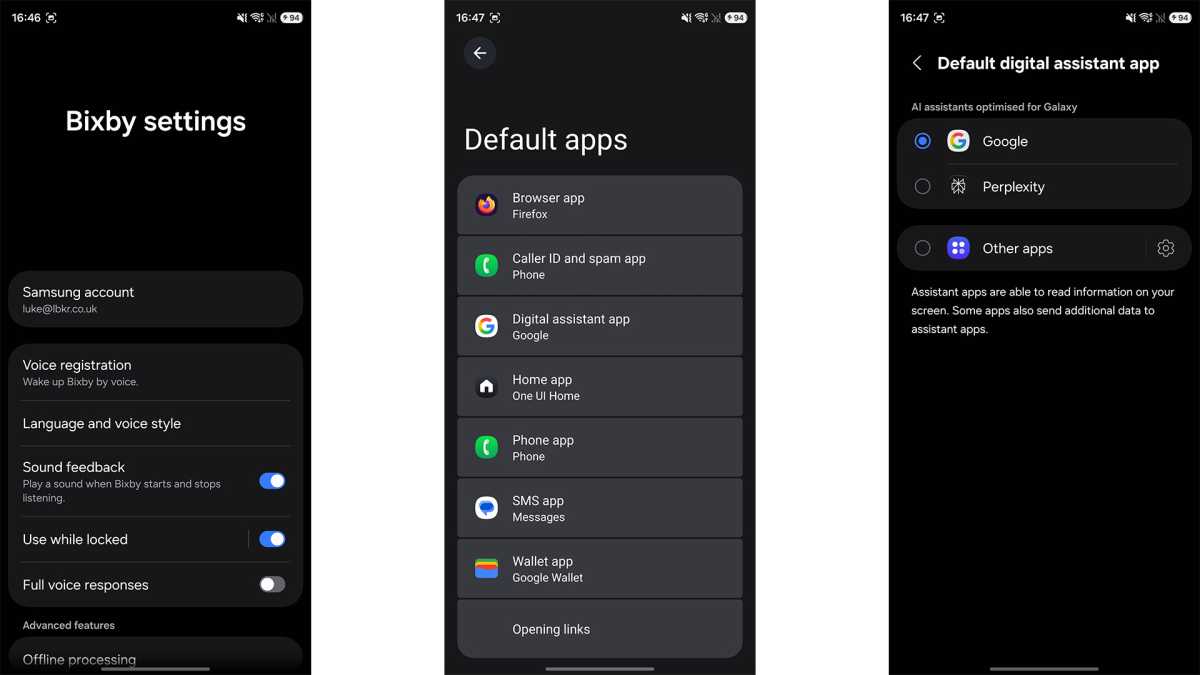
How? Go to Settings, search for “Bixby” and then tap Bixby Settings. In this menu, you can set Bixby to respond to your voice or a press of the power button.
You can also switch your voice assistant to Perplexity if you want to try something else entirely. To do this, open Settings, go to Apps, then Choose default apps. In this menu, use the Digital Assistant app options to switch between voice assistants.
7. Turn on Call Screening
Another excellent new feature of this S26 models is the ability to screen calls from unknown numbers. If you get a suspicious-looking phone call, you can have an AI assistant answer the phone and ask the caller who they are and what they’re calling about.
You’ll see the entire interaction transcribed on your screen, and then you can decide whether you want to answer or not. It’s a game-changer if you get a lot of spam calls – and who doesn’t these days?
Luke Baker
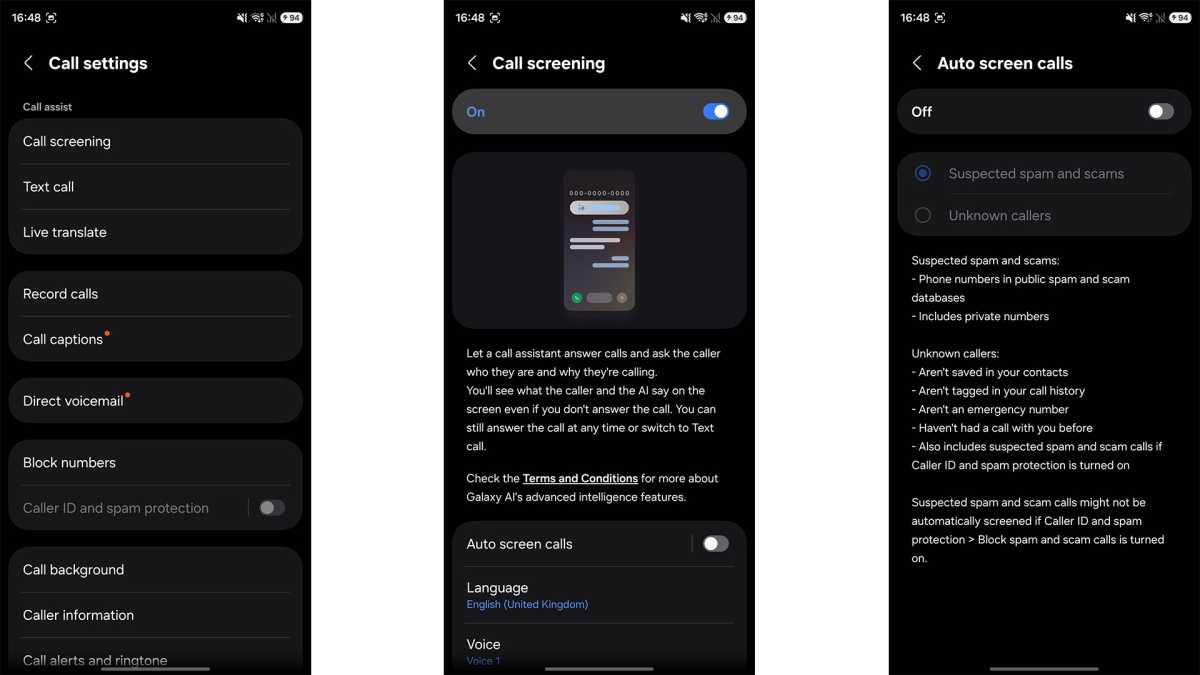
How? Go to Settings, then Apps, then Samsung app settings, and choose Call settings. Tap the Call screening option, and enable it with the toggle at the top.
In this menu, you can also choose a voice, default language, and whether you want it to automatically screen suspect scam calls or not.
8. Use Audio Eraser on YouTube, Netflix and Instagram
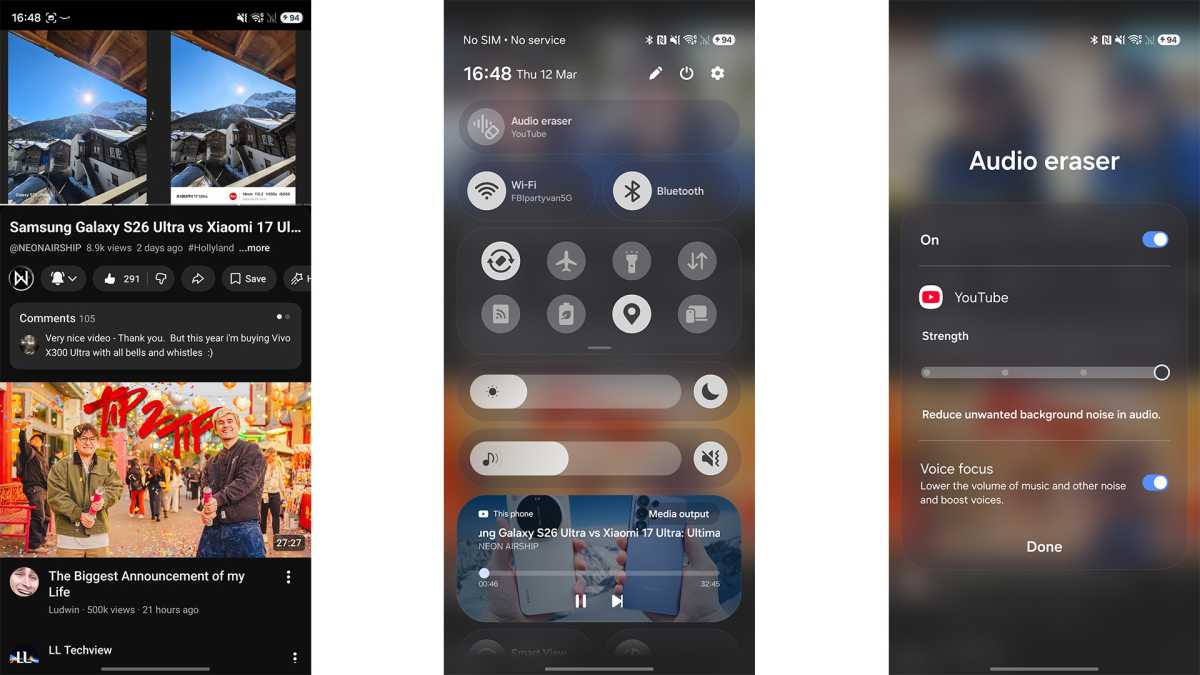
Audio Eraser was introduced last year as a way to clean up background sound on videos recorded with your phone. Now, though, you can use this handy feature on other content, too.
If you’re watching a YouTube video and are struggling to hear the dialogue over background sounds, Audio Eraser can save the day, lowering unwanted noise and boosting voices.
Luke Baker
How? When a video is playing on a compatible app (such as Netflix, YouTube, or Instagram) swipe down from the upper-right side of your screen to open the Quick Settings shade.
You should see a new button at the top of the settings menu that says Audio Eraser. Tap on that, and you’ll be able to toggle the feature on and off, adjust the strength, and enable or disable Voice Focus.
9. Create smooth videos with Horizontal Lock
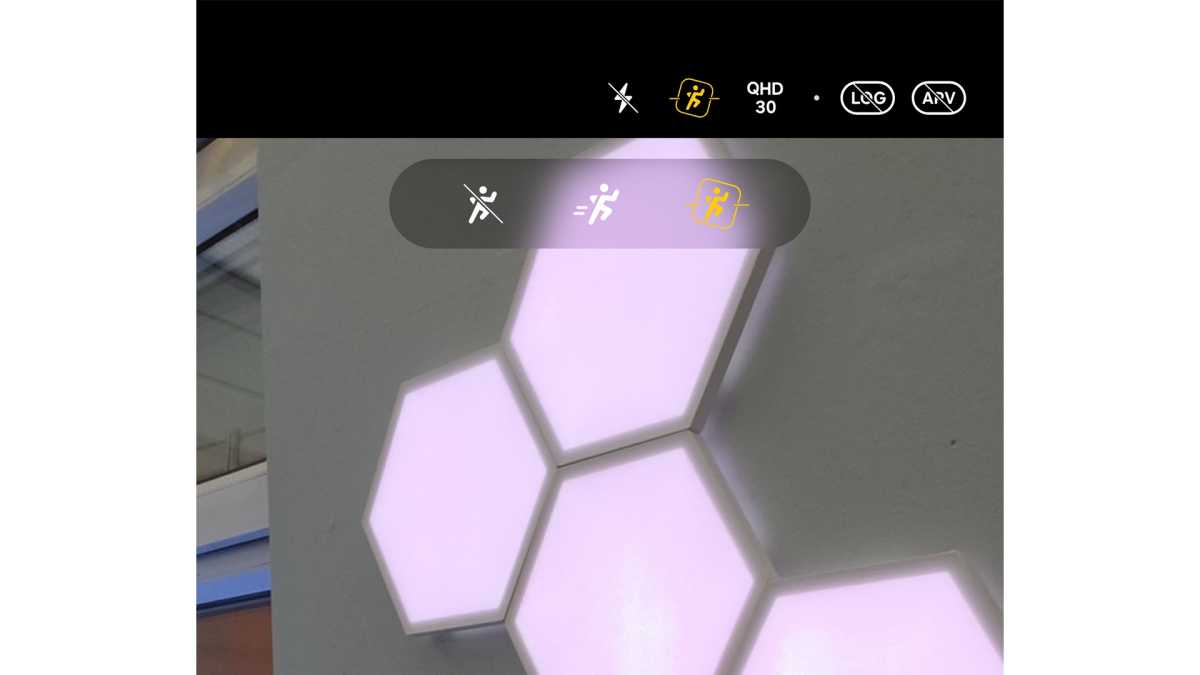
The new Horizontal Lock stabilisation mode is another crowd favourite. It means your videos will keep the horizon level, no matter how much you tilt the phone. You can even spin the phone 360 degrees, and the resulting video will be perfectly level.
Luke Baker
How? To enable Horizontal Lock, open the Camera app, switch to Video mode, and look for a symbol that looks like a running man at the top of your screen. Tap on the running man symbol, and you’ll be able to select between Super Steady mode and Horizontal Lock mode.
It’s worth noting that the Horizontal Lock mode is only available when Log recording is disabled, and the final resolution will be lowered to QHD.
10. Use APV for professional video
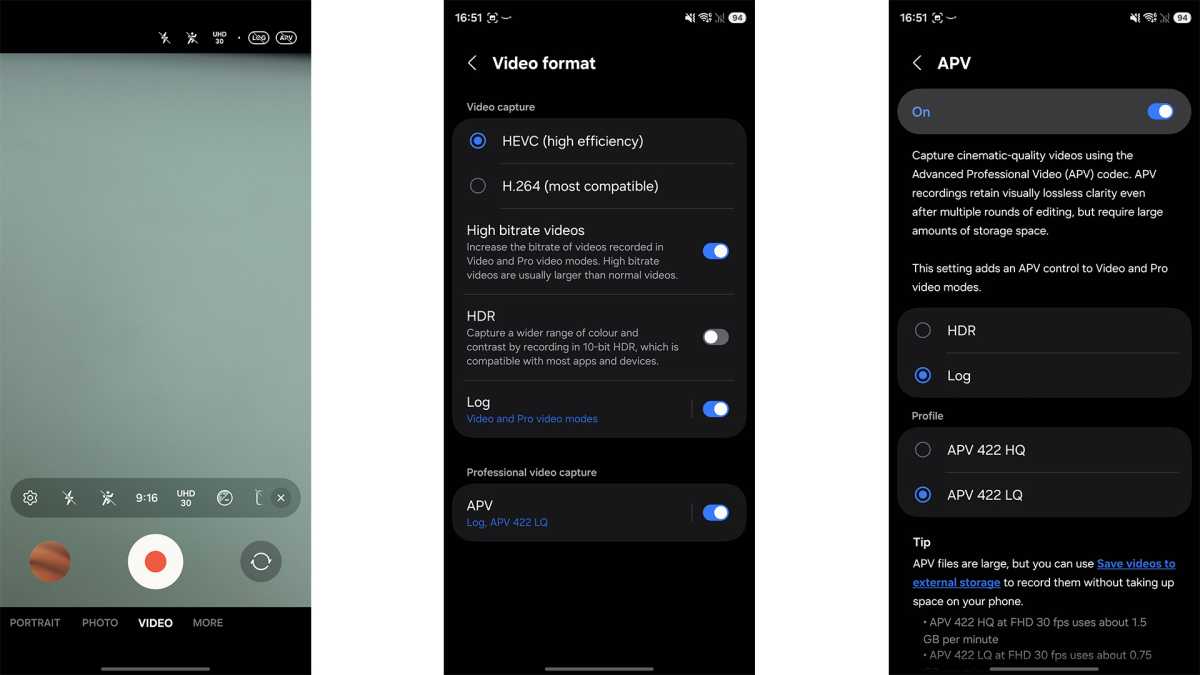
The other big addition to the camera app is a new codec called APV (Advanced Professional Video). This is similar to Apple’s ProRes format, and it’s designed for professional video productions, rather than casual clips.
APV gives you much higher image fidelity with a wider colour gamut for editing flexibility. One of the key benefits is that APV clips will retain their quality, even after multiple edits. But be warned: the file sizes are humongous (up to 1.5GB per minute of recorded video). This is really only for professional shooting.
Luke Baker
How? First, you’ll need to ensure that APV is enabled in your settings. Go to the Camera app, tap the four dots icon to access additional settings, then tap the Cog icon to enter the full settings menu. In here, tap Video format and then toggle on APV.
You can also use this menu to switch between HDR and Log profiles, as well as select either 422 HQ or 422 LQ compression. There’s even a handy link in this menu that can enable recording to external SSDs; you’ll probably want that enabled, too.
Once that’s done, APV can be turned on or off via a dedicated button at the top of your screen in the camera app, next to the Log option.