Any links to online stores should be assumed to be affiliates. The company or PR agency provides all or most review samples. They have no control over my content, and I provide my honest opinion.
Startech Thunderbolt 5 Universal Docking Station Review
Startech Thunderbolt 5 Universal Docking Station Review
Summary
he Startech Thunderbolt 5 Universal Docking Station delivers exactly what I would expect from a modern TB5 dock: high bandwidth, stable triple display support and strong overall connectivity, all at a price that undercuts much of the competition. In day-to-day use, it proved reliable, fast and well suited to business deployments as well as demanding home setups.
The combination of three external display outputs, 2.5GbE networking and up to 140W power delivery makes it particularly compelling for power users and MSP environments where simplicity and performance matter. While the design is functional rather than premium, and the lack of Thunderbolt 3 compatibility may limit some legacy use cases, these feel like reasonable trade-offs at this price point.
For anyone investing in a Thunderbolt 5 laptop and wanting to unlock its full potential with a single-cable setup, this is one of the strongest value options currently available in the UK market.
Pros
-
Excellent value for TB5
-
Triple 4K display support
-
Fast 2.5GbE networking
-
Strong 140W power delivery
-
Three-year manufacturer warranty
Working at an MSP providing IT support for companies, docking stations are an essential peripheral to have for modern working environments.
Most clients now use laptops, and most of them use at least dual external monitors, making a docking station a necessity. They simplify things considerably, allowing clients to plug one cable into their laptop to connect monitors, keyboard, mouse and more. There is no messing around with multiple cables or adaptors – just a single Thunderbolt connection and everything is up and running.
Granted, most clients do not use laptops with Thunderbolt 5 yet. The standard is still relatively new, and adoption is only just picking up pace with recent laptops from Dell, Lenovo, HP, ASUS and Apple’s M4 Pro and M4 Max MacBook Pros. However, if you are a power user, creator, or just anyone who wants to get the maximum performance from a TB5-equipped laptop (or desktop), then a TB5 dock is needed. They are not cheap, but then again, nor are laptops with TB5.
Startech have traditionally been a brand I associate with the enterprise and business market. Their products tend to prioritise function over form, and they are often priced higher than consumer-focused brands like Anker or Ugreen. So when I found out their Thunderbolt 5 dock was actually one of the most affordable on the market, I was genuinely surprised. Let’s see if the performance matches the price.
Related Reviews
What is Thunderbolt 5?
Before getting into the dock itself, it is worth briefly covering what Thunderbolt 5 actually brings to the table, because the jump from TB4 to TB5 is quite substantial.
Thunderbolt 5 doubles the baseline bandwidth of Thunderbolt 4, jumping from 40 Gbps to 80 Gbps of bi-directional data transfer. On top of that, there is a feature Intel calls Bandwidth Boost, which can push throughput up to 120 Gbps in a single direction. This works by using an asymmetric mode where three of the four data pipelines are allocated to transmit, leaving one for receive. The system activates this automatically when you connect high-resolution or high-refresh-rate displays that demand the extra bandwidth.
In practical terms, this means TB5 can support up to three 4K displays at 144Hz, two 8K displays at 60Hz, or a combination of high-resolution panels that would have been impossible on TB4. The PCIe data throughput has also doubled from 32 Gbps (PCIe Gen 3) to 64 Gbps (PCIe Gen 4), which translates to noticeably faster external SSD and eGPU performance. Power delivery has been increased too, with the standard supporting up to 240W, though individual docks and laptops will vary in how much they actually deliver or accept.
The underlying technology uses a new signalling method called PAM-3, which transmits 1.5 bits per clock cycle rather than the single bit used by TB4’s NRZ encoding. The clever part is that this increased performance works with existing passive cables up to one metre in length and does not require fundamental changes to PCB design, keeping costs manageable.
It is worth noting that TB5 remains fully backwards compatible with Thunderbolt 4, Thunderbolt 3 and USB4 devices, though you will only get TB5 speeds when both the host and the peripheral support the standard.
Specification
The Startech Thunderbolt 5 Universal Docking Station (model 215UE-TB5USB4DOCK) has the following specifications.
Interface and Connectivity
- Host Connection: Thunderbolt 5 / USB4 (40Gbps) with an 80cm attached cable
- Not compatible with Thunderbolt 3 systems (except Apple M1/M2/M3 base chipsets)
- Power Delivery: 180W total (dock requires a separate 20V 8.2A power adapter)
Display Outputs
- 3x simultaneous displays supported
- 1x DisplayPort: 4K at 144Hz (DSC required for high refresh rates)
- 1x HDMI: 4K at 60Hz
- 1x Thunderbolt 5 (USB-C): Can drive a display via adaptor (4K at 60Hz with HDMI adaptor on MacBook)
- M-series Mac limitation: M1/M2/M3 base chips support a single external display only; M1/M2/M3/M4 Pro/Max support dual
USB Ports
- 2x USB-C (10Gbps, 30W power delivery each)
- 1x USB-C (10Gbps, 18W power delivery)
- 1x USB-A (10Gbps)
- 2x USB-A (5Gbps)
Other Connectivity
- 2.5 Gigabit Ethernet (backwards compatible to 1G/100Mb/10Mb)
- 3.5mm combo audio jack (CTIA standard – headphone and mic)
- SD card reader (full-size)
- microSD card reader
Additional Features
- UASP support for faster external drive performance
- Wake-on-LAN support
- Kensington lock slot (standard K-slot and Nano)
Compatibility
- Windows 11, macOS Sequoia (15.0) and later
- Requires Thunderbolt 4/5 or USB4 host (40Gbps) – TB3 not supported
- Startech recommends using identical monitors for best results
Warranty
Dimensions and Weight
- 140mm x 150mm x 50mm
- 545g (dock body only, cable adds extra)
High refresh rates may require Display Stream Compression (DSC) support from both your monitor and GPU. Bit depth and colour depth might be reduced to achieve higher refresh rates.
Design / Ports
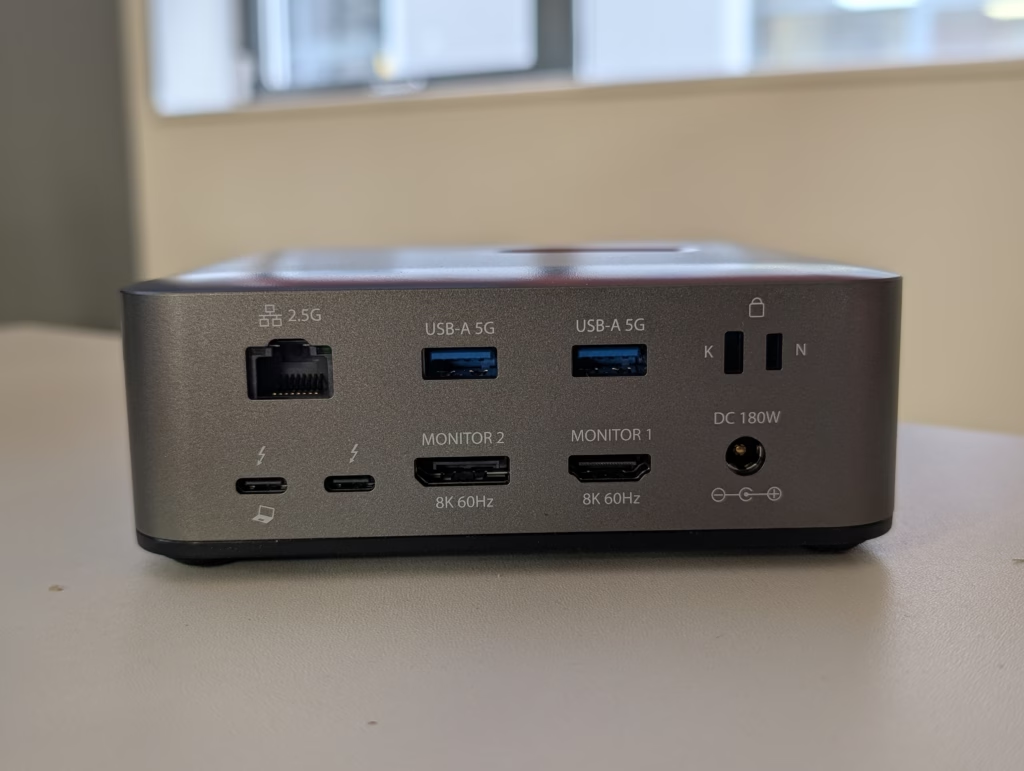
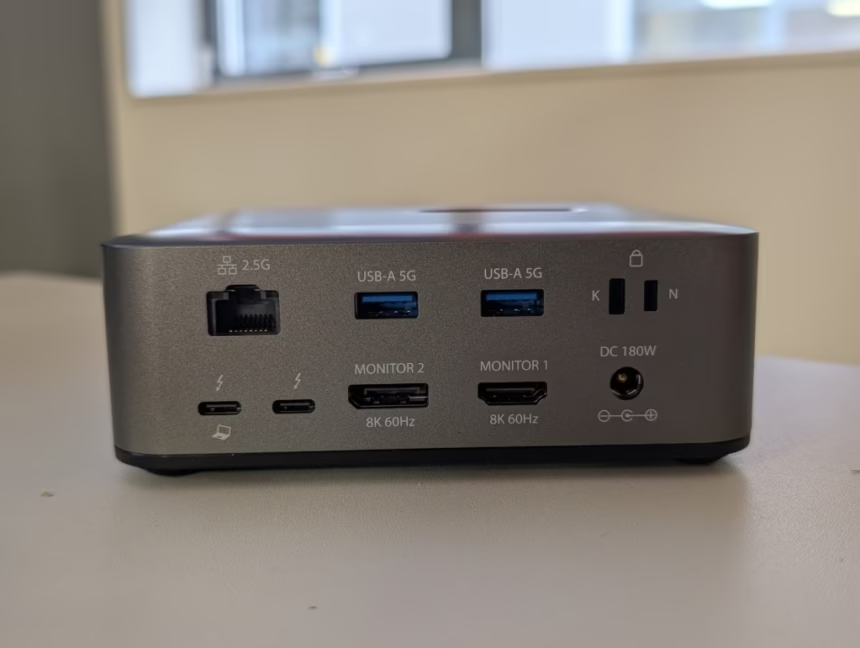
Docking stations are not really stylish devices, with most of them being grey square boxes. This is no different, being very utilitarian and it does not look quite as nice as the cast aluminium used on devices like the Ugreen Revodok Max 213 Thunderbolt 4 Dock or the OWC Thunderbolt Go Dock..
However, it is well made and has a good port selection. The build quality feels solid enough, and it has a reasonable weight to it that stops it from sliding around your desk when you are plugging cables in and out. The rubber feet on the base help with this too.
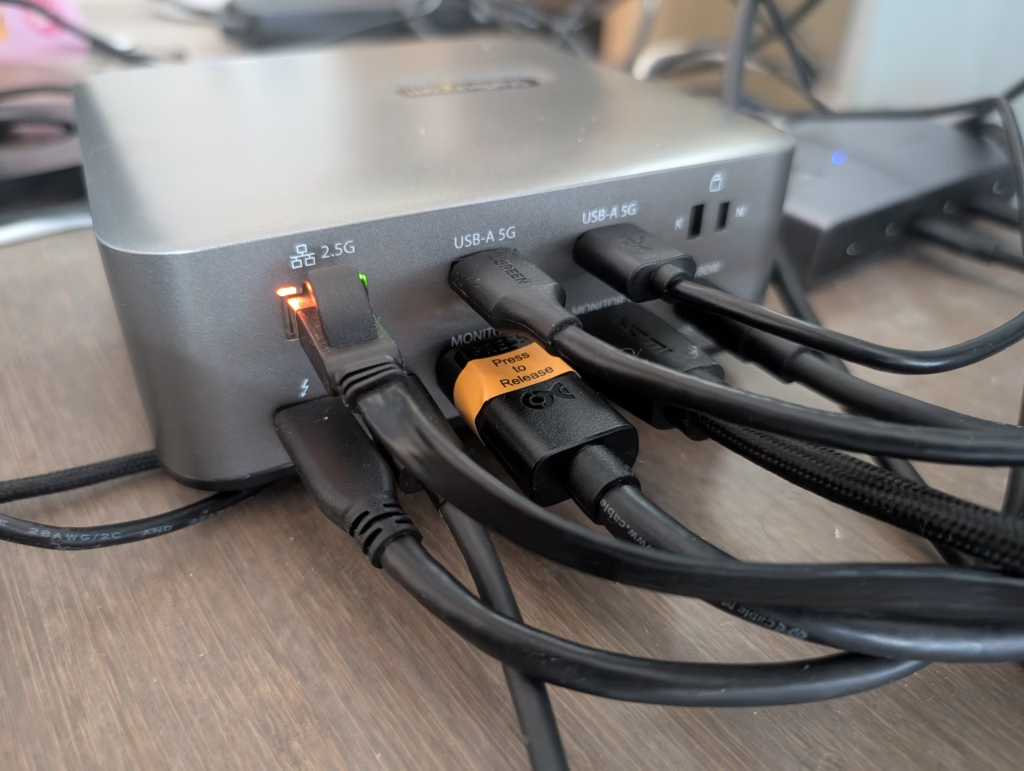
On the rear, from the top left to bottom right, you have a 2.5GbE port, 2x USB-A ports capable of 5Gbps, a Kensington lock slot, the host Thunderbolt port, a secondary Thunderbolt port which is also used for the third display, then a DisplayPort, HDMI port and finally the 180W DC barrel port.
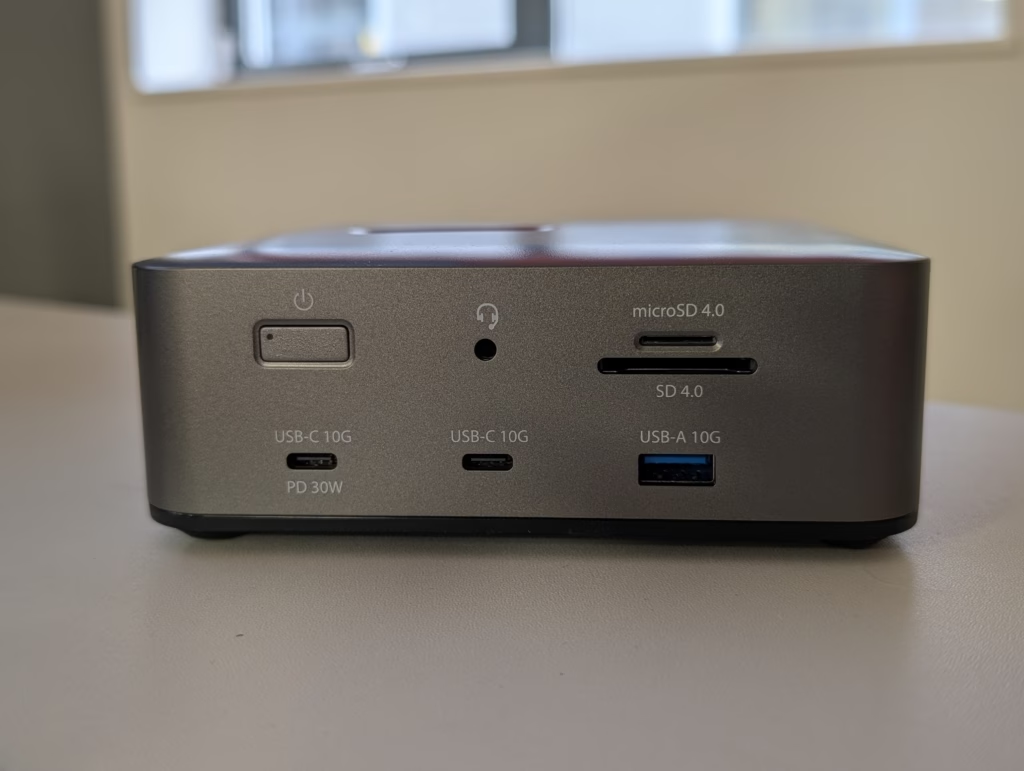
On the front, you get the remaining USB ports, the SD and microSD card readers, and the 3.5mm audio jack. This is a sensible layout, putting the ports you are likely to use frequently on the front and the more permanent connections on the rear. I prefer this approach over docks that put everything on the back, as it means you do not need to reach around the device every time you want to plug in a USB drive or pop in an SD card.
One thing I would say is that the overall aesthetic is quite plain compared to some of the competition. The Ugreen and CalDigit docks, for example, use a solid aluminium chassis that looks a bit more premium and professional. This is not a dealbreaker by any means – most docks spend their lives hidden behind a monitor or tucked under a desk – but if you care about how your workspace looks, it is worth keeping in mind.
Performance – Displays
One of the main selling points of this dock is that it supports three simultaneous displays. This is where Thunderbolt 5’s increased bandwidth really shows its value, as most TB4 docks are limited to two external displays.
However, the port selection for those three displays is limited to:
- 1x HDMI
- 1x DisplayPort
- 1x USB-C (via the secondary Thunderbolt port)
There is a good chance you may need to use an adaptor, particularly with the USB-C port. If your monitors all use HDMI or all use DisplayPort, you will need to factor in the cost of an adaptor or two. It would have been nice to see two DisplayPort outputs or two HDMI outputs for more flexibility, but the mix of different connector types is fairly standard across TB5 docks at this price point.
I initially tested this with my work laptop, a Dell 16 Pro Plus. Unfortunately, I quickly realised this only supports three monitors in total, including the laptop display, so I was unable to drive all my work displays simultaneously. This is not a fault of the dock but of the Intel chipset in that particular laptop. AMD chipsets and higher-specced Intel processors can support four displays (three external plus the laptop screen). Closing the laptop lid allowed me to drive three external monitors via the docking station without any issues.
This is a good reminder that your laptop’s GPU and chipset determine how many displays you can actually use, not just the dock. Before buying any multi-display dock, it is worth checking your laptop’s specifications to confirm how many external displays it can support. This catches a lot of people out, particularly with some of Intel’s mid-range mobile chipsets and Apple’s base M-series chips, which are limited to a single external display.
I also tested it with my home monitors. In this setup, I have a Samsung C49RG90 49-inch Super Ultrawide Monitor, which runs at 5120 x 1440, then a 32 4K monitor. The dock had no problems with these monitors and handled the mixed-resolution setup without any issues. Both displays were detected immediately and ran at their native resolutions and refresh rates.
For Mac users, it is worth noting the display limitations. Base M1, M2 and M3 chips are limited to a single external display, even with a TB5 dock. You need the Pro or Max variants of these chips to take advantage of multi-display support. The M4 Pro and M4 Max MacBook Pros support TB5 natively and can drive multiple high-resolution displays through this dock. Apple’s base M4 chip does support two external displays via Thunderbolt, which is an improvement over the previous generation.
Performance – USB / Thunderbolt File Transfer
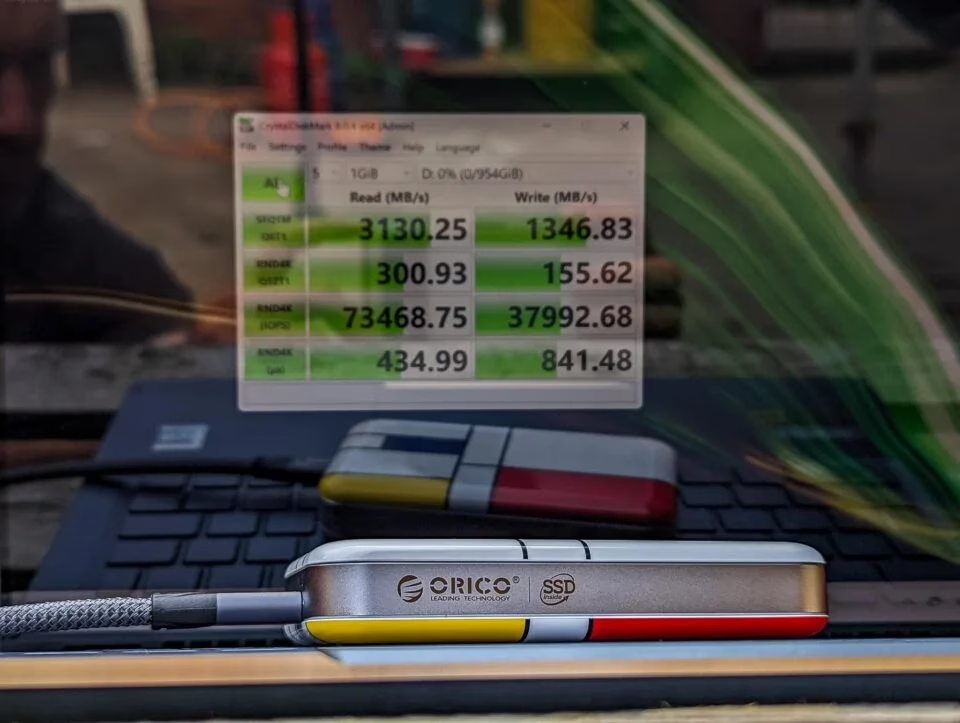
File transfer speeds are superb, as you would expect from a Thunderbolt 5 dock. I do not currently have a device that can saturate a TB5 port’s full bandwidth – you would need a PCIe Gen 4 x4 NVMe enclosure to get anywhere close to the theoretical limits – but I do have the Orico USB4 SSD. With this, I was able to achieve read speeds of over 3,130 MB/s, which is equivalent to roughly 25 Gbps. That is well below the peak throughput of either TB4 or TB5, but it confirms the dock is not introducing any bottleneck at these speeds.
To put that into perspective, 3,130 MB/s means you could transfer a 50GB file in about 16 seconds. For anyone working with large video files, RAW photo libraries or virtual machine images, this kind of speed makes a real difference to your daily workflow.
The dock supports UASP (USB Attached SCSI Protocol), which improves performance with compatible external drives by reducing CPU overhead and improving command queuing. If you are using a modern USB 3.0 or faster external drive, it should automatically take advantage of UASP for better transfer speeds compared to the older BOT (Bulk-Only Transport) protocol.
As faster TB5 NVMe enclosures come to market, this dock should be able to handle significantly higher speeds. The TB5 standard supports up to 80 Gbps of bidirectional data throughput, so there is plenty of headroom for future storage devices. It is also worth pointing out that the doubled PCIe Gen 4 throughput of TB5 (64 Gbps versus TB4’s 32 Gbps of PCIe Gen 3) means external SSDs and other PCIe devices will perform noticeably better through this dock compared to a TB4 equivalent, assuming the attached device can take advantage of the extra bandwidth.
Performance – Network
Network performance is excellent and more or less matches the specification of the 2.5GbE port. Throughput is slightly lower than a native 2.5GbE port built into a motherboard, which is typical for USB-based Ethernet adaptors, but the difference is marginal in real-world use.
I can still get over 2Gbps on my Aquiss CityFibre connection when running speed tests through the dock’s Ethernet port, and a touch higher for local network transfers to my 10GbE-equipped Ugreen NASync DXP4800 Plus NAS. For most users, 2.5GbE is more than enough for both internet connectivity and local file transfers, and it is a welcome step up from the 1GbE ports found on many older or cheaper docks.
The 2.5GbE port is backwards compatible with 1Gbps, 100Mbps and 10Mbps connections, so it will work with any existing network infrastructure. If your office or home network is still running gigabit switches, you will get full gigabit speeds. If you have upgraded to 2.5GbE or multi-gig networking, as I have, you will get the full benefit of the faster port.
Wake-on-LAN is also supported, which is useful in business environments where IT teams need to remotely power on machines for updates, maintenance or remote access. This is a feature that gets overlooked on consumer docks but is quite important for enterprise and managed IT deployments.
Performance – Power Output
The dock has a 180W power brick, but some of that power is reserved for the dock itself and the PD output of the USB ports. You then have up to 140W available for the laptop via the host Thunderbolt connection.
Apart from Apple, there are only a few laptops that can accept higher than 100W power delivery over USB-C or Thunderbolt, so 140W should be more than enough for most users. Even high-performance workstation laptops from Dell, Lenovo and HP tend to max out at 100W to 140W over USB-C PD. If your laptop supports it, 140W is enough to keep it charged even under heavy load, meaning you genuinely only need one cable between the dock and your laptop for everything.
The two 10Gbps USB-C ports on the front are also capable of supplying 30W each, so you can easily charge your phone or tablet while working. There is also the third USB-C port at 18W, which is still sufficient for charging most smartphones. In total, the dock can push a reasonable amount of power out to connected accessories, which reduces cable clutter and means fewer chargers on your desk.
The 180W power brick itself is worth mentioning – it is reasonably large, as you would expect at this wattage, and uses a DC barrel connector rather than USB-C for its own power input. This is standard for high-power docking stations, but it does mean one more proprietary cable to keep track of.
Price and Alternative Options
The Startech Thunderbolt 5 docking station has an RRP of £284.39. On Amazon, this is available for around £253 at the time of writing.
Normally, Startech products are priced higher than the competition, which is one of the reasons I am often critical of the brand when comparing them to more consumer-oriented alternatives. However, in this case, the Startech TB5 dock is one of the most affordable options in its category. This is a genuine surprise and makes the value proposition much stronger than I expected.
Here is how the competition stacks up at current UK pricing:
The cheapest alternative is the Ugreen Revodok Max Thunderbolt 5 Dock. It was one of the first TB5 docks to launch and had an initial price of £380, but it has since dropped to around £280. It is worth noting that user reviews for this particular model are quite poor, which is unusual for Ugreen. I have always been happy with the Ugreen docks I have reviewed in the past, so this is a bit of an outlier.
I have previously reviewed the Anker Prime TB5 Docking Station, which has a high RRP of £400 but is currently available for around £300. It is a solid dock, but it is harder to justify the extra cost over the Startech when the feature set is broadly similar.
The Wavelink Thunderbolt 5 Dock is well reviewed and priced at around £300. The Kensington SD5000T5 EQ Thunderbolt 5 Docking Station is also around £300.
CalDigit have three options in their TB5 range: the smaller and more basic Element 5 Hub at £250, the 15-port TS5 at £400, and the 20-port TS5 Plus, which includes 10GbE, priced at £470. The CalDigit TS5 Plus is the one to look at if you need more ports and faster wired networking, but it comes at a significant price premium. The Element 5 Hub is cheaper than the Startech, but it is more of a hub than a full docking station and has fewer ports.
At around £253 on Amazon, the Startech sits at or near the bottom of the TB5 dock market on price while still offering triple display support, 2.5GbE, and a solid USB port selection. That is a difficult combination for competitors to beat.
Thunderbolt 3 Compatibility
One thing to flag is the compatibility limitations. This dock is not compatible with Thunderbolt 3 systems, with the exception of Apple M1, M2 and M3 base chipsets. If you have an older laptop with only TB3 ports, this dock will not work with it.
This is a limitation of the dock’s controller design rather than a fundamental TB5 restriction, as TB5 is technically backwards compatible with TB3 at the protocol level. Some TB5 docks from other manufacturers do support TB3 hosts, so if backwards compatibility is a priority for you, it is worth checking the specifications carefully before purchasing.
For anyone buying this dock to use with a current-generation laptop that already has TB5 or USB4, this will not be an issue. But if you are thinking of buying it now to use with an older machine and upgrading your laptop later, you may find it does not work with your current setup.
Overall
I am often quite critical of Startech due to their high pricing when compared to popular consumer brands such as Anker and Ugreen.
Things are different with this Thunderbolt 5 dock. It is one of the most affordable options on the market, and the triple monitor support is a big selling point for me and makes it better specced than many of the competing options, including the Anker and CalDigit alternatives at similar or higher prices.
Performance has been excellent as well. It can drive three monitors as advertised, and transfer speeds all align with the specifications. The 2.5GbE port delivers close to its rated throughput, the USB ports are responsive, and power delivery is generous. I did not experience any stability issues, disconnects or driver problems during testing on Windows 11.
The only minor gripe is the relatively plain design Startech uses for most of its products. Granted, docks are not stylish devices at the best of times, and some competing options are equally as plain, but I think the solid aluminium chassis you get with the Ugreen and CalDigit docks looks a bit more professional on a desk. The lack of Thunderbolt 3 backwards compatibility is also something to consider, though this is becoming less of a concern as more laptops ship with TB5 and USB4.
The three-year warranty from Startech is also worth highlighting. Startech have a well-established reputation for reliable technical support, which is something I value when recommending products for business use. When a dock fails in a client’s office, having a responsive manufacturer makes a real difference.
Overall, I think the Startech Thunderbolt 5 Universal Docking Station is excellent and I can give it a strong recommendation. It delivers the performance you would expect from a TB5 dock, offers a generous port selection with triple display support, and does so at a price that undercuts most of the competition. If you are looking for a TB5 dock and do not need the premium aesthetics of a CalDigit or the extra ports of a higher-end model, this is a very easy recommendation.
Startech Thunderbolt 5 Universal Docking Station Review
Startech Thunderbolt 5 Universal Docking Station Review
Summary
he Startech Thunderbolt 5 Universal Docking Station delivers exactly what I would expect from a modern TB5 dock: high bandwidth, stable triple display support and strong overall connectivity, all at a price that undercuts much of the competition. In day-to-day use, it proved reliable, fast and well suited to business deployments as well as demanding home setups.
The combination of three external display outputs, 2.5GbE networking and up to 140W power delivery makes it particularly compelling for power users and MSP environments where simplicity and performance matter. While the design is functional rather than premium, and the lack of Thunderbolt 3 compatibility may limit some legacy use cases, these feel like reasonable trade-offs at this price point.
For anyone investing in a Thunderbolt 5 laptop and wanting to unlock its full potential with a single-cable setup, this is one of the strongest value options currently available in the UK market.
Pros
-
Excellent value for TB5
-
Triple 4K display support
-
Fast 2.5GbE networking
-
Strong 140W power delivery
-
Three-year manufacturer warranty
Last update on 2026-02-24 / Affiliate links / Images from Amazon Product Advertising API

I am James, a UK-based tech enthusiast and the Editor and Owner of Mighty Gadget, which I’ve proudly run since 2007. Passionate about all things technology, my expertise spans from computers and networking to mobile, wearables, and smart home devices.
As a fitness fanatic who loves running and cycling, I also have a keen interest in fitness-related technology, and I take every opportunity to cover this niche on my blog. My diverse interests allow me to bring a unique perspective to tech blogging, merging lifestyle, fitness, and the latest tech trends.
I’m proud to share that Vuelio has consistently ranked Mighty Gadget as one of the top technology blogs in the UK. With my dedication to technology and drive to share my insights, I aim to continue providing my readers with engaging and informative content.