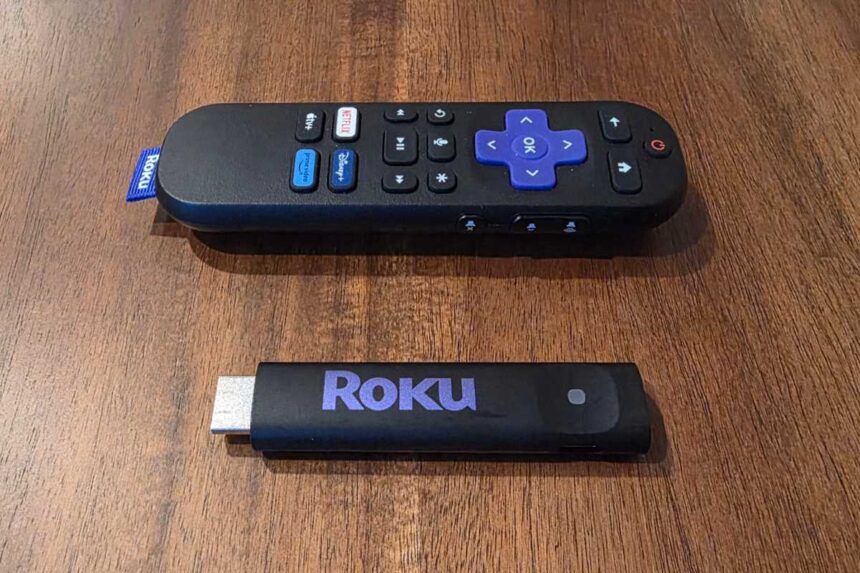
Roku TVs and streaming sticks are some of our favourite entertainment devices at Tech Advisor due to the wide range of apps and easy-to-use interface.
However, even if you buy something new, such as the Roku Streaming Stick Plus, this tech can slow down over time for various reasons. As such, this can cause longer loading times – delaying you from tuning into big TV moments quickly, like your favourite NFL game or the latest episode of The Traitors.
If that’s happening to you, then there are a few methods you can try to clear the cache and get your device working as normal again. Here are the key solutions to try, from quick fixes to more radical options if others aren’t working.
1. Restart your Roku
You don’t have to immediately resort to a factory reset if you don’t want to. Roku offers two ways of restarting your device, and spoilers, it’s more than just turning it off and on again (sort of).
There are two ways you can do it. The first is via the Home screen:
- Go to the Settings
- Select ‘System’
- Select ‘Power’
- Click ‘System Restart’
- Confirm choice by pressing ‘Restart’
Alternatively, you can trigger a restart by using the remote – this is useful if your device is frozen or unresponsive:
- Press the Home button on your remote five times
- Press the Up arrow button once
- Press the Rewind button twice
- Press the Fast Forward button twice
Your Roku TV device should then restart from here.
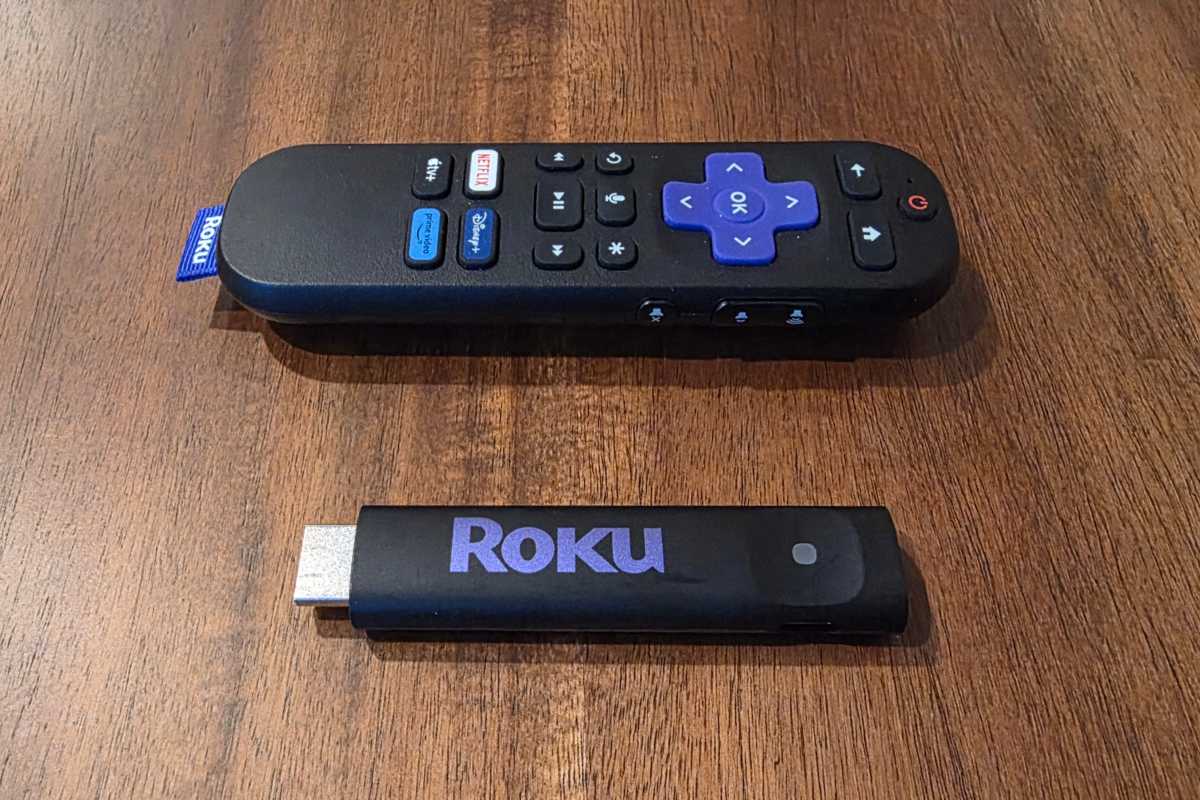
Jared Newman / Foundry
2. Unplug your Roku
If restarting your Roku via the remote isn’t giving any joy, then you could try a more manual approach.
If you’ve got a Stick or Box, turn off your TV and take it out of the HDMI slot. If you’ve got a TV, turn it off and unplug it at the wall. Roku advises waiting at least ten seconds before plugging everything back in, but you can wait longer if you want to be safe.
It’s also worth some simple checks of the wires and batteries of your remote to see if these may be affecting the responsiveness of your stick/box/TV.
3. Check the app you’re having issues with on your Roku
If you’re only having problems with one particular streaming app, such as Amazon Prime Video or Netflix, then the problem may not even be with your device directly – it could be a wider issue with a specific app.
We’ve seen this happen before, and you can usually see the status of apps using websites such as Downdetector. Alternatively, searching social media or the Roku Reddit page is a sure way to see if anyone else is experiencing the same issues.
If you’re having no luck there, then you can try uninstalling and reinstalling the app (or apps) you’re having issues with. Here’s how:
- Select (but don’t open) the app you want to uninstall
- Press the * button on the Roku remote
- Select ‘Remove channel’
- Reinstall the app
- Sign back in and make sure any settings are up to date
4. Reset your Roku’s Wi-Fi connection
No, we’re not asking you to reboot your entire broadband network here. This is more looking at your Roku TV’s direct connection to your internet, which may not be running as normal.
Here’s what you need to do:
- Go to the Settings
- Select ‘System’
- Select ‘Advanced System Settings’
- Select ‘Network Connection Reset’
- Select ‘Reset Connection’
- Wait for your Roku TV device to restart
- Select ‘Network’
- Select ‘Set Up Connection’
- Select ‘Wireless’
- Choose your Wi-Fi network from the list
- Enter your Wi-Fi password
- Select ‘Connect’
When you do this, any connected devices such as soundbars may also lose connection, so you may need to set these up again.
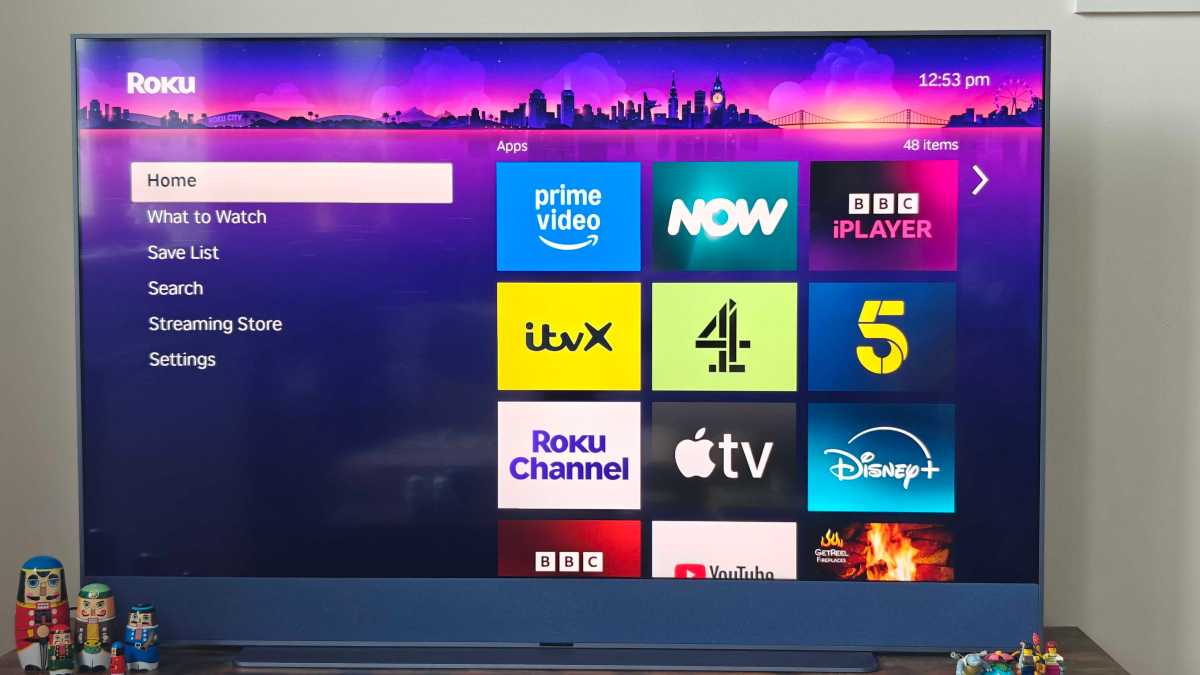
Hannah Cowton-Barnes / Foundry
5. Factory reset your Roku
If you’ve exhausted all the options above and are having no luck, then sometimes the last thing to try is a full hard reboot. This is the most annoying option, as you’ll lose all your login details and passwords to apps, as well as your user profiles, viewing preferences etc.
If you’re willing to make those sacrifices, here’s what you need to do:
- Go to the Settings
- Select ‘System’
- Select ‘Advanced System Settings’
- Select ‘Factory Reset’
- Enter the confirmation code that appears below the number pad
- Select ‘Start Factory Reset’
Your Roku will then take a few minutes to fully reboot.
If all the above still doesn’t work, then we’d advise you to head to Roku’s support pages to see if the company can help in any other ways.