Summary created by Smart Answers AI
In summary:
- Tech Advisor outlines seven essential Android privacy settings that users should adjust to protect personal data from unnecessary app tracking and permissions.
- These settings matter because many apps request excessive permissions for advertising purposes, potentially compromising user privacy and device performance.
- Key adjustments include managing app permissions, disabling usage diagnostics sharing with Google, deleting advertising IDs, and restricting background activity for non-essential applications.
Increasingly, our phones carry a huge amount of personal information we need to keep secure, from banking apps to contacts to health data.
Research by NowSecure in 2025 found that around 70% of Android apps accessed both sensitive data and tracking domains, while more than 60% requested permissions such as location, camera, or microphone.
Android’s multi-layered security model is supported by privacy controls that users can review and adjust. Some inbuilt features, such as background scanning, are enabled to improve the user experience but can also result in increased background data activity. There are multiple such settings that you can tweak if they aren’t necessary for you to use your device the way you want.
To keep your phone as secure as possible, check the following Android privacy settings.
1. Review which apps have notification access
Nikhil Azza / Foundry
Have you ever noticed that a notification received on your mobile is immediately reflected on your smartwatch? That’s because Android allows some apps to mirror notifications on other devices.
This feature is mainly used by companion apps for smartwatches, fitness bands, and car infotainment systems.
However, these apps aren’t limited to accessing only app-specific notifications. They can see all notifications as they arrive.
Reviewing which apps have this access is important, as notifications can include messages, emails, and banking alerts. You should disable notification access to those apps that you don’t regularly use.
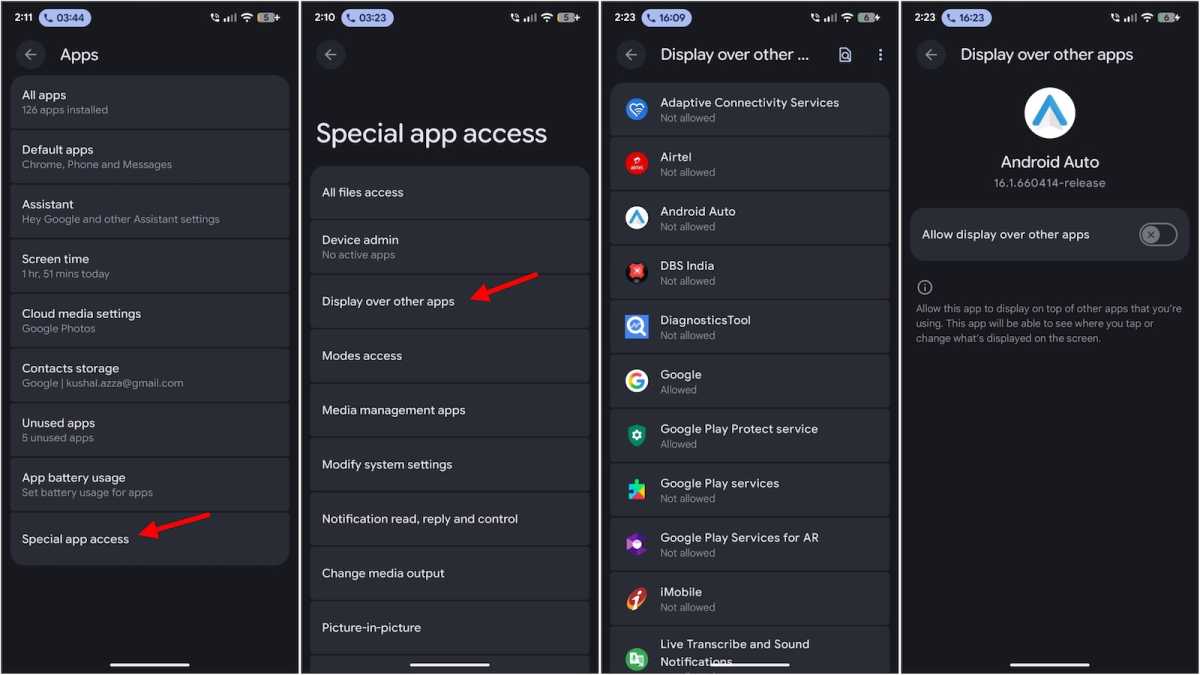
You can manage Notification access from the Settings under Apps and Special app access, where you can revoke permissions for individual apps.
2. Turn off nearby device scanning (Wi-Fi & Bluetooth scanning)
Nikhil Azza
When you’re using Google Maps, a poor GPS signal can be frustrating. Android uses a feature known as nearby device scanning to help improve location accuracy, searching for available networks nearby.
Even if you turn off Wi-Fi or Bluetooth, your phone can continue to scan for networks to improve GPS accuracy.
The feature is useful if you’re travelling somewhere remote but it does mean that your device is often doing background scans. If you don’t need highly accurate location services, it’s worth disabling this feature. It’ll help to preserve battery life, for a start.
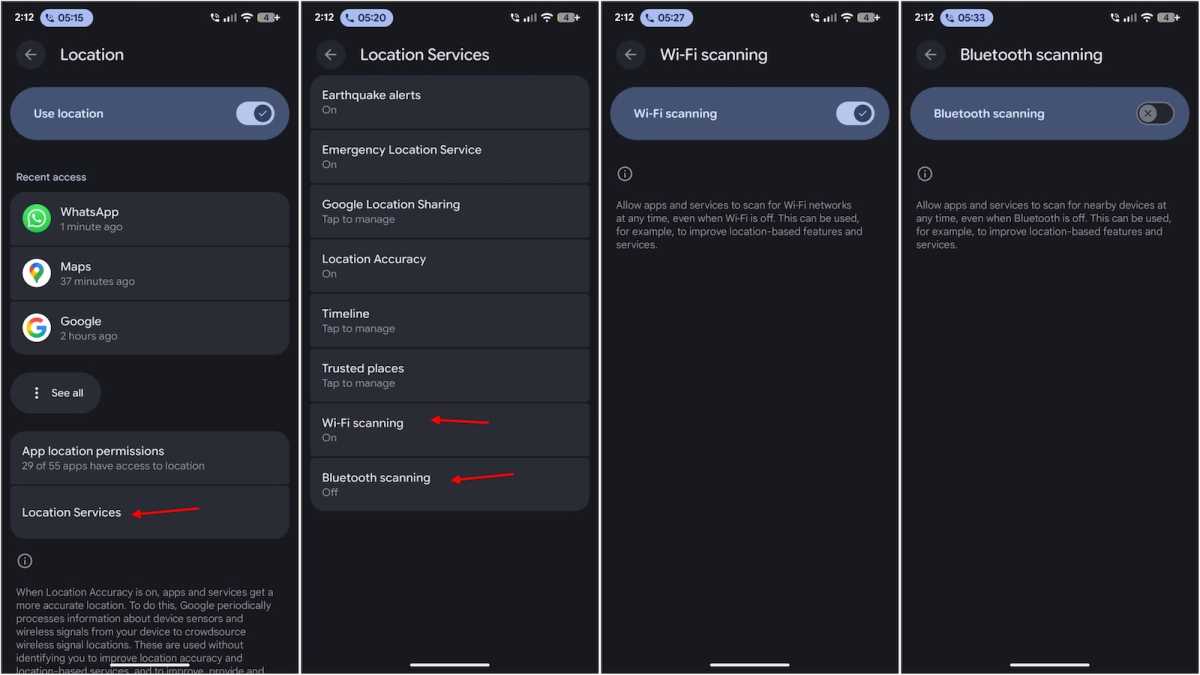
You can disable nearby device scanning by opening Location Services under Android’s Location settings. You can disable both Wi-Fi scanning and Bluetooth scanning.
3. Delete your advertising ID to limit ad tracking
On Android, you’ll probably often see ads that interest you. This ad targeting is achieved by assigning you a unique advertising ID. Google uses this advertising ID to help personalise ads based on app activity.
This can help advertisers show you more relevant ads and the ID is used to recognise the same device across different apps.
Ad networks use this ID to show you relevant interest-based ads. You can delete this advertising ID to limit how apps and ad networks use this identifier.
Even if you delete the ID, you will still see ads but they’ll be less relevant.
Without the advertising ID, it’s harder for apps to build an advertising profile of your activity. You can delete the ID by going to Privacy under Android Settings, selecting Ads, and deleting the advertising ID option.
4. Turn off usage & diagnostics data sharing with Google
Nikhil Azza / Foundry
Android has an option to share usage and diagnostics data with Google. The data shared is used to improve Android stability and performance, and to fix bugs. The data can include device logs, crash reports, and performance data. New OS updates come with needed fixes.
The option to send data is enabled by default on many devices. Your device doesn’t need this option to be turned on. It can still work without sharing this information.
Turning this off doesn’t have any effect on your Android or its features but it may limit the diagnostic information Google receives in case you experience bugs or crashes.
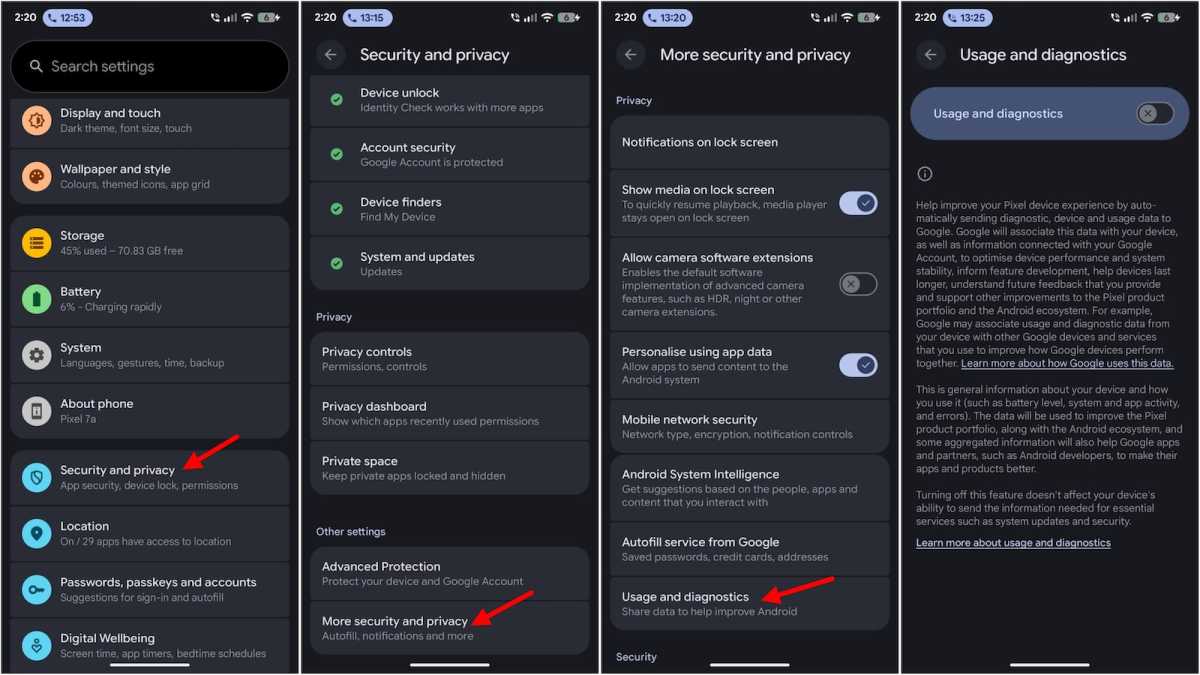
You can safely turn off usage and diagnostics data sharing under More security and privacy within the Privacy section in your phone’s Settings.
5. Review apps with a “Display over other apps” permission
Android allows certain apps to draw over other apps’ screens. This feature lets the app appear on top of anything you’re doing. This works by placing floating buttons or overlays over other apps. This is especially useful when you want to keep chat heads on the screen or add floating tools for quick access.
Common examples include chat apps with floating chat heads, screen recorders, and accessibility tools.
While this function is useful, not all apps need this permission. It’s worth checking which apps have this option enabled.
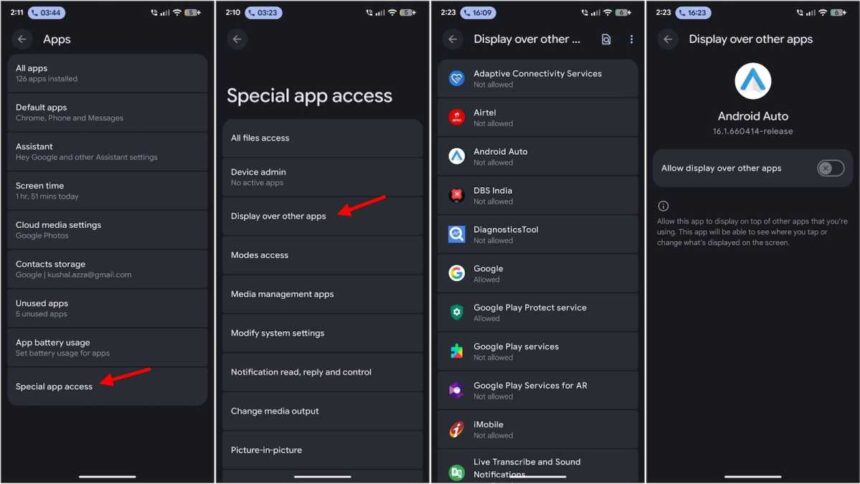
You can remove the overlay permission for those apps that genuinely don’t require the floating features. You can manage the overlay permission from the Special app access section in your phone’s Settings.
6. Decide which apps need unrestricted battery usage
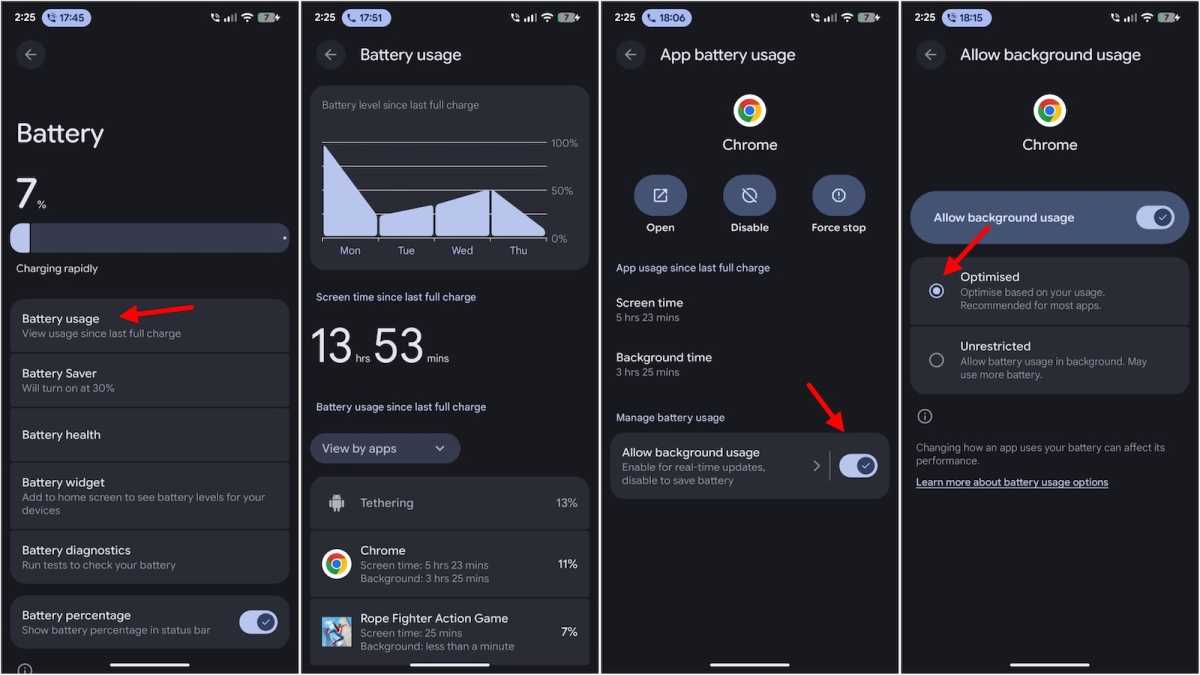
Your navigation, fitness tracking, and messaging apps need to run in the background and stay active to keep collecting the information they need. For background activity, unrestricted battery usage is vital to the way they operate.
While background activity is useful for specific apps, it’s unnecessary for most. You should review and stop unnecessary apps from running in the background and allow only essential apps to have unrestricted battery access.
Apps such as a browser or YouTube don’t need to stay active. You can manage background activity from the battery section in your phone’s Settings. Review the apps that have no restrictions and choose the optimise option for those that you deem not useful enough to be active constantly.
7. Check an app’s permissions
Nikhil Azza / Foundry
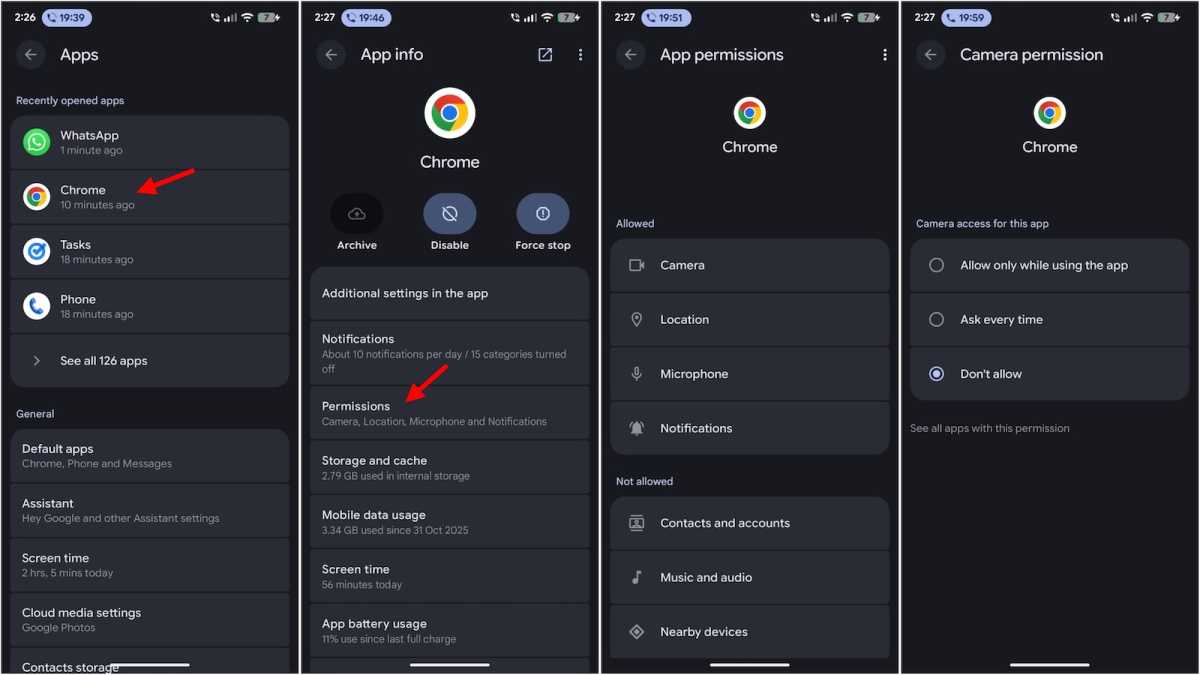
Installing an app without granting the necessary permissions can limit its functionality. Apps need access to your device data to operate as intended – take Google Maps, for example, which needs access to your location. These permissions, if allowed, give apps the right to use the information they access.
However, you can decide what data the apps can use. A few apps ask for permissions beyond their core functionality. This can contribute to data being used for advertising or tracking. If a flashlight app is asking for location or contact access, it’s worth questioning why it needs that.
You should disable any permissions that you don’t think are necessary for the app to work. This alone can significantly help with data protection.
App permissions can be managed from the Apps section in Settings, where you can review and disable permissions for individual apps.
Did you know that your phone is sharing your data at night? Here’s how to stop it.
If it’s time to upgrade your mobile, see our top recommendations for the best phone you can buy.